Open Your AI team in the plugin’s menu. It has two views: Overview, your whole team as an org chart, and Team status, one table that shows what each employee needs from you.
Overview
You are at the top, as the owner, with the line “Nothing goes live until you approve it”. Under you, each department has its own column: Research and SEO, Content, Brand, Marketing, Products, Sales and Growth. Each card shows the employee’s name and what it sends you.
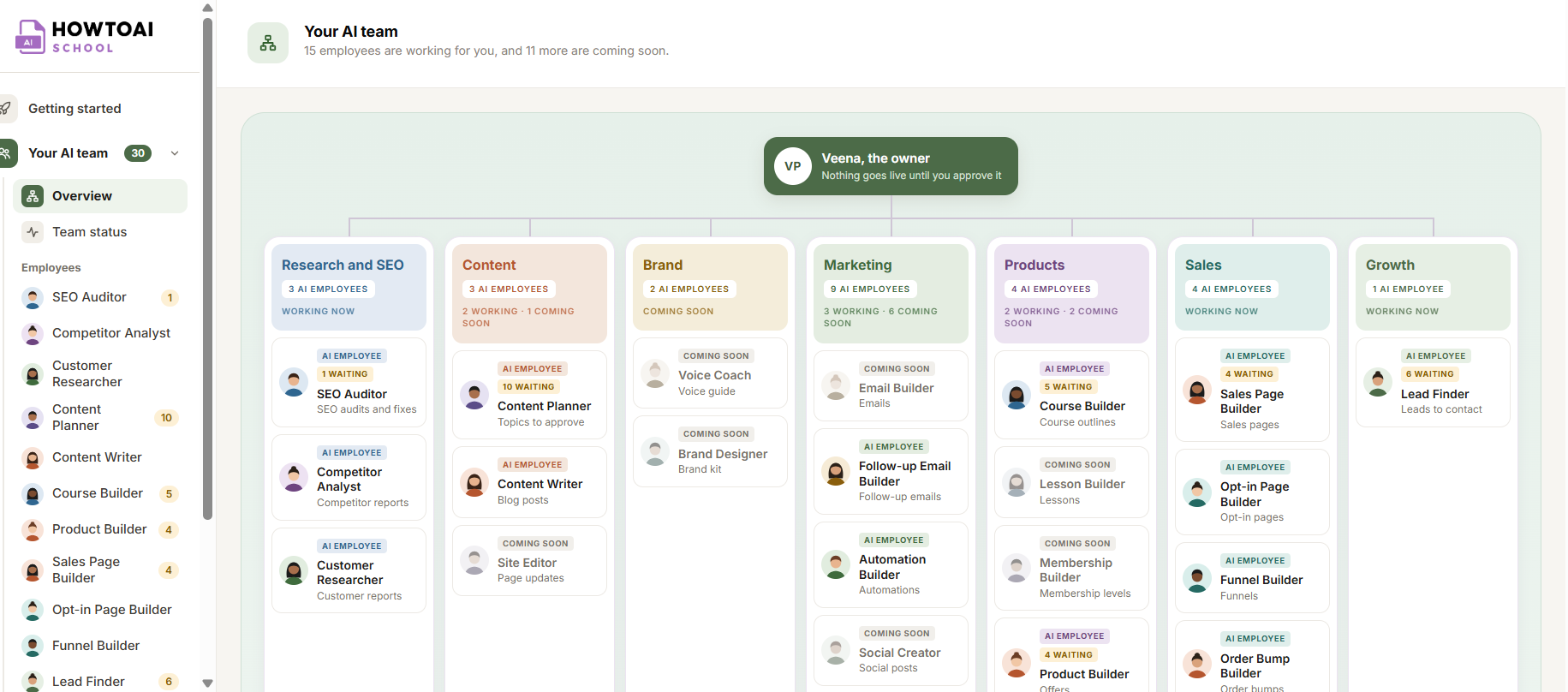
- AI employee: this employee is on your team. Click its card to open its page.
- Coming soon: it joins your team in a later update. These cards can’t be clicked yet.
- 3 waiting (or another number): that many things from this employee wait for your yes.
- Working: it is writing something for you right now.
At the bottom, the Waiting for you box says how many things wait for you across the whole team. Click Team status to see who sent them. The number in brackets is how many are waiting.
Team status
One table with every employee on your team, what it needs from you and when it last worked.
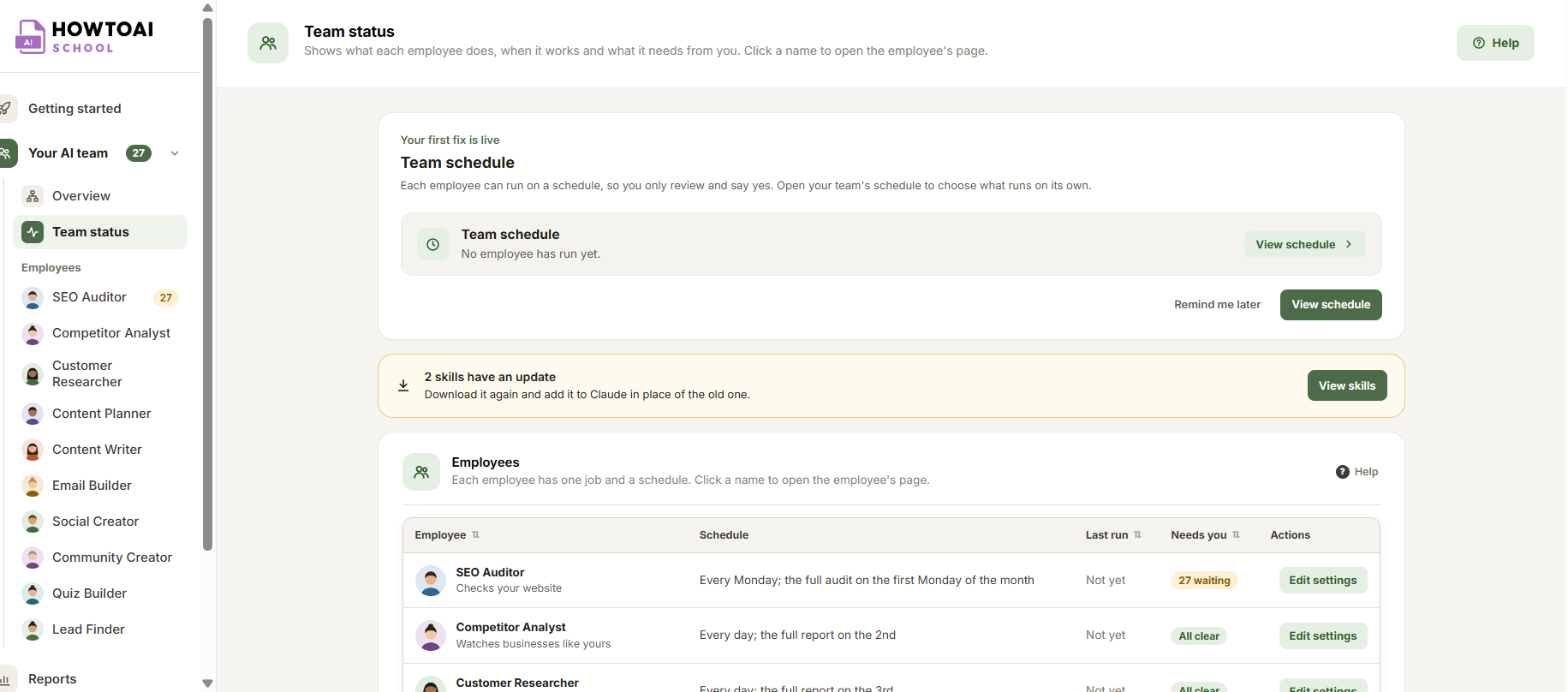
- Employee: its name and job. Click the name to open the employee’s page, where its work waits for you.
- Last run: the day it last worked, or Not yet.
- Needs you: how many things are waiting, or All clear when nothing is.
- Actions: Edit settings opens the employee’s settings. Only administrators see it.
Tip: Click Help at the top right for the four steps every run goes through: your team works, you get the results, you decide, and you see progress.
Alerts and cards at the top
Above the table, Team status shows anything that needs you. Each one goes away by itself once it’s dealt with.
- Team schedule: shows after your first yes. It says in one line which employees run on their own and which wait for you. Click View schedule to open the whole schedule at the side, or Remind me later to hide the card for 7 days.
- Get your first blog post: the steps to your first post: say yes to a post idea, then publish your first post. It goes away once your first post is live.
- Content Writer has stopped working (or another name): an employee that should run on a schedule hasn’t worked for a while. Click Set schedule. See When an employee stops working.
- 2 ideas you approved are still waiting: post ideas you said yes to more than a day ago that the Content Writer hasn’t picked up yet. Click Set schedule.
- A skills update: a skill has a new version. Click View skills to download it.
The team schedule
View schedule opens Team schedule at the side. Your employees are grouped into Research (their reports feed your Content Planner), Content (turns the research into posts you approve), Builders and Others (both run when you ask). Each employee shows how often it runs, when it last ran, and where it stands:
- Ran on schedule: it is working on its own.
- Ran when asked: it has only run when you started it.
- Not run yet: it hasn’t worked for you yet.
- Set up: it has no setup yet. Click it to open the employee’s settings.
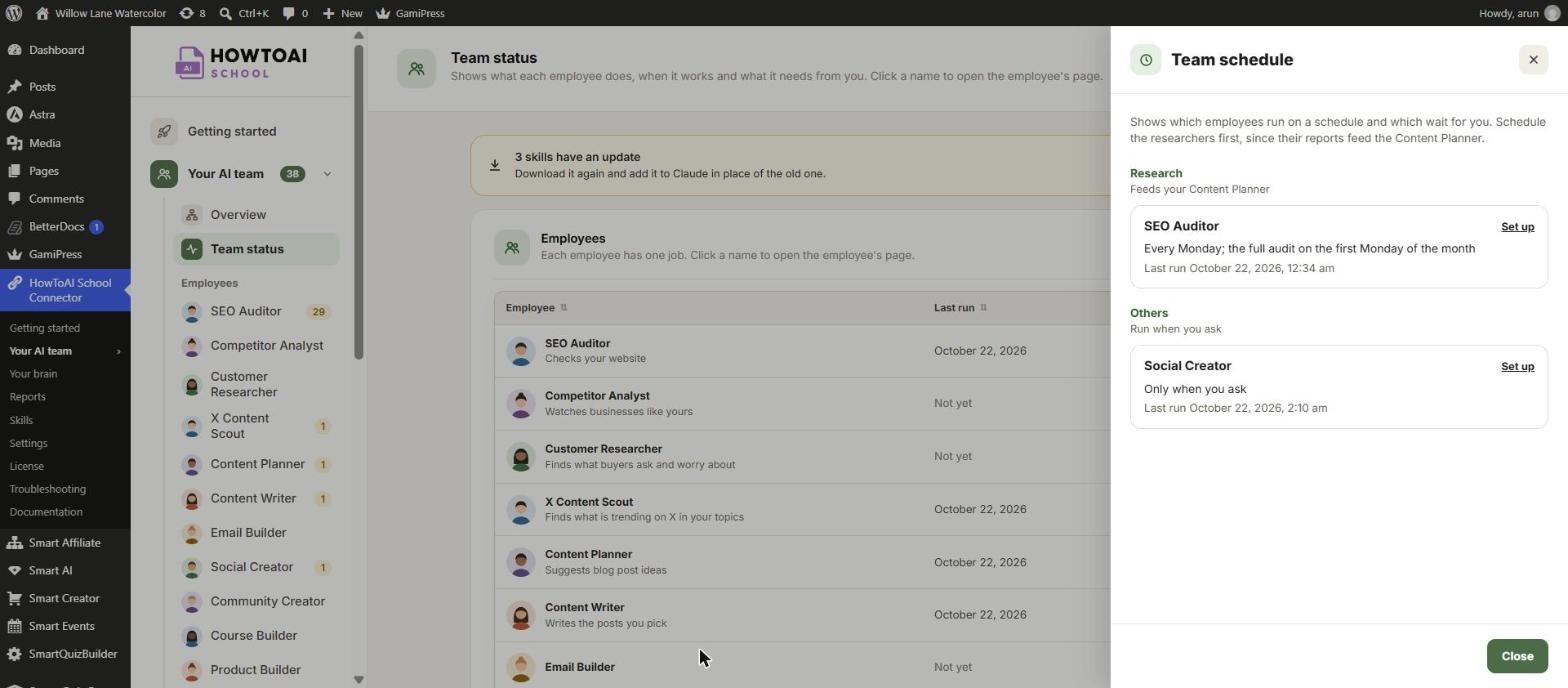
Tip: Schedule the researchers first. Their reports feed the Content Planner, which feeds the Content Writer. See Run employees on a schedule.


