Some employees work best on a schedule: the SEO Auditor every Monday, the researchers every day, the Content Planner every morning. You only review and say yes. ⏰
Set a schedule
The first time you run an employee, it asks how often to run and sets up a scheduled task in Claude for you. To run it only when you want, pick Only when you ask. Scheduled runs ask you nothing: they use the answers you already gave.
You can see every employee’s schedule in Your AI team → Team status: click View schedule on the Team schedule card. You can change a scheduled task in Claude any time.
The usual schedules
- SEO Auditor: a quick check-up every Monday, and the full check-up on the first Monday of the month.
- Competitor Analyst: a check every day, and the full report on the 2nd of the month.
- Customer Researcher: a check every day, and the full report on the 3rd of the month.
- Content Planner: new post ideas every morning.
- Content Writer: a draft every day, from the ideas you approved.
- Lead Finder: every Monday.
- Sales Page Builder and Opt-in Page Builder: when you ask, or once at a time you choose.
- X Content Scout: never on a schedule. It reads X in your own browser, so it runs only when you start it.
- Every other employee works when you ask.
Tip: Schedule the researchers first. Their reports feed the Content Planner, and the Content Planner’s ideas feed the Content Writer.
Let it run without you
Claude asks before each tool until you allow it, and a scheduled run has nobody there to say yes. Open Customize → Connectors in Claude, choose your website’s connector and set its tools to Always allow.
When an employee stops
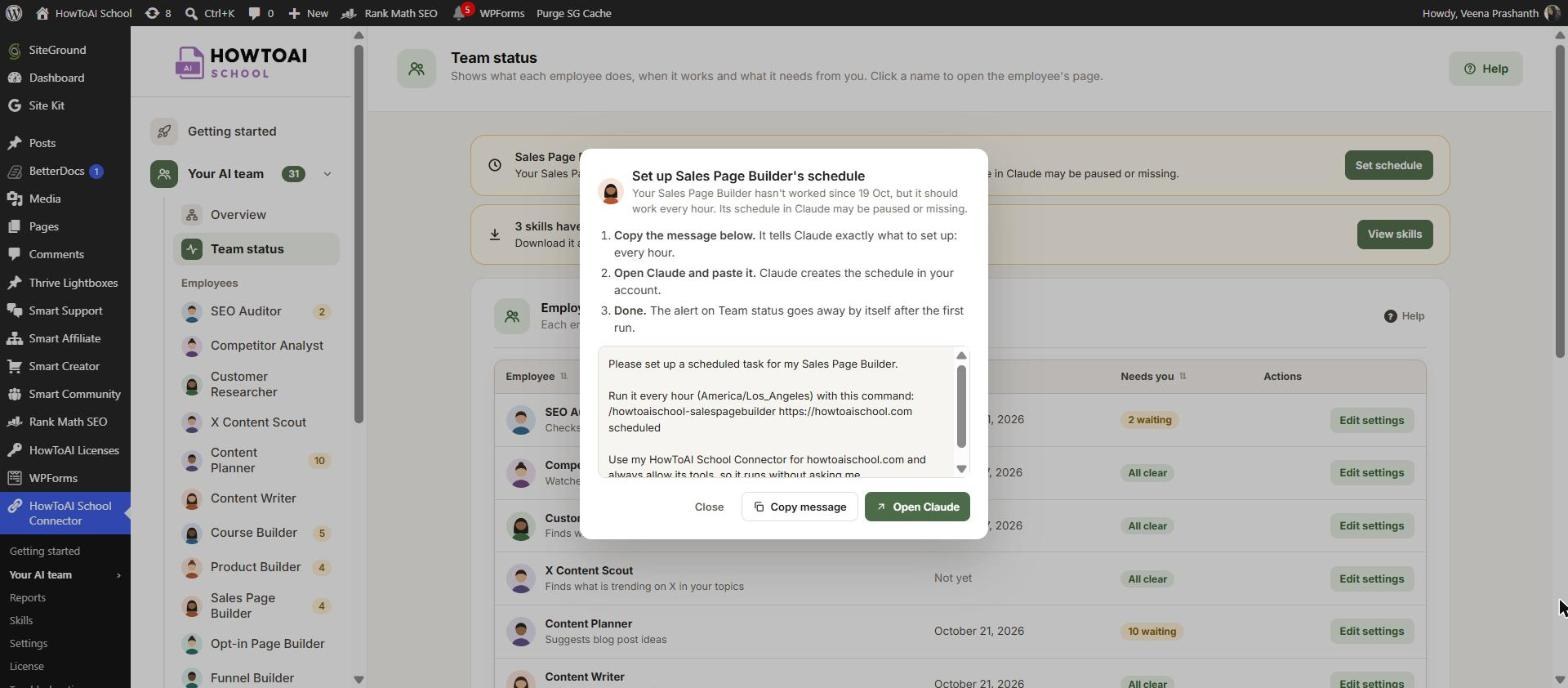
If an employee should run on a schedule but hasn’t worked for a while, Team status and the employee’s page show “has stopped working”. Its schedule in Claude may be paused or missing. Click Set schedule:
- Click Copy message. The message tells Claude exactly which schedule to set up, in your website’s time zone, with its tools always allowed.
- Click Open Claude and paste the message into a new chat. Claude creates the schedule in your account.
- That’s it. The alert goes away by itself after the first run.
If ideas you approved wait more than a day and the Content Writer hasn’t run, you see “ideas you approved are still waiting” with the same Set schedule button. With write on demand on, the popup also has Write it now. See When an employee stops working and Write on demand.
Good to know: Every run uses part of your Claude plan. If you reach your usage limit, run the busiest employees weekly instead of daily.


