HowToAI School Connector keeps your inbox quiet. It sends one kind of email by itself, plus test emails when you ask for them. Everything else shows as a notice in WordPress or on your AI Team screens. 📬
The draft ready email
When you ask your Content Writer to start a draft now, with Approve and write, Write it now or Revise now, you get one short email when the draft is ready. See Write on demand.
- The subject is “Your draft is ready:” and the post’s title.
- It has a link that opens the draft for review in WordPress, and says “Nothing is published until you say yes.”
- Only the person who clicked the button gets it, sent to the email address on their WordPress account.
- Drafts from scheduled runs never send an email. You find those on your Content Writer’s page and on Team status.
Turn the email off or on
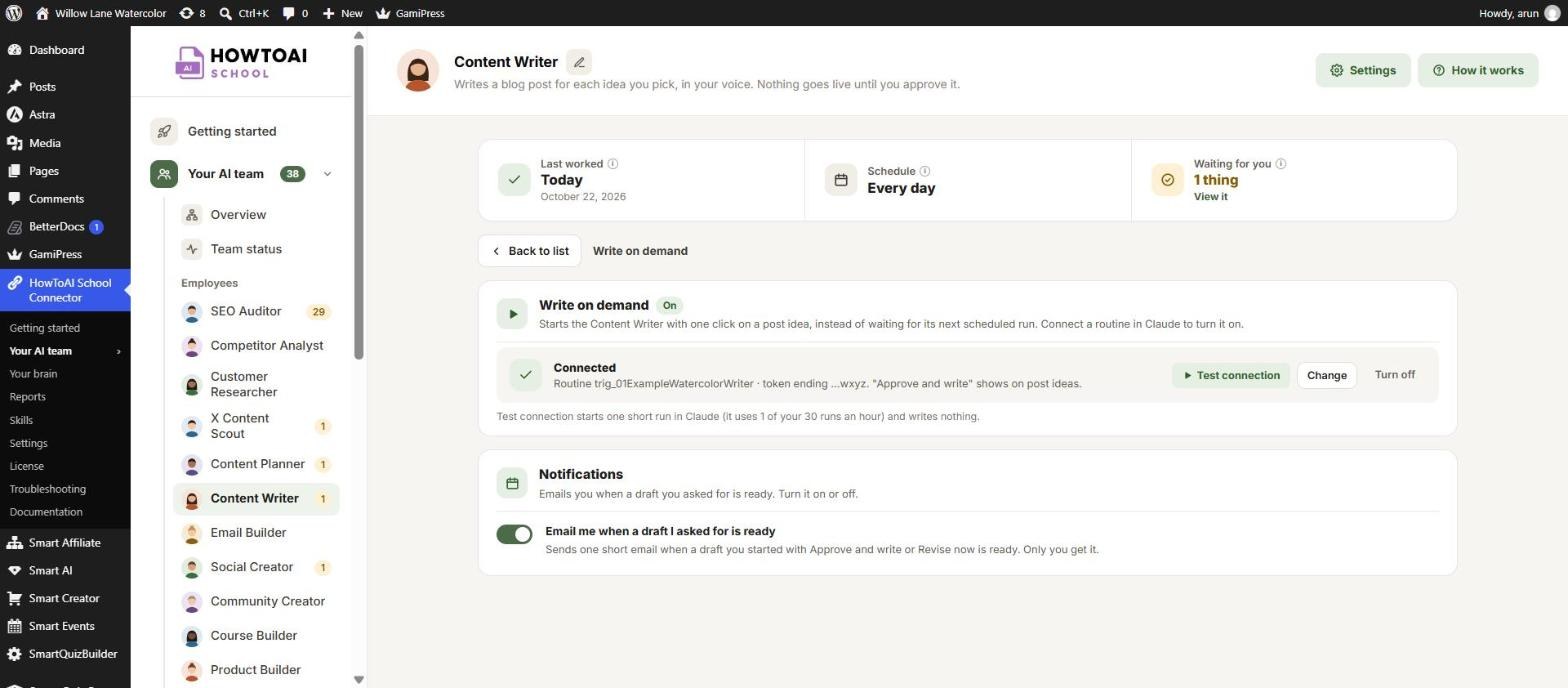
- Open Your AI team and click Content Writer.
- Click Write on demand at the top right.
- In the Notifications card, switch Email me when a draft I asked for is ready off or on.
It changes at once, for you only. Each person who reviews has their own switch. The card shows once an administrator has turned write on demand on.
Tip: The email’s last line may point to an older place in the plugin. The switch is where these steps say.
The draft ready notice in WordPress
While a draft you asked for waits for your decision, a green notice shows at the top of your other WordPress screens, such as the Dashboard: “Your draft is ready” with the title and Review it. When several are waiting, it says how many, with Review them. It goes away once you approve, send back or reject them. It doesn’t show on the AI Team screens, which list the drafts already.

Test emails
When an email your team wrote waits for your review, such as a welcome email or a follow-up email, click Send test email above it. A copy goes to your own email address with “[Test]” before the subject, and you see “Test sent to” and your address. Nobody else gets it. Use Desktop and Mobile to see how it looks on each.
License notice
Until your license is active, administrators see a yellow notice on the Dashboard, the Plugins screen and every HowToAI School Connector screen: “Add your license key to turn on your AI team.”, sometimes with the reason from the license server. Click Add license key. It goes away once the key is active. See Activate your license.
Skills notice
When a skill is new or has a newer version, administrators see a notice on the Dashboard and the Plugins screen with See Skills. Download the new skills plugin there and add it to Claude or ChatGPT again. See Update your skills.
What doesn’t send an email
Everything else stays on your screens, so check Your AI team now and then:
- New work to approve, such as post ideas, drafts, SEO changes and builds, waits on Team status and each employee’s page.
- New reports from the SEO Auditor, Competitor Analyst, Customer Researcher and X Content Scout show on their pages and under Reports.
- An employee that has stopped working shows as an alert on Team status.
Good to know: If the draft ready email never arrives, your website may not be able to send email. Check that other WordPress emails, such as password resets, reach you, or ask your host about sending email from WordPress.


