The Content Planner reads what your other employees found about your site, your competitors and your buyers, and turns it into a short, ranked list of pages worth writing. Every idea comes with the reason it is worth your time, so you only spend effort on pages that can bring in buyers. 🗓️
What it does
- Reads the latest reports from your SEO Auditor, Competitor Analyst and Customer Researcher, plus any quick check-ups since its last run.
- Finds searches you have no page for, pages your competitors rank with that you don’t have, and questions your buyers keep asking.
- Spots pages on your site that are thin or losing clicks and suggests a refresh instead of a new page.
- Merges ideas about the same search into one, and drops ideas you already have a page, draft or waiting idea for.
- Ranks every idea by how close the reader is to buying, how much evidence backs it, how likely you are to win the search and how much work it takes.
- Fills in everything the Content Writer needs: working title, SEO title, meta description, web address, the search it targets, section headings, who ranks now, proof to use, your buyers’ own words and a one-line reason with its sources.
- Keeps the rest of the ideas on a Later list, so you get fresh ideas every day without waiting for new reports.
It only plans. It never writes drafts and never changes your site.
What you need first
- HowToAI School Connector connected to Claude or ChatGPT. See Connect Claude or Connect ChatGPT.
- At least one report from your SEO Auditor, Competitor Analyst or Customer Researcher. If none exists, the planner tells you to run the SEO Auditor first and stops.
- What your buyers search for, saved in your business profile. See Your business.
- Google Search Console (optional). When it is connected, the planner checks how published pages are doing after a couple of months. See Connect your data.
How to start it
- Open a new chat in Claude (or ChatGPT) with your connector turned on.
- Type
/howtoaischool-content-planner, or ask in plain words. - Answer its few setup questions on the first run. After that it goes straight to work.
Example requests:
- “Plan my next blog posts.”
- “Give me 3 content ideas from my latest reports.”
- “What pages should I write next to get more buyers?”
The questions it asks you
On the first run it asks one question at a time, each with a suggested answer you can pick with one click:
- Still right? Your business answers (what you sell, who it’s for, what buyers search for), if your profile already has them.
- Where should the plan live? Your approval screen in WordPress, or a Google Sheet.
- How many new ideas a day? 3 a day is the suggestion, or 1 or 5.
- How often should I send ideas? Every morning, or only when you ask.
It may also ask for anything missing, such as topics you never want planned. You can paste it in or skip it. Next time, your saved answers are shown as a single “Still right?” check.
You can also change these in WordPress under Settings → Employee settings → Content Planner. The Blog post ideas card holds the schedule, Ideas a day (1 to 10) and where the plan goes, and the Instructions card takes rules such as “Skip topics about pricing”. See Employee settings.
What you get back
- New blog post ideas on the Content Planner’s page: open Your AI team → Content Planner. Each row shows the Google search it targets and why. You get as many as you asked for each run, or rows in your Google Sheet if you chose one.
- A short message in the chat: how many ideas are waiting, the top 3 with one line each, and where to approve them.
- Nothing is written and nothing changes on your site. Ideas are just suggestions until you approve them.
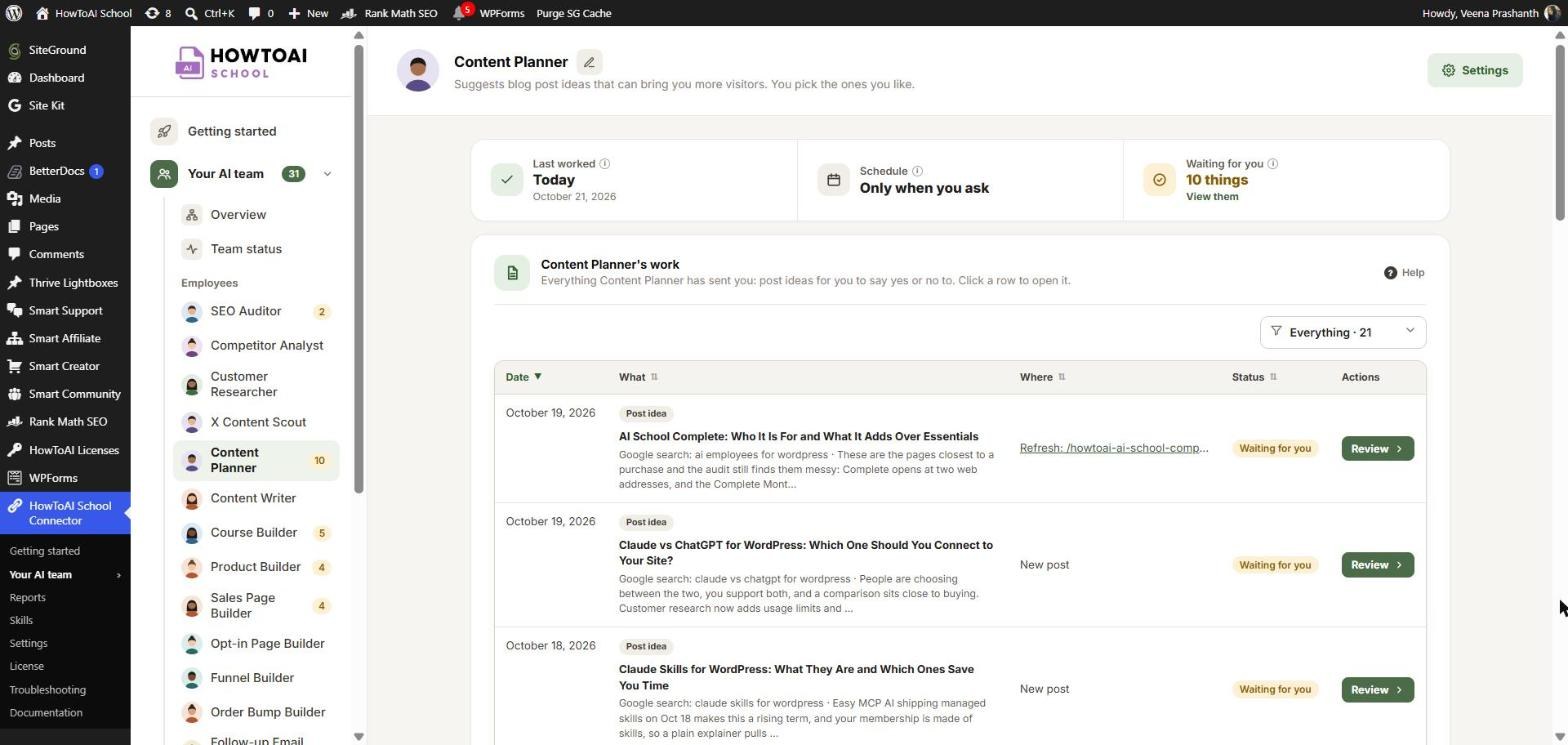
Review and approve
Click Review on an idea and read the one-line reason first. You should be able to decide in under a minute. Then click:
- Approve topic to send it to your Content Writer. It drafts the post on its next run, and the draft comes back for you to review.
- If write on demand is set up, you see Approve and write instead, which starts the Content Writer right away, and Approve only, which leaves it for the writer’s next run. See Write on demand.
- Ask for changes to tell the planner what to fix. It updates the idea on its next run and sends it back to you.
- Don’t use it to turn it down. The planner won’t suggest the same idea again unless new evidence turns up, and it says what’s new.
Once approved, the idea shows its progress: Suggested, Approved, Writing, Draft ready (with Open draft) and Live. More on this in Review and approve.
Running it on a schedule
If you pick Every morning, the planner sets up a daily schedule in Claude. A scheduled run asks nothing: it uses your saved answers, reads any new reports and check-ups, and sends the next ideas from its list. If a run is missed, a “Content Planner has stopped working” bar shows on Team status, with a Set schedule button. See Run employees on a schedule.
Tips
Tip: Run the SEO Auditor, Competitor Analyst and Customer Researcher first. Ideas backed by all three reports rank highest.
Tip: Never more than 10 ideas wait at once. Approve or turn down the ones you’ve seen, and fresh ones come in. Ideas left waiting for 7 days show as Expired and go back on the Later list.
Tip: Want ideas from what’s trending this week? The X Content Scout turns popular posts on X into blog post ideas too. Click Approve and write on one in its report and it goes to your Content Writer like an approved idea.
Tip: Write the reason when you click Ask for changes. The planner uses your note to fix that idea.
Good to know: The Content Planner never writes or publishes anything, and it never changes an idea you have already approved, asked to change or turned down. Every idea has a source: if it can’t point to a report, a search or a buyer quote, it leaves the idea out.


