The Events Manager puts your group calls, workshops, challenges and weekly question and answer calls on your Smart Events Calendar. It asks only for what’s missing, shows you the whole event and saves it as a draft. Your members see the right date, time, price and who can come, with a description that sounds like you. 🗓️
What it does
- Creates a one-off event or a repeating series with its title, start and end, price and who can see it.
- Sets up repeats: every week, every month, every few weeks or months, on the days or dates you choose, with a stop date and any dates to skip.
- Writes the event description in your voice if you don’t have one.
- Uses your real access rules for member-only events, and can make a new rule with your yes when none fits.
- Updates an existing event, such as a new time, a new price or an earlier stop date, and shows you only what changes.
- Saves everything as a draft. You publish.
What you need first
- Smart Events Calendar active on your site.
- HowToAI School Connector connected to Claude or ChatGPT. See Connect Claude or Connect ChatGPT.
If the event tools aren’t there, the Events Manager still collects the details, writes the description and gives you a finished event sheet to copy into Smart Events Calendar yourself.
How to start it
- Open a new chat in Claude (or ChatGPT) with your website’s connector switched on.
- Type
/howtoaischool-events, or just ask in plain words. - Say as much as you know in your first message. It asks only for what’s missing, one question at a time.
Example requests:
- “Add a free weekly question and answer call every Tuesday at 6 pm for one hour, until December 22.”
- “Set up a paid 3 hour workshop on November 14 at 10 am, for my Pro Members only.”
- “Move the question and answer call to 7 pm.”
For 1-on-1 calls people book on their own, use the Booking Manager instead. For events inside your Smart Community Builder community, use the Community Events Manager.
The questions it asks you
It asks only for what you didn’t already say, in this order:
- The event title.
- Free or paid, and the price in your site’s currency.
- The start date and time.
- The end time, or how long it runs. It never leaves the end blank.
- Whether it repeats. If yes: how often, on which days or dates, and the date it stops. It asks about skipped dates only if you mention a break or holiday.
- Who can see it: anyone, anyone who is logged in, or only people who match one of your access rules. For a member-only event, it also asks whether to hide it completely from everyone else.
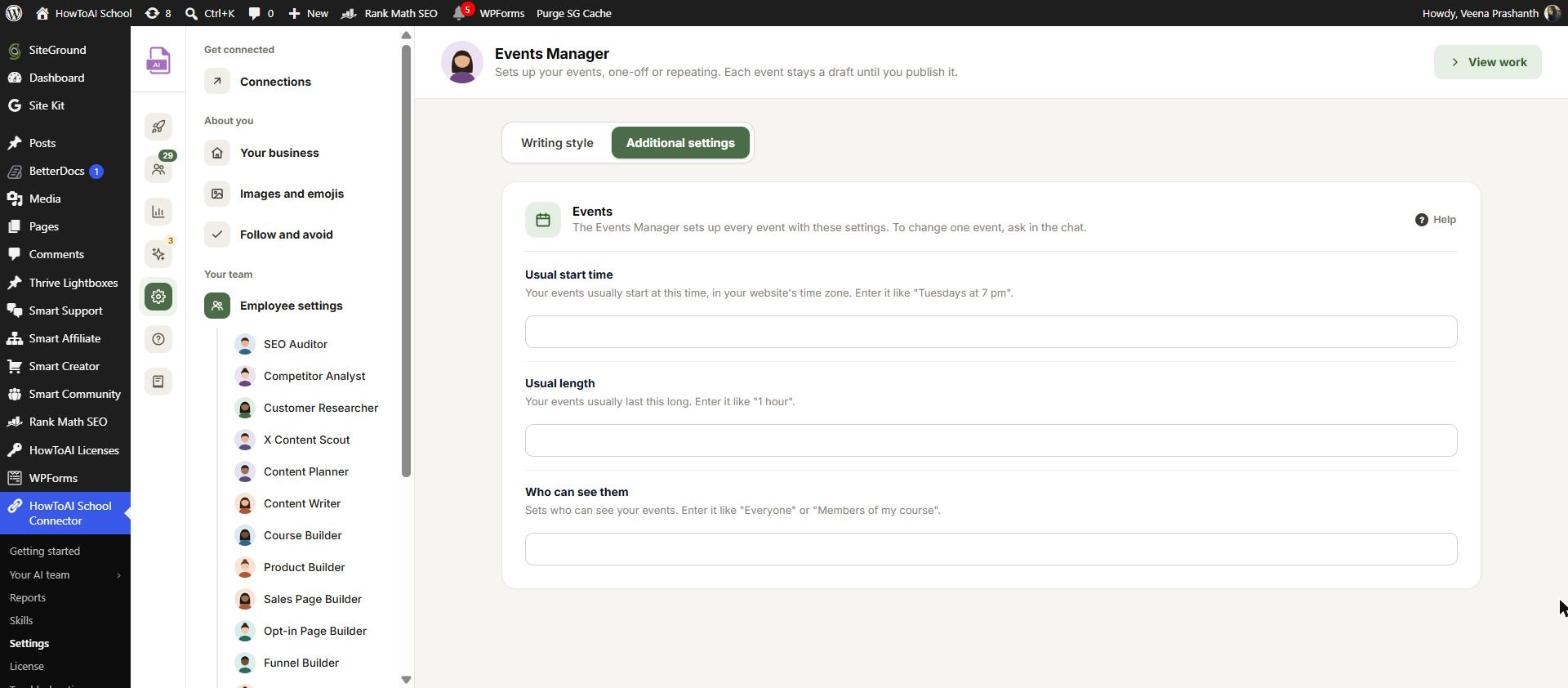
Answers you saved before show as “Saved: … (my pick)”. You can fill them in ahead of time under Settings → Employee settings → Events Manager. On the Additional settings tab, the Events card has Usual start time, Usual length and Who can see them. The Writing style tab holds the samples and special instructions it follows when it writes a description. See Employee settings.
What you get back
- An approval card in the chat with the cost, start, end, repeats, skipped dates, who can see it and the description, plus any gaps such as a featured image or website link.
- After your yes, the event is saved as a draft in Smart Events Calendar. It isn’t on your calendar for members yet.
- A short message with a link to edit the event and a list of what’s left to do before you publish.
Registration stays on and reminder emails use your defaults.
Review and approve
You approve an event in the chat, not on a WordPress screen:
- Read the approval card in the chat. Choose Yes, save it as a draft, or Change something and say what.
- Open the draft from the link and check the event page.
- Add anything listed as a gap, like a featured image.
- Publish it in Smart Events Calendar when it’s ready. The Events Manager never publishes for you.
To change an event later, just ask in the chat. If it’s already published, it stops and asks first, because people may have registered. Each run is listed in Settings → Logs. See Logs and website changes.
Running it on a schedule
The Events Manager is mostly a chat employee. A scheduled run asks nothing and builds only from a plan you already approved and saved. If there isn’t one, it logs the reason and stops. See Run employees on a schedule.
Tips
Tip: Give a length instead of an end time if that’s easier, like “1 hour”. It works out the end time and shows you both.
Tip: For a repeating event, have the stop date ready. It won’t guess one.
Tip: Moving the start time moves the end time by the same amount, so the length stays the same.
Tip: If you only give a title, you get a short, honest description and “agenda” listed as a gap. Tell it what happens on the call for a fuller one.
Good to know: Nothing goes live without you. The Events Manager saves drafts only, never publishes or deletes an event, and never touches registrations or notification emails. It never makes up dates, prices, guests or agendas: anything missing is listed for you to fill in.


