Your AI employees work in ChatGPT as well as Claude. They read your business, voice and look from your website, and send their work to your AI Team inbox the same way. A few things look or work differently in ChatGPT, and this lesson covers them all. 💬
What you need
- A paid ChatGPT plan: Plus, Pro, Business, Enterprise or Education, on the ChatGPT website (
chatgpt.com) rather than the phone app. - An active HowToAI School Connector license.
- Two things added to ChatGPT: the connection to your website and the skills plugin. They are separate, and your employees need both.
1. Connect your website
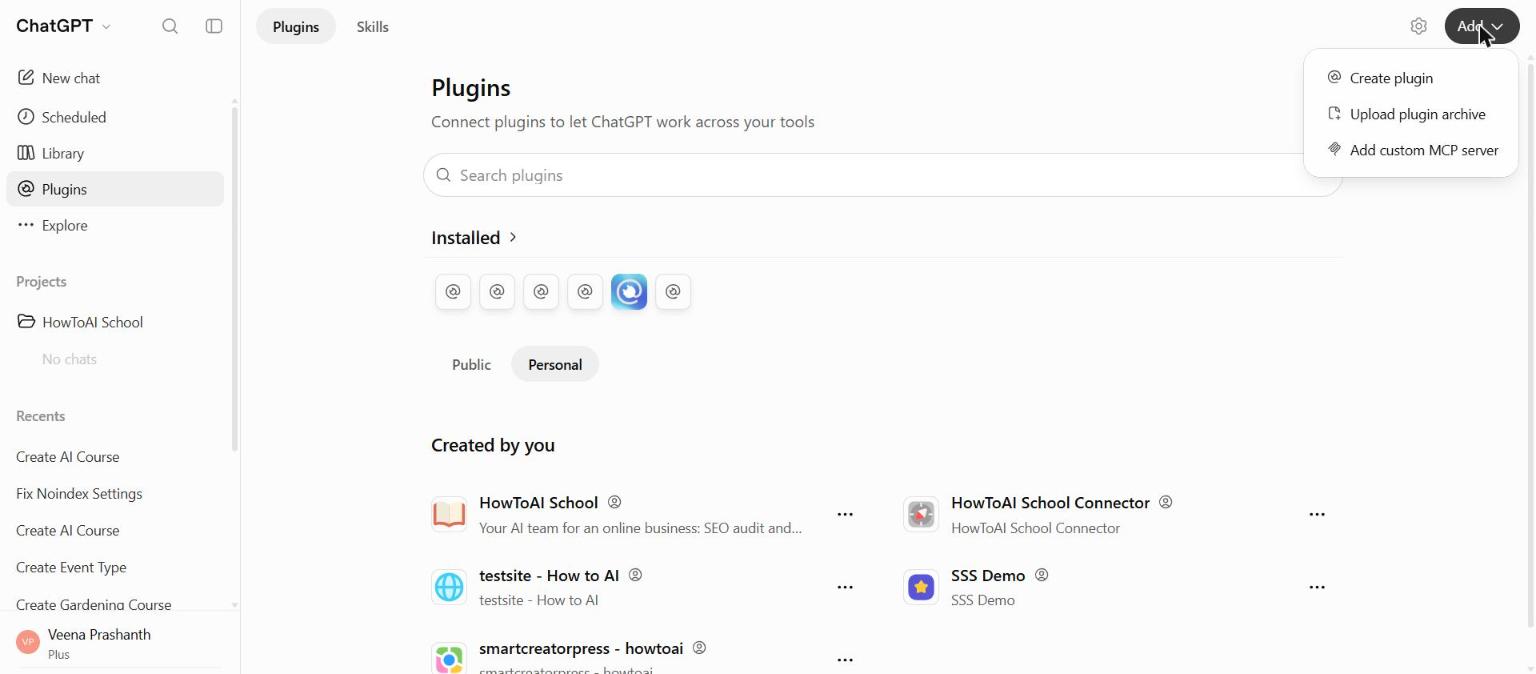
The connection lets ChatGPT read and save things on your website. Copy your connection link from Getting started step 2 or Settings → Connections, then in ChatGPT click Plugins, Add and Add custom MCP server, paste the link and approve on the WordPress screen that opens. Full steps: Connect ChatGPT to your website. What the WordPress screen means: The approve screen.
2. Add your skills plugin
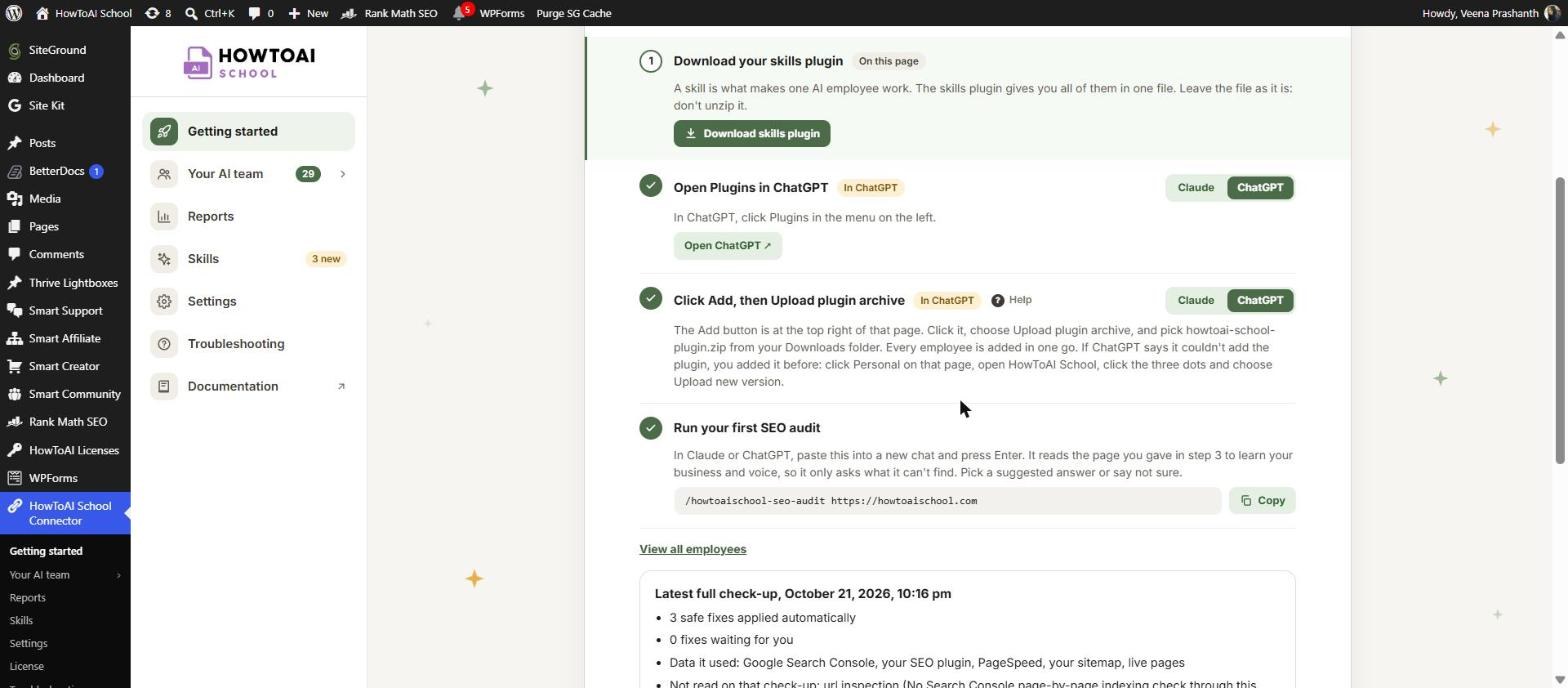
Each employee is a skill, and the skills plugin holds all of them in one file. Download it from the Skills screen (or Getting started step 5), then in ChatGPT click Plugins, Add and Upload plugin archive. Upload the .zip file as it is: don’t unzip it. Full steps: Add your skills plugin.
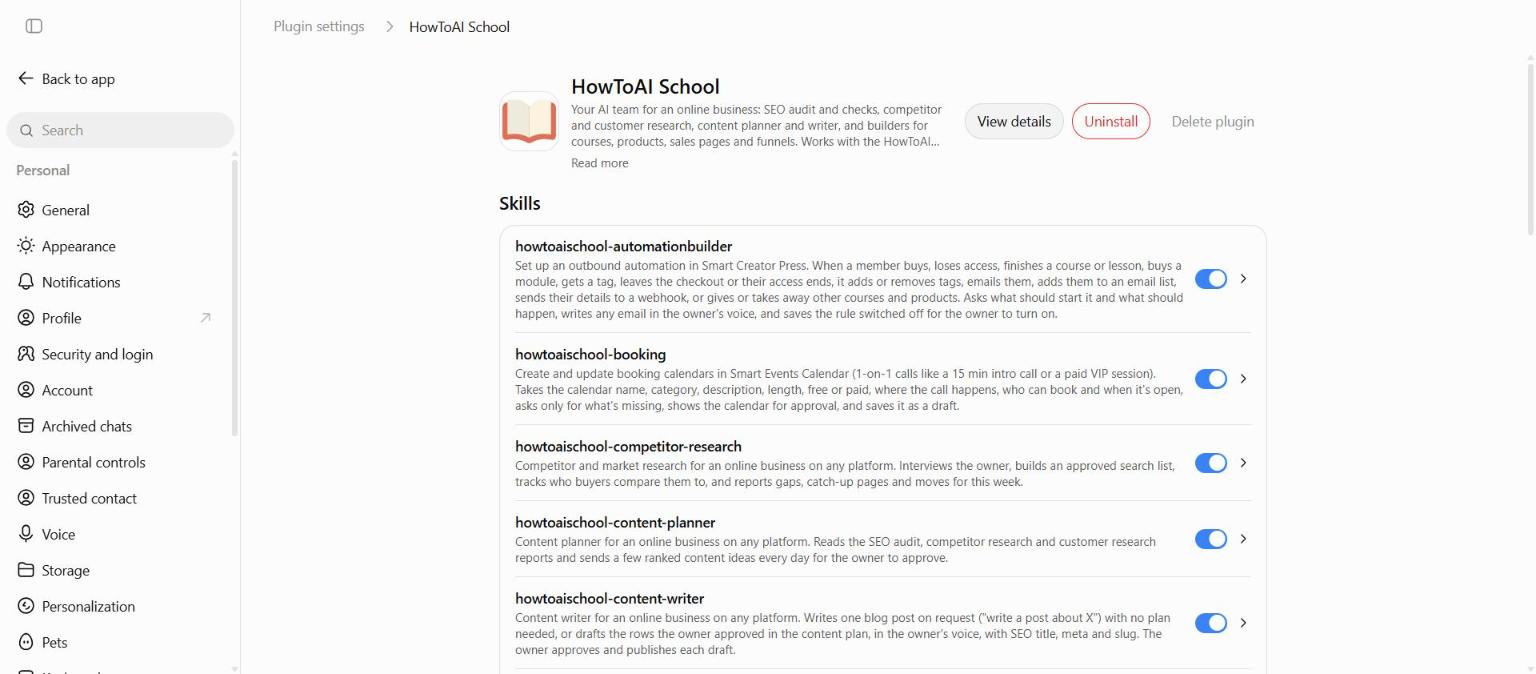
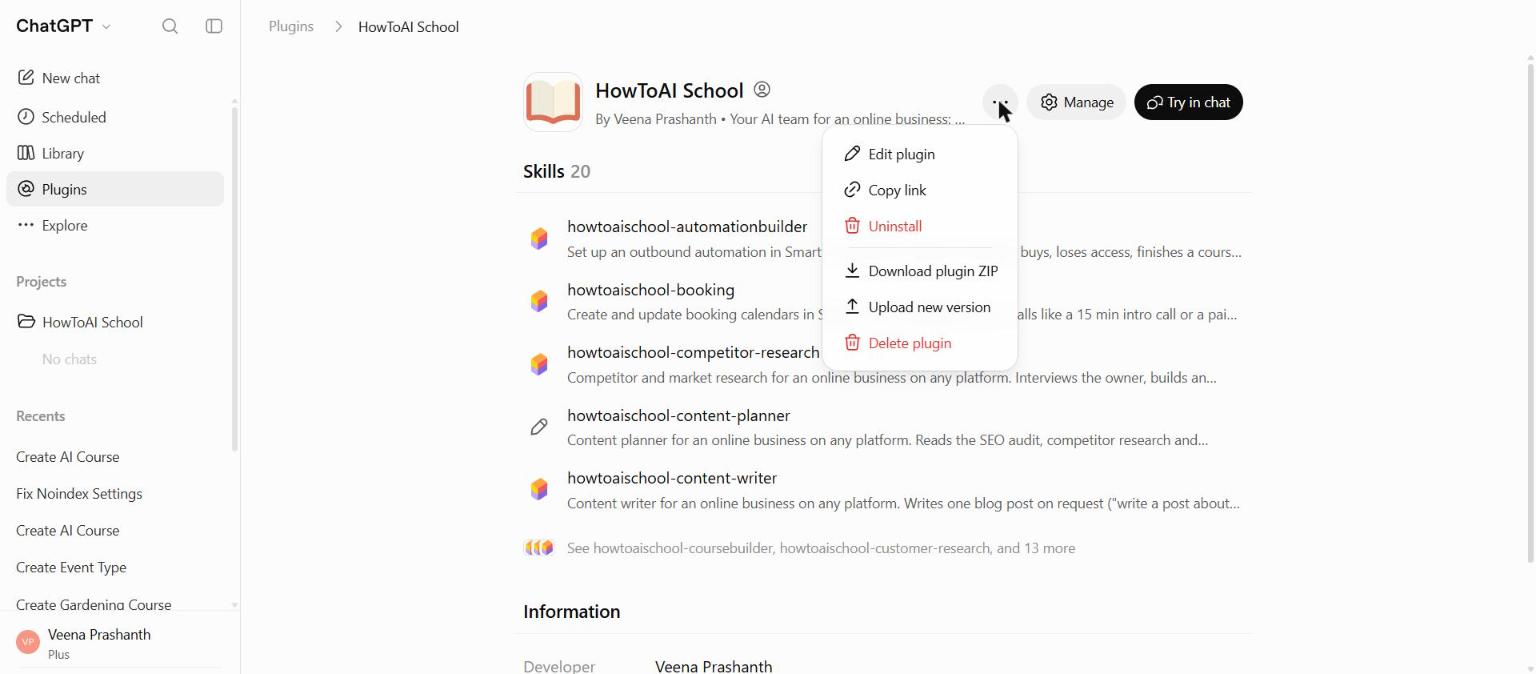
To update later, don’t use Add again: it only works the first time. Click Plugins, then Personal, open HowToAI School, click the three dots next to Manage and choose Upload new version. See Update your skills.
3. Start a skill
- Start a new chat.
- Type the skill’s full command, for example
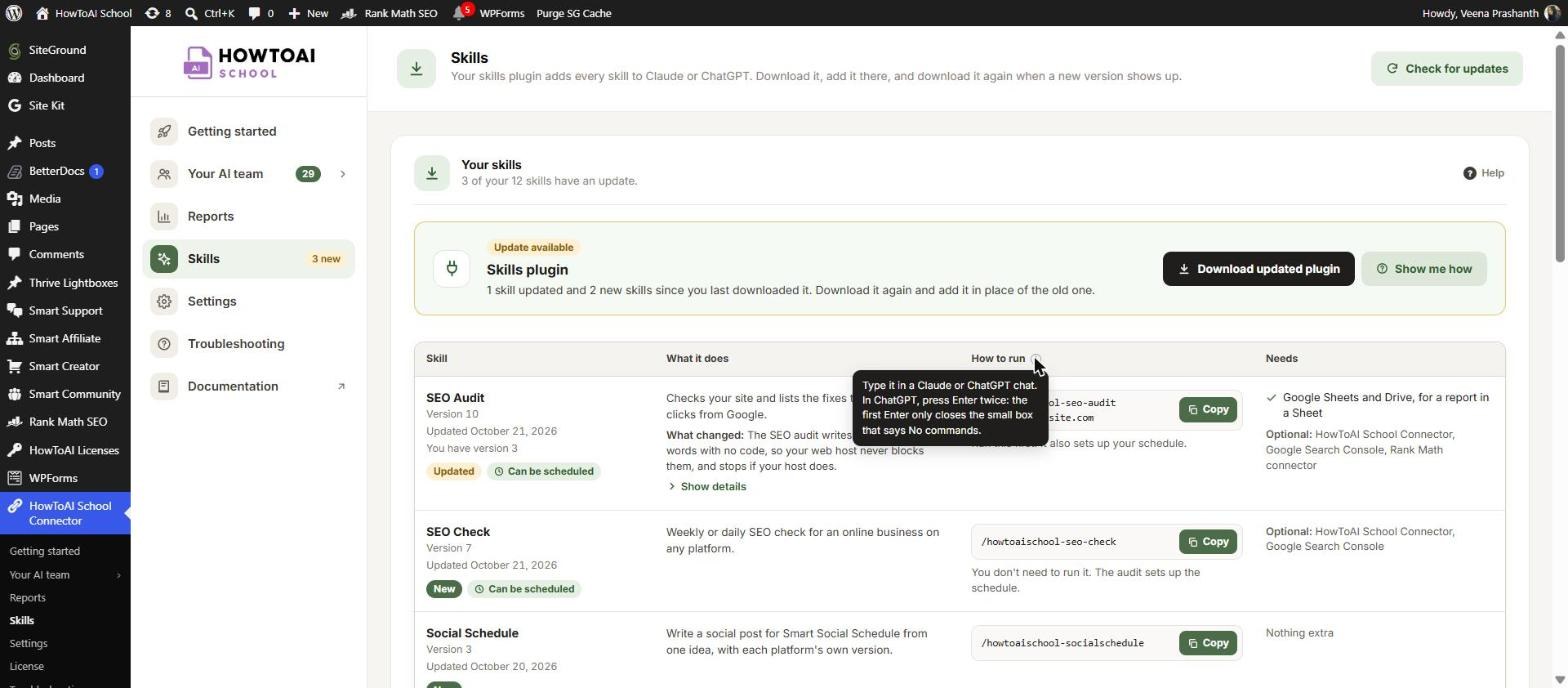
/howtoaischool-seo-audit https://yoursite.com. Each command is on the Skills screen with a Copy button. - Press Enter twice. The first Enter only closes the small box that says No commands; the second sends it.
Typing / on its own doesn’t list your skills in ChatGPT, and the No commands box doesn’t mean anything is wrong. It just means ChatGPT didn’t find a match as you typed.
4. Answer its questions
In Claude, employees ask with answer buttons. In ChatGPT, they ask in plain text with lettered options, such as A, B and C, with their own pick first. Type the letter, or write your own answer. When there are more than four choices, you get a numbered list instead. Employees ask one question at a time, and on later runs they show your saved answers back as “Still right?”.
5. Let it work without asking each time
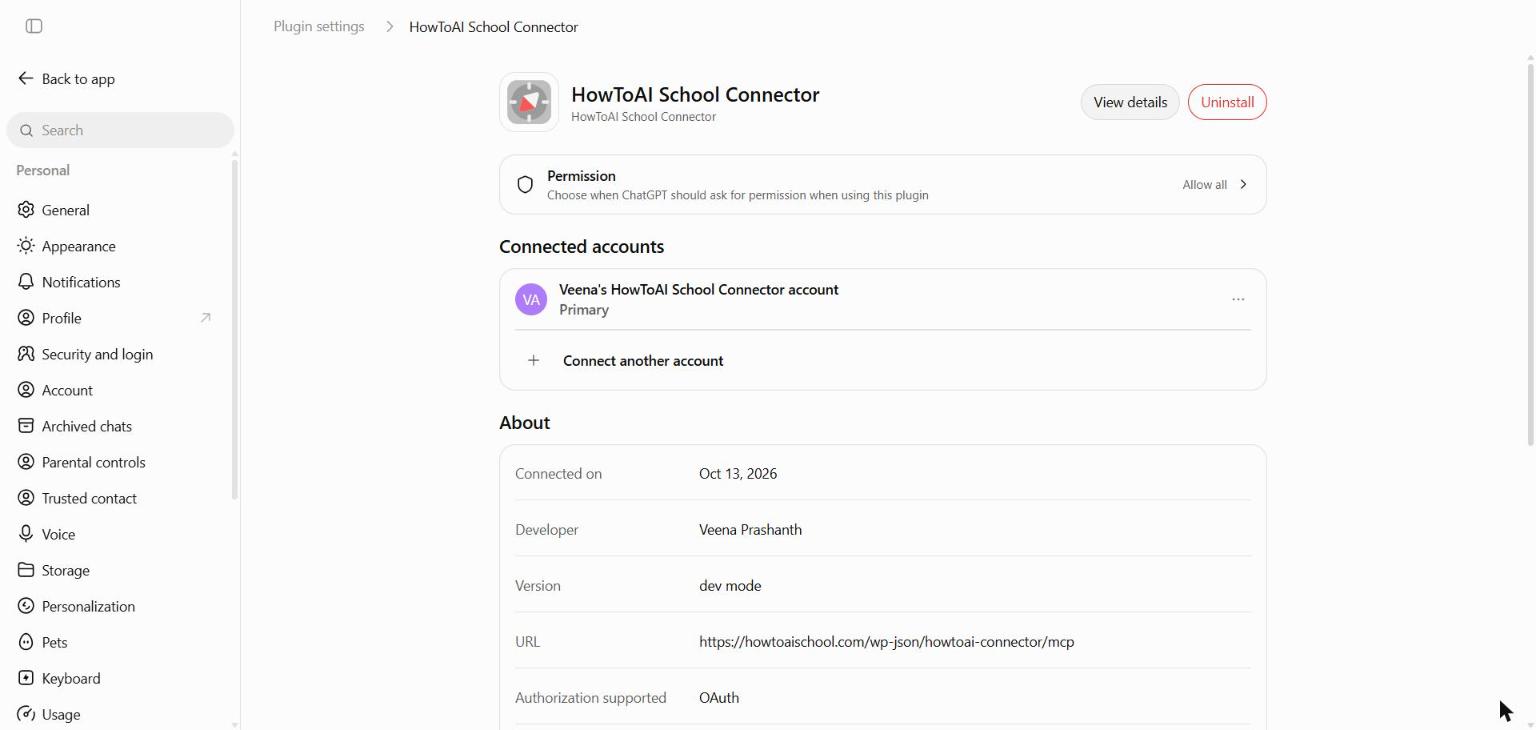
ChatGPT can ask before each tool your employee uses on your website. That’s fine while you watch, but a run nobody is watching waits for a yes and does nothing. In ChatGPT, open Settings → Plugins, click HowToAI School Connector, click Permission and choose Allow all. Or approve each box as it appears during a run.
Tip: If you’d rather keep one step on ask, the Product Builder suggests always allowing the tools that only read, and leaving the one that builds the product on ask.
Running on a schedule
The first time you run an employee that can work on a schedule, it asks how often. When you pick a schedule, it sets up a scheduled task in the chat if it can. If that chat can’t create scheduled tasks, it tells you in one line, saves the employee as Only when you ask, and you run it with its command whenever you want. Scheduled tasks you make in ChatGPT are listed under Scheduled in its left menu.
If an employee says it runs on a schedule but no scheduled task was ever created, it switches itself to Only when you ask and tells you, so it doesn’t look scheduled when it isn’t.
On your website, the Set schedule popup on Team status is written for Claude: its Open Claude button opens Claude. Using ChatGPT, start the employee yourself and answer its schedule question instead. See When an employee stops working.
What works only in Claude, and what to do instead
- Write on demand. It uses a routine in Claude, so it isn’t available for ChatGPT. Approve post ideas as usual and your Content Writer drafts them on its next run, or start
/howtoaischool-content-writeryourself in ChatGPT. See Write on demand. - The Claude Projects box. The box in Getting started step 5 is for Claude. The same line works in a ChatGPT project too: see ChatGPT Projects below.
- Refresh tools list. Claude has this button for new tools after a plugin update. In ChatGPT, start a new chat first. If a tool is still missing, open ChatGPT’s Settings → Plugins, open HowToAI School Connector and connect it again, then approve on the WordPress screen. Still missing after that? Remove the connector, add it again with your connection link, and update HowToAI School Connector on your website.
- Updates that arrive by themselves. The marketplace option is for Claude. In ChatGPT, upload the new file with Upload new version when the Skills screen says Update available.
ChatGPT Projects
Working in a ChatGPT project? You don’t need to upload your business details, writing samples or brand files to it. One line in the project’s instructions loads them from your website before each task:
Before any task, load my business, voice and look from the HowToAI School connector, then use the skill that matches my request.
- Copy the line above. It is the same line as the Claude Projects box at the bottom of Getting started step 5, so you can copy it from there too.
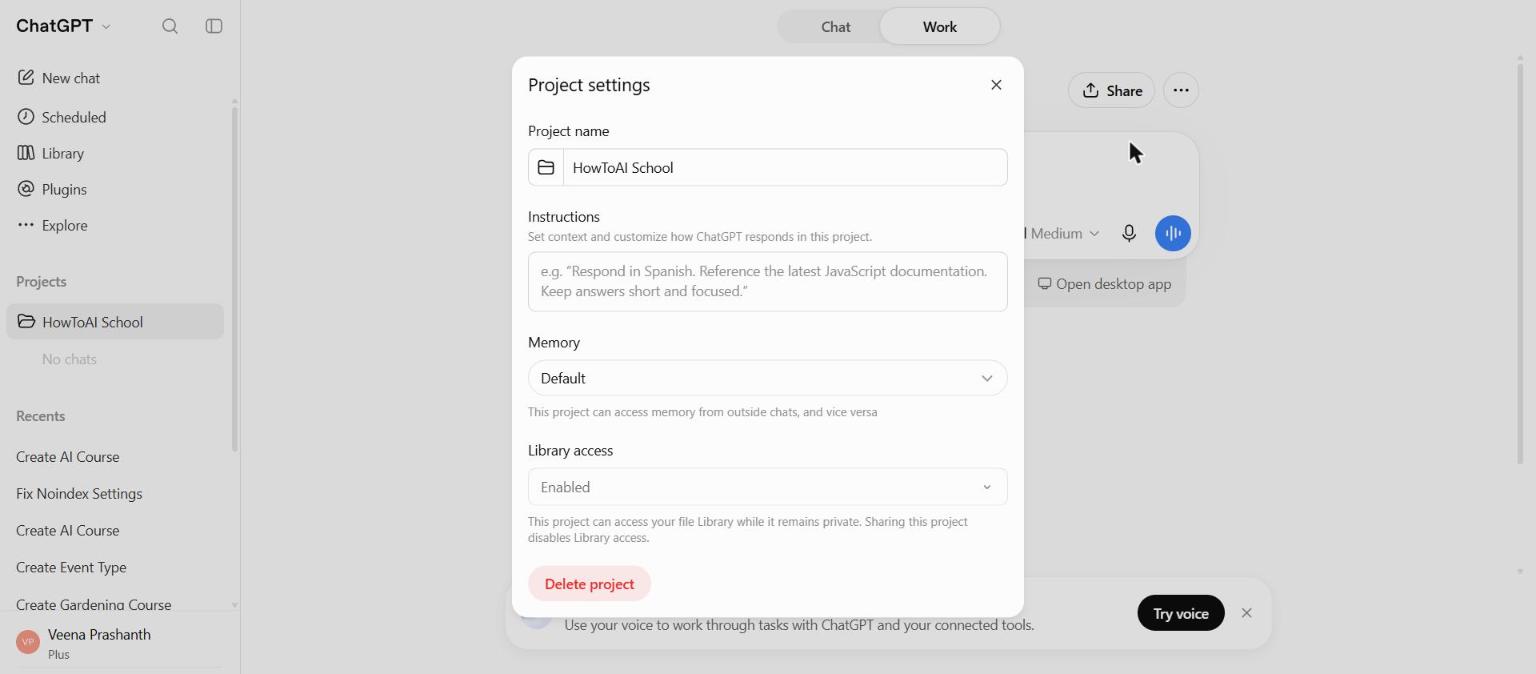
- In ChatGPT, open your project, click the three dots at the top right, choose Project settings and paste the line into Instructions.
- Do the same for each project you use.
The plugin has no box of its own for ChatGPT projects: the Claude Projects box has the same line. For the Claude version, see Use your team in Claude Projects.
Good to know when working in ChatGPT
- Files your employees make, such as a PDF report or a zip of pictures, come as files attached to the reply.
- When an employee needs a web page, it opens it with ChatGPT’s own browsing.
- If a tool your employee needs is missing, it says so in one line and carries on with what it can do.
Something not working? See Troubleshooting: ChatGPT and Test the connection.
Good to know: Your employees send their work to your AI Team inbox in WordPress the same way from ChatGPT as from Claude, so you review everything in one place, whichever app you use.


