The Automation Builder sets up a rule on your site: when a member does something, Smart Creator Press does something for you. For example, when someone finishes a course, tag them “Graduate” and send a congratulations email. It saves time on jobs you would otherwise do by hand, and every rule waits for you to switch it on. ⚙️
What it does
A rule has one thing that starts it and one or more things that happen. It can start when someone:
- Buys or joins a course or product, or loses access (cancels, is refunded or a renewal fails).
- Finishes a course or a lesson.
- Buys or loses one module of a course, or one item of a product.
- Gets or loses a tag.
- Starts the checkout but doesn’t pay.
- Reaches the end of their access.
Then it can:
- Add a tag or take one away.
- Email the member, with the email written in your voice.
- Add them to a list in your connected email tool, or take them off.
- Send their details to Zapier, Pabbly, GoHighLevel or another webhook.
- Give them another course or product, or take one away.
It suggests the actions that usually fit, writes any email, and shows you the whole rule in plain words before it saves it.
What you need first
- Smart Creator Press switched on, with the course or product the rule is about.
- The SmartAutomation plugin switched on. The rule can be saved without it, but nothing runs until it’s on.
- To use email lists: your email tool already connected in Smart Creator Press. The Automation Builder never asks for your email tool’s keys.
- HowToAI School Connector connected to Claude or ChatGPT. See Connect Claude or Connect ChatGPT.
How to start it
- Open a new chat in Claude (or ChatGPT) with your website’s connector added.
- Type
/howtoaischool-automationbuilder, or say what you want in plain words. - Tell it what should start the rule and, if you know, what should happen.
Example requests:
- “When someone finishes Pricing Mastery, tag them Graduate and send a congratulations email.”
- “When someone leaves the checkout without paying, email them a link back to it.”
- “When someone cancels my membership, take away their tag and remove them from my Mailchimp buyers list.”
The questions it asks you
It asks one question at a time and skips anything you already said. On a first run:
- What starts the rule, and which course, product or tag it’s about.
- What should happen then. It suggests the usual actions and you confirm or change them.
- Only the missing details: the exact tag names, which list in your email tool (shown by name), which days to run it after access ends, or the webhook address.
- How you sign your emails, only if you haven’t saved a signature yet.
- Whether to save the rule, after it shows you the plan.
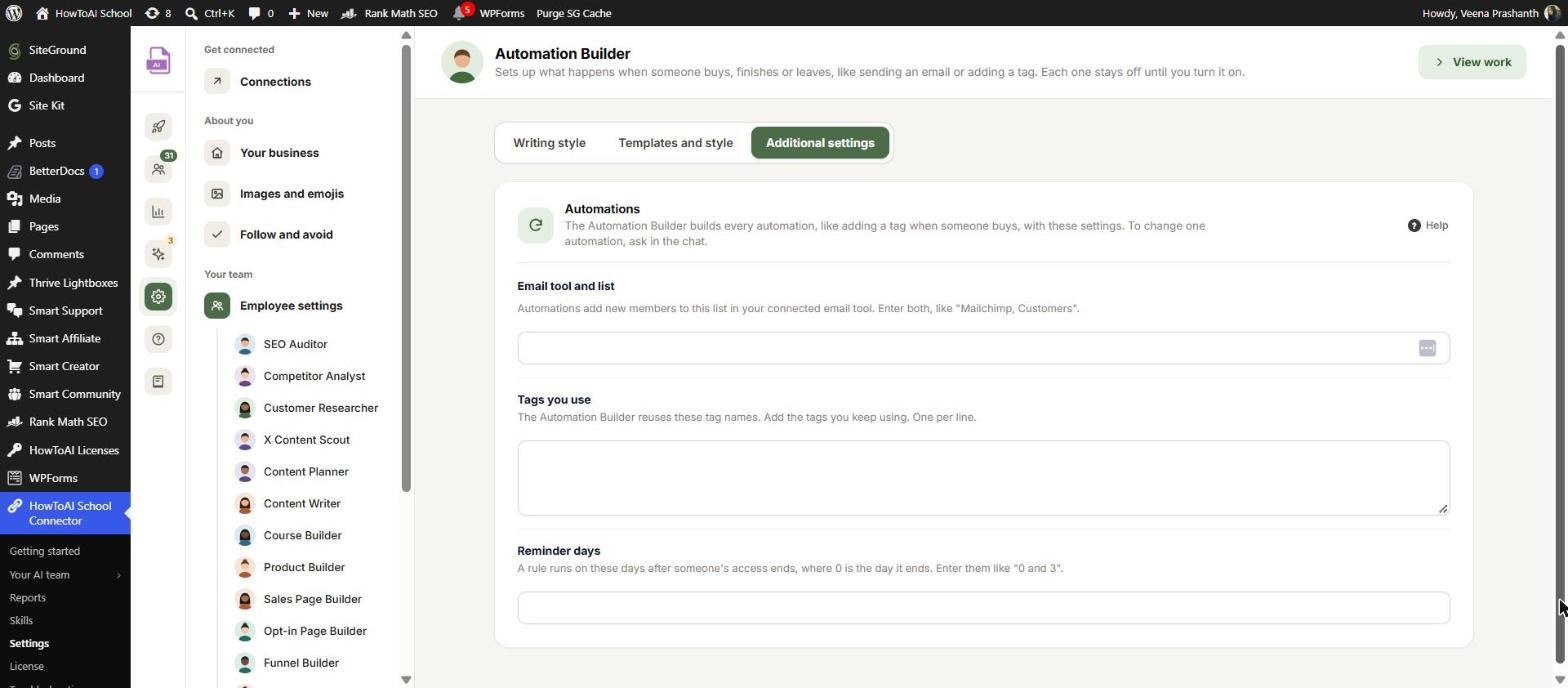
Saved answers are shown as your pick with “Still right?” next time. In WordPress, open Settings → Employee settings → Automation Builder:
- Writing style: samples of your emails and special instructions, so its emails sound like you.
- Templates and style: the Emails layout and your Signature, shared with the other employees that write emails. See Templates and style.
- Additional settings: the Automations card with Email tool and list, Tags you use and Reminder days.
See Employee settings.
What you get back
- A plan card in the chat: when the rule runs, each thing it does, any new tags it will create and any email in full.
- After you say yes, the rule in Smart Creator Press’s Outbound Automations, switched off. Nothing happens to any member yet.
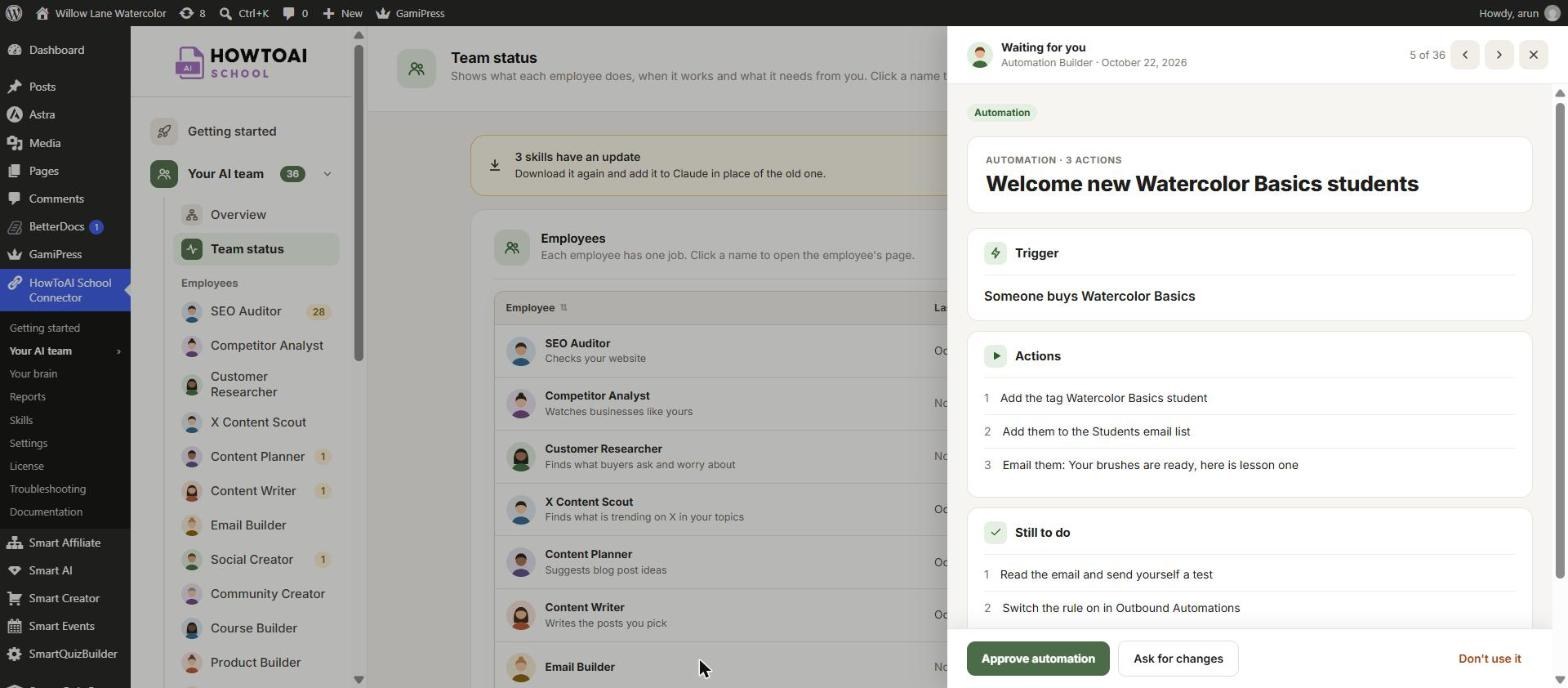
- The rule on the Automation Builder’s page in Your AI team → Automation Builder, with the trigger, one line per action and what is still to do.
- A hand-over message with the link to the rule, and anything to finish first, such as picking a list or publishing the course.
- If the automation tools aren’t on your site yet, a setup file with click-by-click steps for the Outbound Automations screen.
Review and approve
- On the Automation Builder’s page, click Review on the rule, or click Open in Smart Creator Press.
- Check who the rule runs for and what happens to them. Read any email in full.
- Click Approve automation, Ask for changes with a note, or Don’t use it.
- Approving keeps the rule switched off. Open it on the Outbound Automations screen, check it, then switch it on there.
More in Review and approve.
Tips
Tip: Test a new rule with a test account first. For example, finish the course yourself and check that the tag and the email arrive.
Tip: A lesson rule runs on every lesson of that course, not just one. The Automation Builder warns you before you pick it.
Tip: To email people in the days after they join, use the Follow-up Email Builder instead. An automation can’t send an email the moment someone gets access, because it would land on top of your welcome email.
Good to know: The Automation Builder saves every rule switched off. It never switches a rule on, never changes a rule that is on and never deletes one. Giving or taking away access acts on real members once you switch the rule on, so read the plan card carefully.


