Claude reaches your website through one connection link. Follow these steps in Claude in your web browser. ⏱️ About two minutes.
Your license must be active first: without it, the Approve screen won’t let Claude connect.
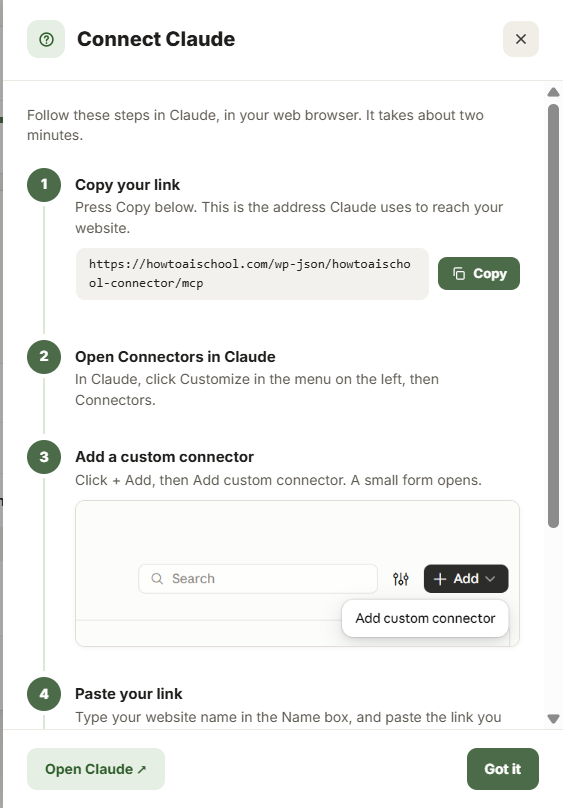
Steps
- Copy your link. In Getting started step 2, or in Settings → Connections, click Copy.
- Open Connectors in Claude. Click Customize in the menu on the left, then Connectors.
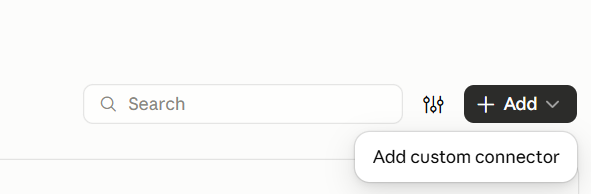
- Add a custom connector. Click + Add, then Add custom connector.
- Paste your link. Type your website’s name in the Name box and paste the link into the server address (URL) box. Click Continue, leave the sign-in settings as Claude finds them, then click Add.
- Click Connect. Find your new connector in the list and click Connect.
- Approve on your website. A WordPress screen opens. Click Approve. Back in Getting started, Claude now says Connected.
The Approve screen
The WordPress screen is titled Connect Claude to your website’s name. It lists what Claude will be able to do, plugin by plugin, under It will be able to, and what it can’t do under It won’t be able to. Claude can never see or change your WordPress password or anyone’s login details.
At the bottom it says which WordPress user Claude will act as. Claude can only do what that person is allowed to do, and every action is logged. Click Approve to connect, or Deny to stop.
Try it
In a new chat, switch your website’s connector on from the tools menu and ask, for example, “List my courses”. If Claude answers with your courses, you’re connected.
Not saying Connected, or Claude can’t reach your website? Run Test the connection. It tells you what reached your site and what to send your host.
Let scheduled runs work without you
Claude asks before it uses each tool. A scheduled run has nobody there to say yes, so it waits. To let your team work on its own, open Customize → Connectors, choose your website’s connector and set its tools to Always allow.
Tip: After you update HowToAI School Connector, open the connector’s three-dot menu in Claude and click Refresh tools list, so Claude sees any new tools.
Good to know: Only roles chosen under Who can approve a connection in Settings → Connections can click Approve. If the Approve screen says you aren’t allowed, sign in as an administrator.
For the full walk-through, and what to do in your first 10 minutes after you connect, read How to connect Claude to your WordPress site.


