The Order Bump Builder sets up the small “add this to my order” box that buyers see on your checkout page. It picks the product to offer, writes the words in your voice and shows you a picture of the box before it saves anything, so you can add a quick extra sale with one tick. ✅
What it does
- Shows you the order bumps you already have for that product, and offers to reuse one. Reusing makes a draft copy: your original is never changed.
- Suggests a product to offer: a small, cheaper product that clearly helps with what the buyer is already buying.
- Reads that product’s price plans and tells you in plain words what buyers pay, such as “Lifetime access: one payment of $27”.
- Lets you set a special lower price that buyers pay only when they tick the bump.
- Uses one of Smart Creator Press’s three order bump templates, in your brand colours.
- Writes the heading, the description, the checkbox wording and the small badge, in your voice, from the product’s own description and page.
- Shows a picture of the bump as buyers will see it, then saves it as a draft.
What you need first
- Smart Creator Press switched on, with a paid main product (a free product has no checkout).
- The product you want to offer must be published and paid, with a paid price plan that is switched on.
- HowToAI School Connector connected to Claude or ChatGPT. See Connect Claude or Connect ChatGPT.
How to start it
- Open a new chat in Claude (or ChatGPT) with your website’s connector added.
- Type
/howtoaischool-orderbump, or ask in plain words. - Tell it which product’s checkout the bump is for, and the product to offer if you know it.
Example requests:
- “Add an order bump to the Pricing Worksheet Pack checkout.”
- “Offer my Client Script Library as an order bump on the Pricing Mastery course, for $19.”
- “Use the order bump I made for my other course on this checkout too.”
The questions it asks you
It asks one question at a time and skips anything you already said. On a first run:
- Which product’s checkout shows the bump.
- If that product already has bumps: use one of them, or make a new one.
- Which product the bump offers.
- Which price plan, if that product has more than one.
- Whether to override the price with a lower one just for this bump. It always asks this, even when you have a usual price saved.
- Which template: Template 1 (a card with a switch), Template 2 (a bar with a checkbox at the top) or Template 3 (a small badge, then the text and a checkbox).
- Whether the bump in the picture is the one you want.
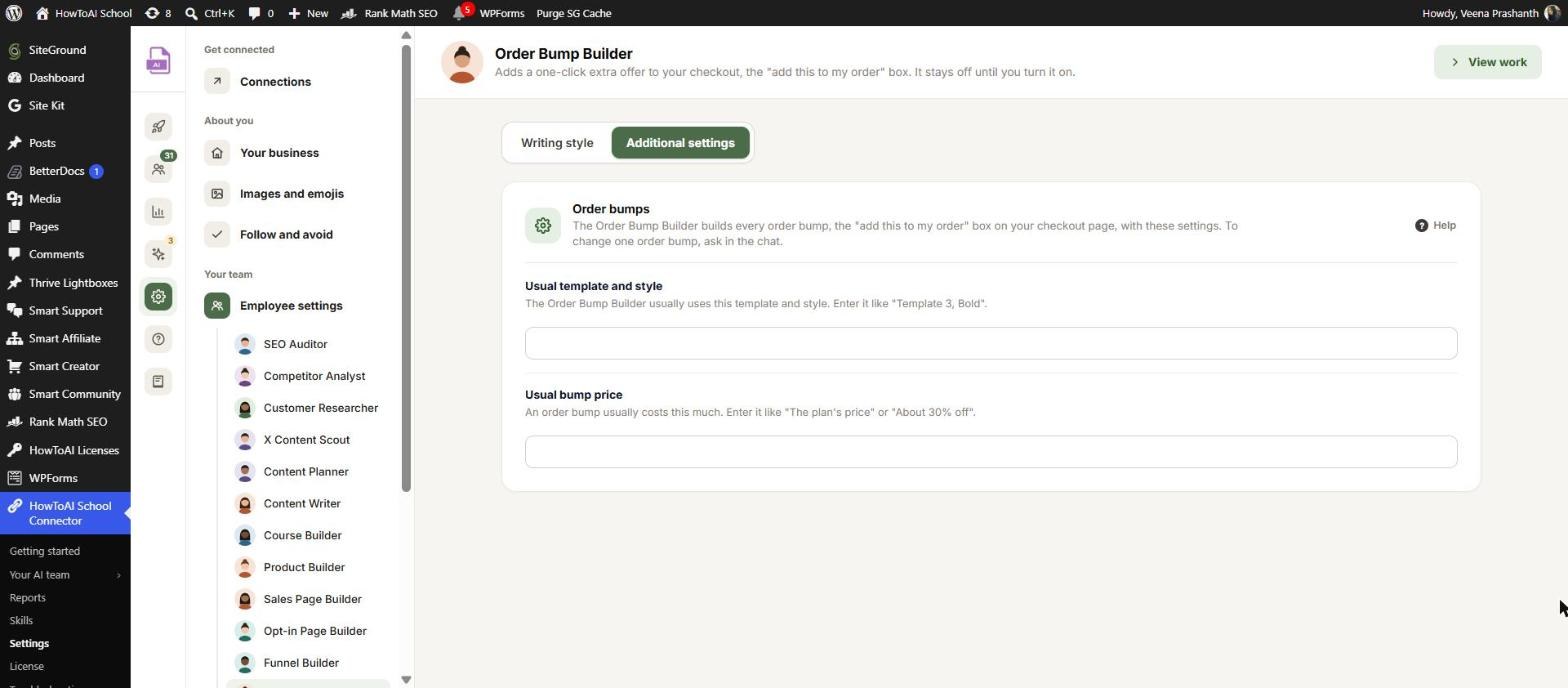
You don’t write the words: it writes them and shows them in the picture. Saved answers are shown as your pick with “Still right?” next time. In WordPress, open Settings → Employee settings → Order Bump Builder:
- Writing style: samples, links to your writing and special instructions for your offers.
- Additional settings: the Order bumps card with Usual template and style and Usual bump price.
See Employee settings.
What you get back
- A picture of the bump in the chat, drawn with Smart Creator Press’s own checkout styles, with a card that lists the product, the price, the template, the heading and the checkbox wording.
- After you say yes, a draft order bump in Smart Creator Press, switched off. Buyers don’t see it.
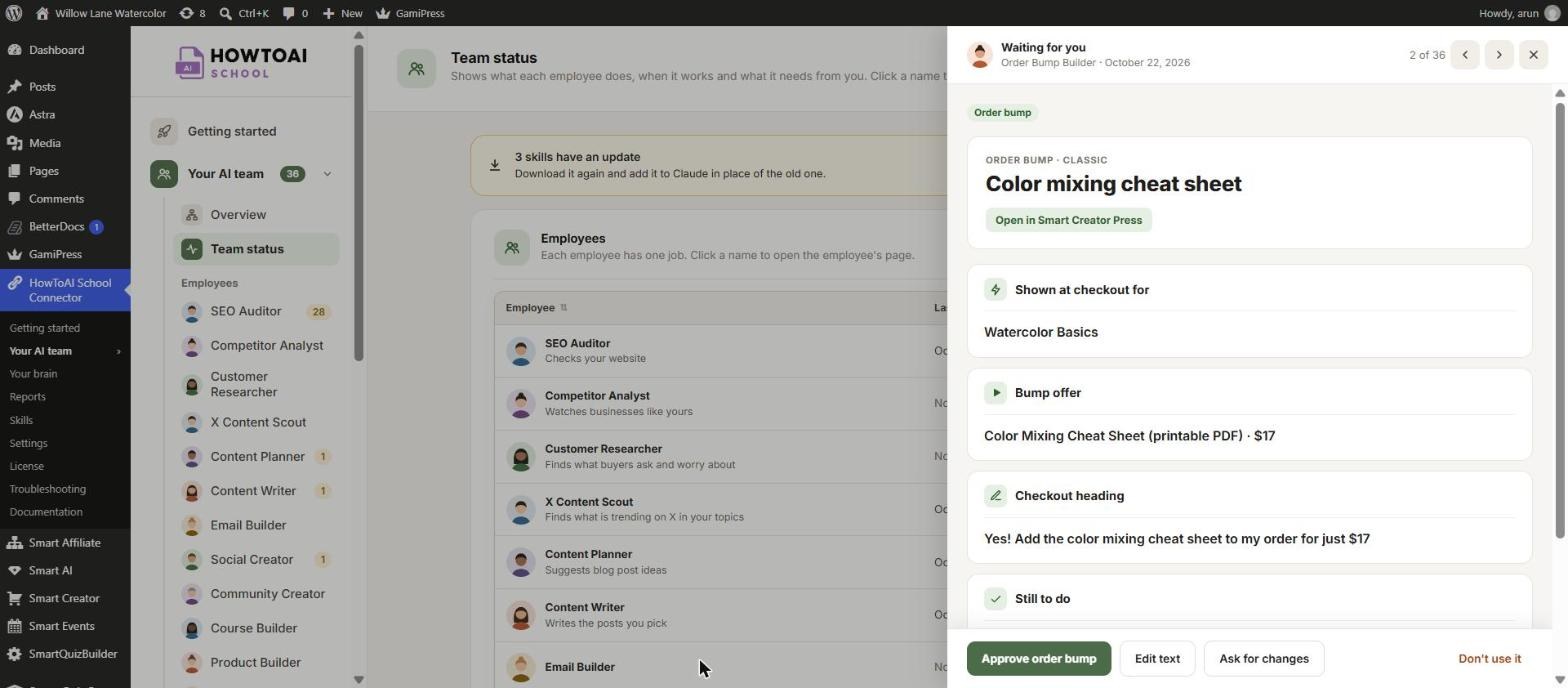
- The bump on the Order Bump Builder’s page in Your AI team → Order Bump Builder, with what it offers, its price, its heading and anything still to do.
- A hand-over message with the editor link. If order bumps are switched off in the main product’s Payment settings, it tells you.
- If the order bump tools aren’t on your site yet, a setup sheet with every field filled in, so you can enter it yourself.
Review and approve
- On the Order Bump Builder’s page, click Review on the bump, or click Open in Smart Creator Press.
- Check the offer, the price and the heading as buyers will read it.
- Click Approve order bump, Ask for changes with a note, or Don’t use it.
- Approving keeps the bump switched off. To show it to buyers, switch it on in Smart Creator Press → Order Bumps, then open the checkout yourself once to see it there.
More in Review and approve.
Tips
Tip: Keep the bump smaller and cheaper than the main product. Buyers give it about two seconds, so a quick, obvious add-on works best.
Tip: Pressing Save in the bump’s editor in Smart Creator Press also switches it on. Make your changes in the chat while it’s a draft if you aren’t ready.
Tip: On a monthly or payment plan, check how later payments are charged before you switch the bump on. The Order Bump Builder adds this to your to-do list.
Tip: For a bigger offer shown after the buyer pays, use the Funnel Builder. Don’t have a small product to offer yet? The Product Builder can make one.
Good to know: The Order Bump Builder only saves drafts. It never switches a bump on, never changes a bump buyers can already see and never makes up prices, savings or “only today” lines.


