ChatGPT reaches your website through the same connection link as Claude. You need a Plus, Pro, Business, Enterprise or Education plan, on the ChatGPT website. Your license must be active first.
Steps
- Copy your link. In Getting started step 2, or in Settings → Connections, click Copy.
- Open Plugins in ChatGPT. Click Plugins in the menu on the left.
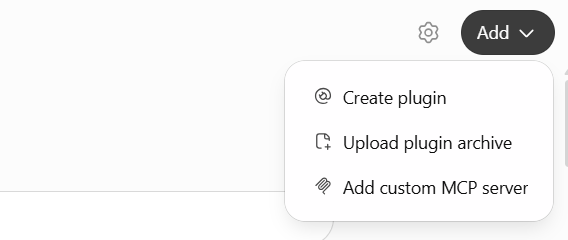
- Add a custom MCP server. Click Add at the top right, then Add custom MCP server.
- Fill in the form. Name: your website’s name. Connection: keep Server URL and paste your link. Authentication: leave it on OAuth.
- Create it. If ChatGPT asks you to confirm you trust it, tick the box. Then click Create.
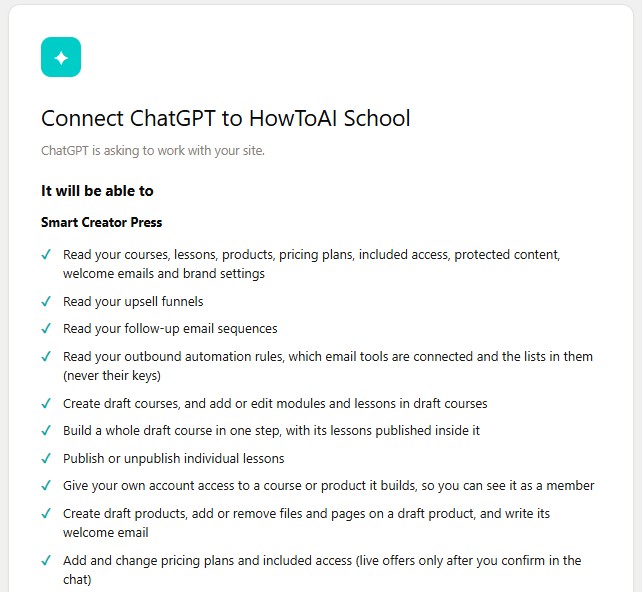
- Approve on your website. A WordPress screen opens. Click Approve. Back in Getting started, ChatGPT now says Connected.
The Approve screen
The WordPress screen lists what ChatGPT will be able to do under It will be able to, and what it can’t do under It won’t be able to. It can never see or change your WordPress password or anyone’s login details. ChatGPT acts as the WordPress user named at the bottom, can only do what that person may do, and every action is logged. Click Approve, or Deny to stop.
Add your employees too
The connection lets ChatGPT reach your website. Your AI employees are a separate plugin you upload in Getting started step 5. See Add your skills plugin.
Running employees in ChatGPT
- Start one by its command. Type the command, such as
/howtoaischool-seo-audit, and press Enter twice. Typing / on its own doesn’t list your skills in ChatGPT, and the first Enter only closes the small box that says No commands. - Questions come as lettered options. Where Claude shows answer buttons, ChatGPT lists answers as A, B, C. Type the letter or your own answer.
- Let it work without asking each time. ChatGPT can ask before each tool. In ChatGPT, open Settings → Plugins, click HowToAI School Connector, click Permission and choose Allow all.
For more on working in ChatGPT, see Use your team in ChatGPT.
ChatGPT not saying Connected, or it can’t reach your website? Run Test the connection.
Good to know: The skills plugin and this connection are two separate things in ChatGPT. Your skills need the connection to read and save anything on your website, so add both.


