The X Content Scout reads X (the site that used to be Twitter) for you, finds the most popular posts on your topics, groups them into trends and turns each trend into ideas in your voice. You see what your buyers are talking about this week, and you get ready ideas for your next course, product or post without scrolling X yourself. 🔭
What it does
- Reads X in your own browser, where you are already signed in, and finds the most popular posts on the topics you choose.
- Groups those posts into trends, with what people want and a few of their own words.
- Turns the trends into ideas of the kinds you pick: Course ideas, Product ideas, Blog post ideas, Community posts and Social posts.
- Writes every idea in your voice, and shows which trend and which X posts it came from.
- Says how much work each course or product idea is (Easy or Some work), and what it fits with or leads to among the things you already sell.
- Learns from the ideas you skip, and the reasons you give.
- Saves each X trend report on its page in WordPress, with a PDF and a spreadsheet.
What you need first
- HowToAI School Connector connected to Claude or ChatGPT. See Connect Claude or Connect ChatGPT.
- A browser (Chrome) where you are signed in to X, which Claude or ChatGPT can use. The X Content Scout reads X through your own browser, never through your website.
- What you sell and who it’s for, saved in your business profile, so the ideas fit your business. See Your business.
- Writing samples help the ideas sound like you. See Follow and avoid.
How to start it
- Make sure you are signed in to X in your browser.
- Open a new chat in Claude (or ChatGPT) with your connector turned on.
- Type
/howtoaischool-x-content-scout, or ask in plain words. - On the first run it asks a few questions. After that it reads X, writes the report and saves it to its page.
Example requests:
- “What’s trending on X about AI for course creators this week?”
- “Find course ideas from what people are saying on X about sourdough.”
/howtoaischool-x-content-scoutonly blog post ideas this time
The questions it asks you
On the first run it asks:
- Your main category: what your business is about in a few words, like “WordPress for course creators”.
- Topics to watch: the topics inside that category, like “AI agents”.
- Ideas to make: which kinds of ideas you want. Course, product and blog post ideas are ticked to start with.
It doesn’t ask which X searches to run or which accounts to read. It works those out from your topics and saves them as a guess you can change. Next time, your saved answers are used again.
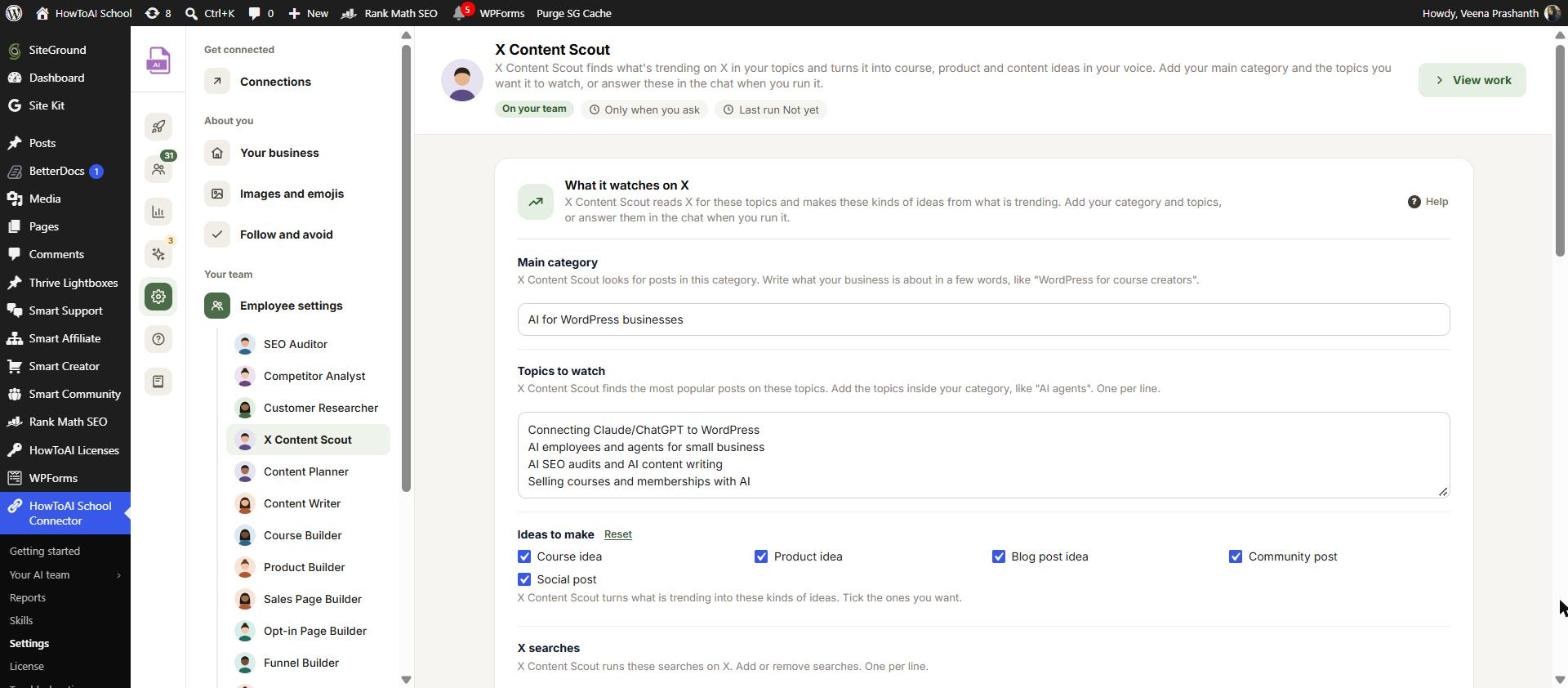
You can set all of this in WordPress too. Open Settings → Employee settings and click X Content Scout. The card What it watches on X has:
- Main category and Topics to watch (one topic per line).
- Ideas to make: tick Course idea, Product idea, Blog post idea, Community post or Social post.
- X searches and Accounts to watch (write each account without the @). While they are still its guess, they say “Worked out from your topics. Change them anytime.”
- Topics to stay away from and Accounts to stay away from.
- How far back to look: the last 3, 7 or 30 days. The usual is 7.
- Posts to list: 10, 20 or 30 of the most popular posts. The usual is 20.
- Ideas of each kind: 1, 3 or 5. The usual is 3.
There is also an Instructions card for anything else it should do every time. Click Save changes in the bar at the bottom. See Employee settings.
What you get back
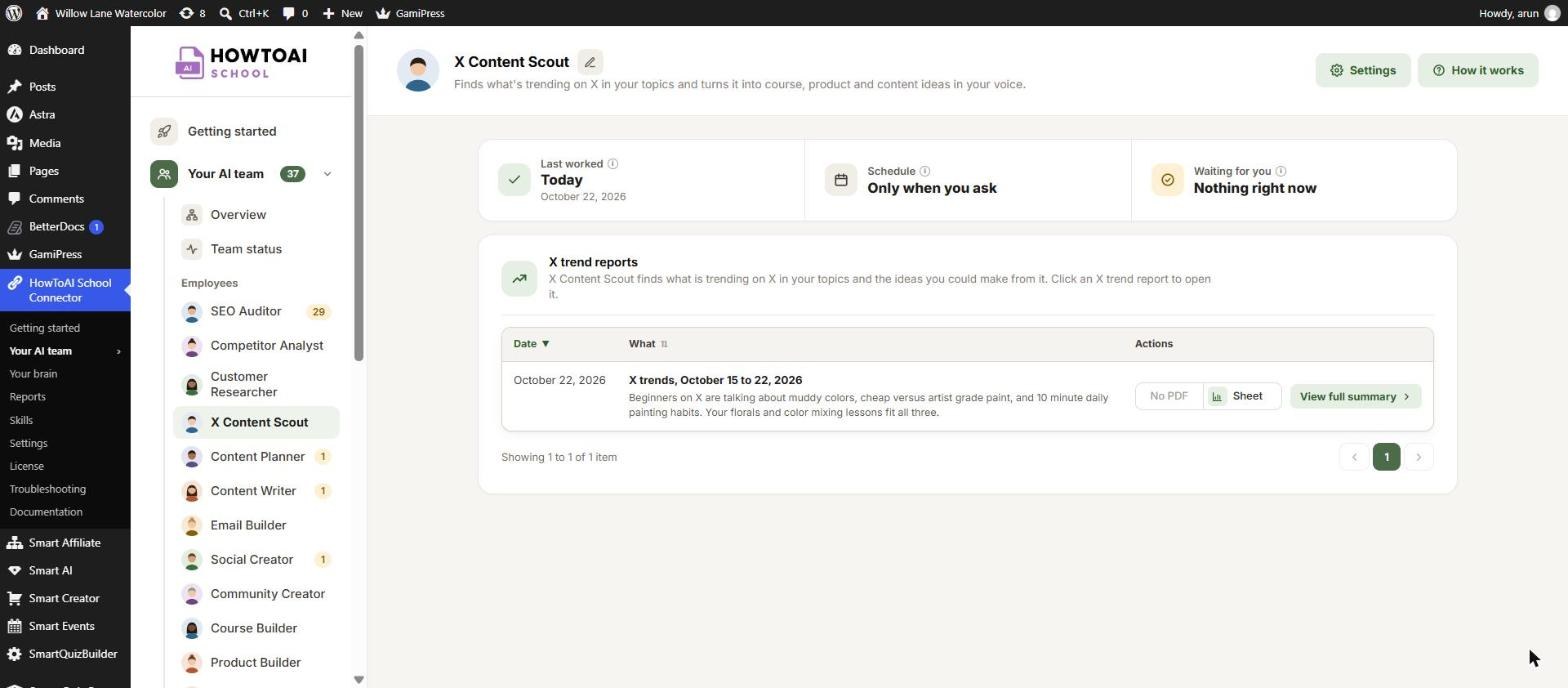
Each run saves an X trend report on the X Content Scout‘s page. Open Your AI team and click X Content Scout. At the top you see Last worked, Schedule and Waiting for you. Below, the card X trend reports lists every report by date, such as “X trends, this week”, with its summary, PDF and Sheet. Click View full summary to open one.
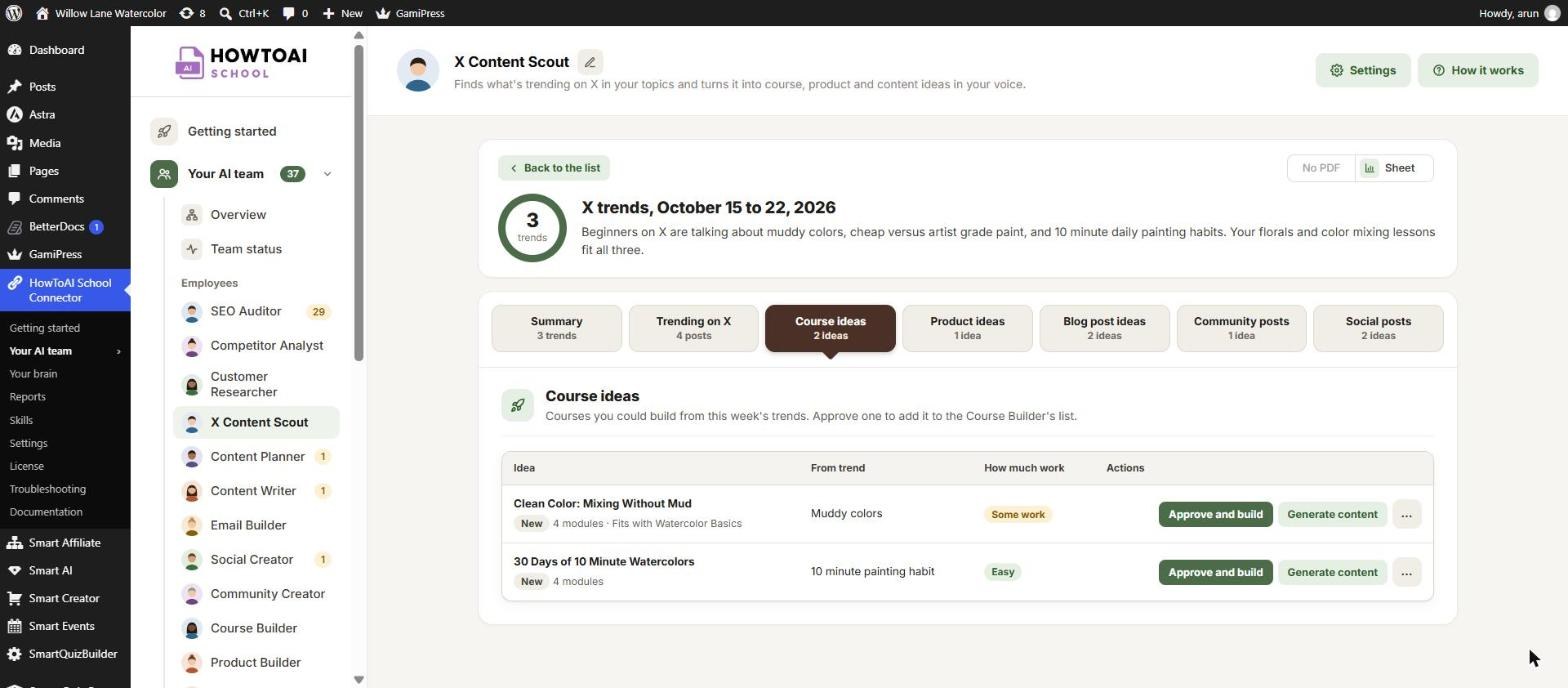
A report opens like an SEO check-up: a ring with the number of trends, a short summary, then tabs:
- Summary: “This week on X”. Each trend with what people want, a few of their own words and its posts.
- Trending on X: the most popular posts, with their trend, replies and views. The arrow opens the post on X.
- Course ideas, Product ideas, Blog post ideas, Community posts and Social posts: one tab for each kind that has ideas. Community and social posts show their full text.
Click an idea’s title to read it in full at the side: who it’s for, the result, its modules or sections, why now, what it fits with or leads to, and the X posts it came from. Use the arrows to move to the next idea.
Sheet opens your Google Sheet, or downloads the trends, posts and ideas as a spreadsheet file when no sheet was saved.
Review and approve
Each idea has a status: New, Sent to an employee, Approved, Building, Built or Skipped. What you can click depends on the kind of idea:
- Approve and build on a course or product idea adds it to your Course Builder’s or Product Builder’s list. It builds it on one of its next scheduled runs.
- Approve and write on a blog post idea makes it an approved topic. Your Content Writer drafts it on its next run, and the draft comes to you to approve. See Review and approve.
- Copy on a community or social post copies the text, so you can paste it where you want to post it.
- Generate content on any idea gives you a ready message. Copy it, paste it into a new Claude or ChatGPT chat with your connector, and send it: the right employee (Course Builder, Product Builder, Content Writer or Social Creator) makes it straight away. The idea then shows Sent to that employee.
- … then Skip sets an idea aside. Pick a reason (Not my topic, Already made something like it, Not now, Too much work, Other) or No reason. Put back brings a skipped idea back.
Good to know: The Community Creator is coming soon. For now, copy a community post and paste it into your community yourself.
When it runs
The X Content Scout has no schedule. It runs only when you start it in Claude or ChatGPT, because it reads X in your own browser. Start it once a week, or whenever you want fresh ideas.
Tips
Tip: Keep your topics narrow. “AI agents for course creators” finds more useful posts than “AI”.
Tip: Add competitors or noisy accounts under Accounts to stay away from, so they never show up in your report.
Tip: Want a course built today? Use Generate content instead of Approve and build, and paste the message into a new chat.
Tip: Give a reason when you skip. The next report gets closer to what you want.
Good to know: The X Content Scout never posts, likes, replies or follows anyone on X. It only reads, and your website never reads X at all. Ideas use what people are asking for, never their words, and nothing is built or published until you approve it.


