The Sales Page Builder writes a full sales page for your course, product or membership, in your voice and brand colors, and saves it as a draft page on your WordPress site. Every claim comes from your site, your course or what you tell it, so you approve with light edits instead of starting from a blank page. 💸
What it does
- Writes one sales, offer, membership, challenge or product page per run.
- Reads your saved products, the pages about your offer and, with Smart Creator Press, your course and its price plans.
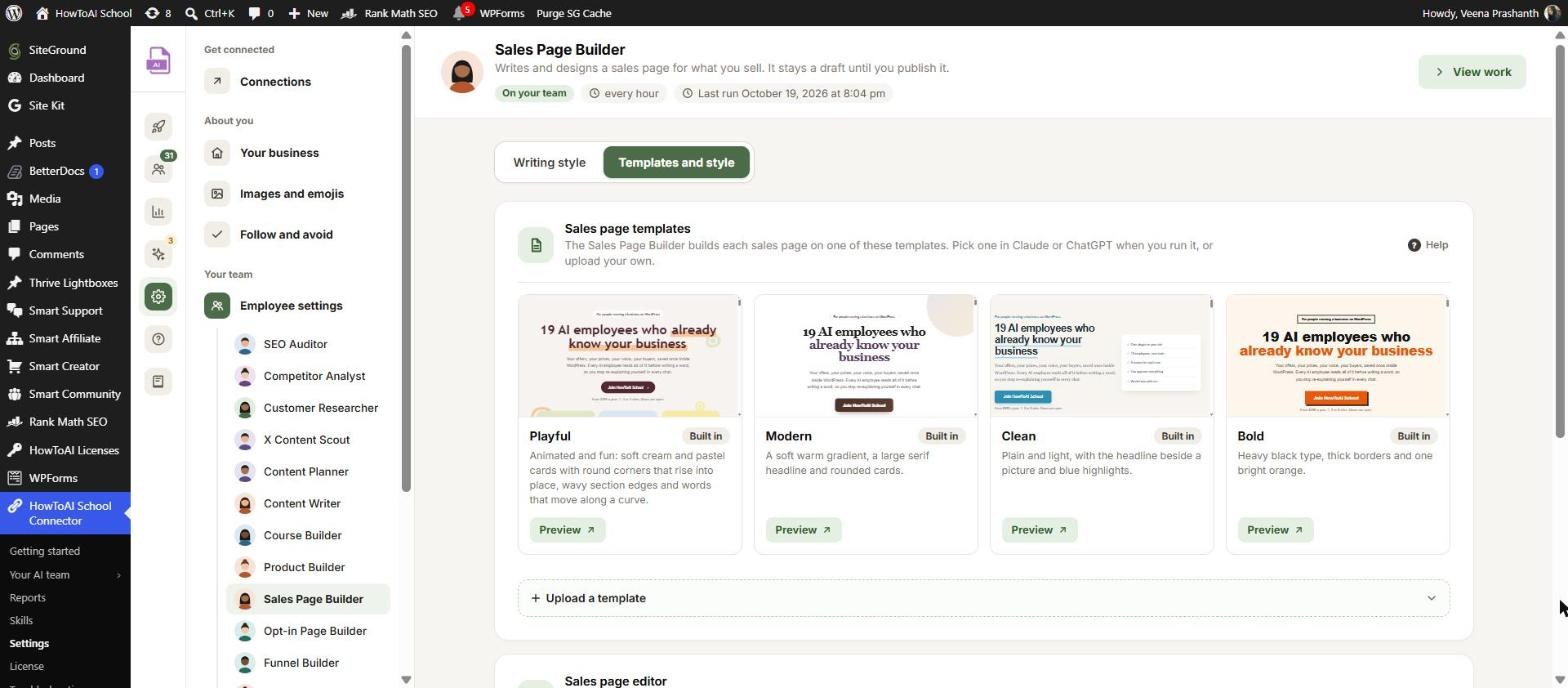
- Starts from a design you pick: Modern, Clean, Bold, Playful (animated) or one you uploaded.
- Points each buy button at its checkout, or a clearly marked placeholder it tells you about.
- Adds a questions section, SEO title, meta description and links to your other published pages.
- Uses only real testimonials, word for word, and never invents numbers or results.
- Checks the page at desktop and phone width when it has a browser, and fixes what it finds.
What you need first
- HowToAI School Connector connected to Claude or ChatGPT. See Connect Claude or Connect ChatGPT.
- Smart Creator Press helps but isn’t required. Without it, you paste your course outline.
- Your brand color and fonts on Your business.
How to start it
- Open a new chat in Claude or ChatGPT with your site’s connector on.
- Type
/howtoaischool-salespagebuilder, or ask in plain words. - Answer its questions one at a time.
Example requests:
- “Build a sales page for my Course Launch Lab course.”
- “Write a sales page for my VIP Membership.”
- “Make a page for my new 5-day challenge.”
The questions it asks you
One question per message, skipping anything it already knows:
- The offer this page sells.
- Pages about it, only when none are saved.
- The course or product on your site. Then it shows what it found and asks “Did I get this right?”
- Your voice: samples, or “Does this sound like you?”
- Your brand: colors and fonts, every time.
- The starting design, for every new page.
- The page template, once per site.
- Buy buttons, only when it can’t find a checkout link.
Next time it shows what you saved and asks if it’s still right. In WordPress, open Settings → Employee settings → Sales Page Builder:
- Writing style: samples of sales pages you wrote, links to your writing and special instructions for sales pages.
- Templates and style, Sales pages: the built-in designs and any you uploaded, with Preview. The Sales page editor card sets Write sales pages in (the Block editor, or My page builder when Thrive Architect, Elementor or Divi is found) and the Sales page template your theme uses for the page. See Templates and style.
See Employee settings.
What you get back
- A draft page on your site. It is never published for you.
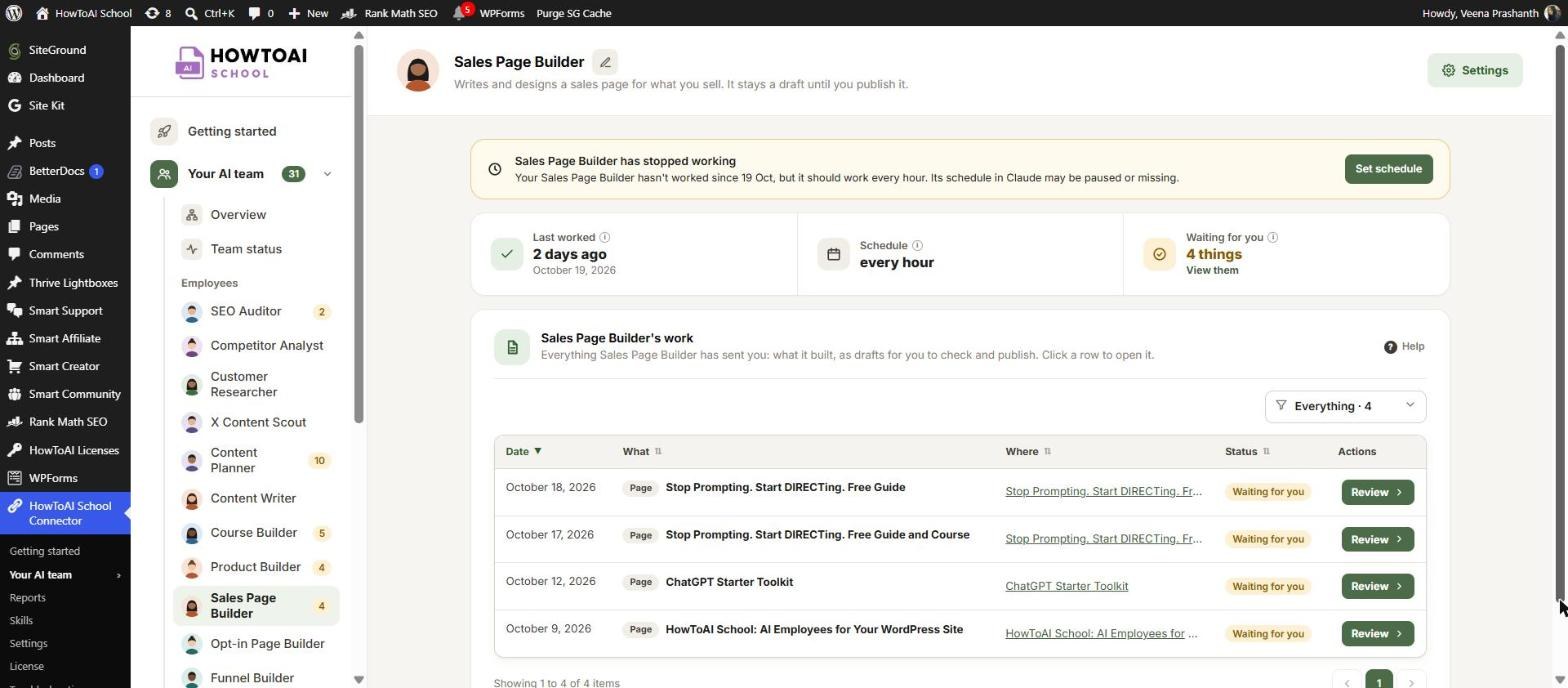
- The page on the Sales Page Builder’s page in Your AI team → Sales Page Builder, waiting for you.
- A hand-over message with preview and edit links, placeholders to swap and anything to do first, such as publishing a course that is still a draft.
- The page is added to the Sales pages tab of Built by your team, so your other employees link to it.
Review and approve
Open Your AI team → Sales Page Builder and click Review on the page. Open in editor opens it in WordPress. Check the price, plans and refund terms, click each buy button, and read the headline as you would say it. Then click Approve and publish, Ask for changes with a note, or Don’t use it. A page you send back is fixed in the same draft on its next run, keeping its design. See Review and approve.
Running it on a schedule
Say “Build the sales page for Course Launch Lab tomorrow at 9.” It asks its questions now, then sets up a one-time run in your AI app. The scheduled run asks nothing: it uses your saved answers, the Clean design (or your own, if you uploaded exactly one) and placeholders for missing links. Set your connector’s tools to always allow so it can run alone. See Run employees on a schedule.
Tips
Tip: Save each offer’s checkout link as its Checkout page under Settings → Built by your team, and every buy button is set for you.
Tip: Like a page’s look? Upload it as your own template on the Templates and style tab of the Sales Page Builder’s settings: from a link, an HTML file, pasted HTML or a screenshot. It copies the look, never the words.
Tip: Feed it buyer language. Reports from your Customer Researcher and Competitor Analyst give it real words and objections to answer.
Tip: If a line doesn’t sound like you, rewrite it in the chat. It saves your version for next time.
Good to know: Nothing goes live without you. It only creates drafts, never edits a published page and never touches your theme. If the course it sells is still a draft, publish that too, or the buy buttons won’t work.


