Your Competitor Analyst and Customer Researcher send you reports: who buyers compare you to and what they charge, and what your buyers say, want and complain about. Each report opens with what to do next, so you can act on it in a few minutes. 📊
Where to find them
- On the employee’s page. Open Your AI team and click the Competitor Analyst or Customer Researcher. Each report is a row with PDF and Sheet buttons (when the employee made them) and View full summary.
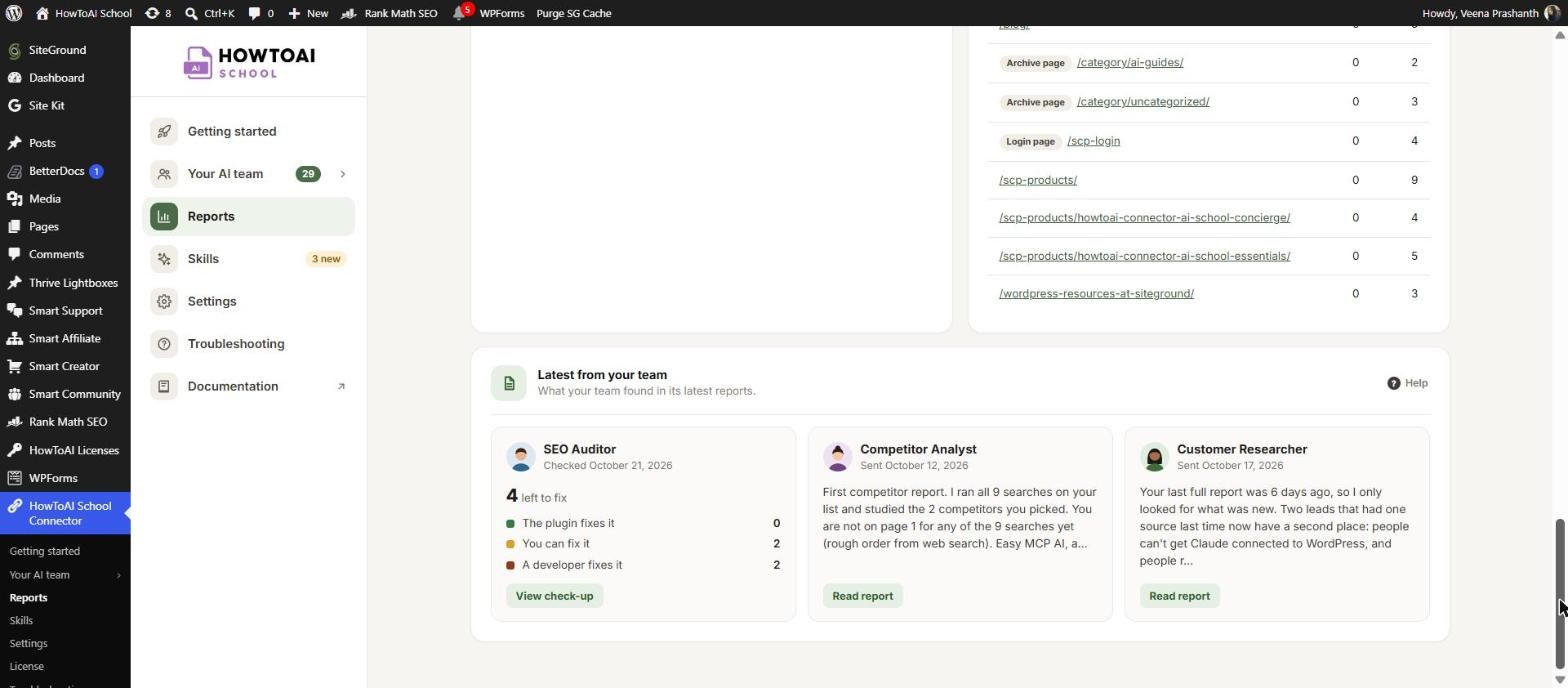
- On Reports. The Latest from your team card has a box for each researcher, with a New pill on a report you haven’t opened and a Read report button. The Competitor Analyst’s box also shows what competitors charge a year for their top plan.
Full reports usually come once a month: the competitor report on the 2nd and the customer report on the 3rd. On a daily schedule, smaller daily checks can arrive in between. They open in the same panel and are labelled as checks.
Open a report
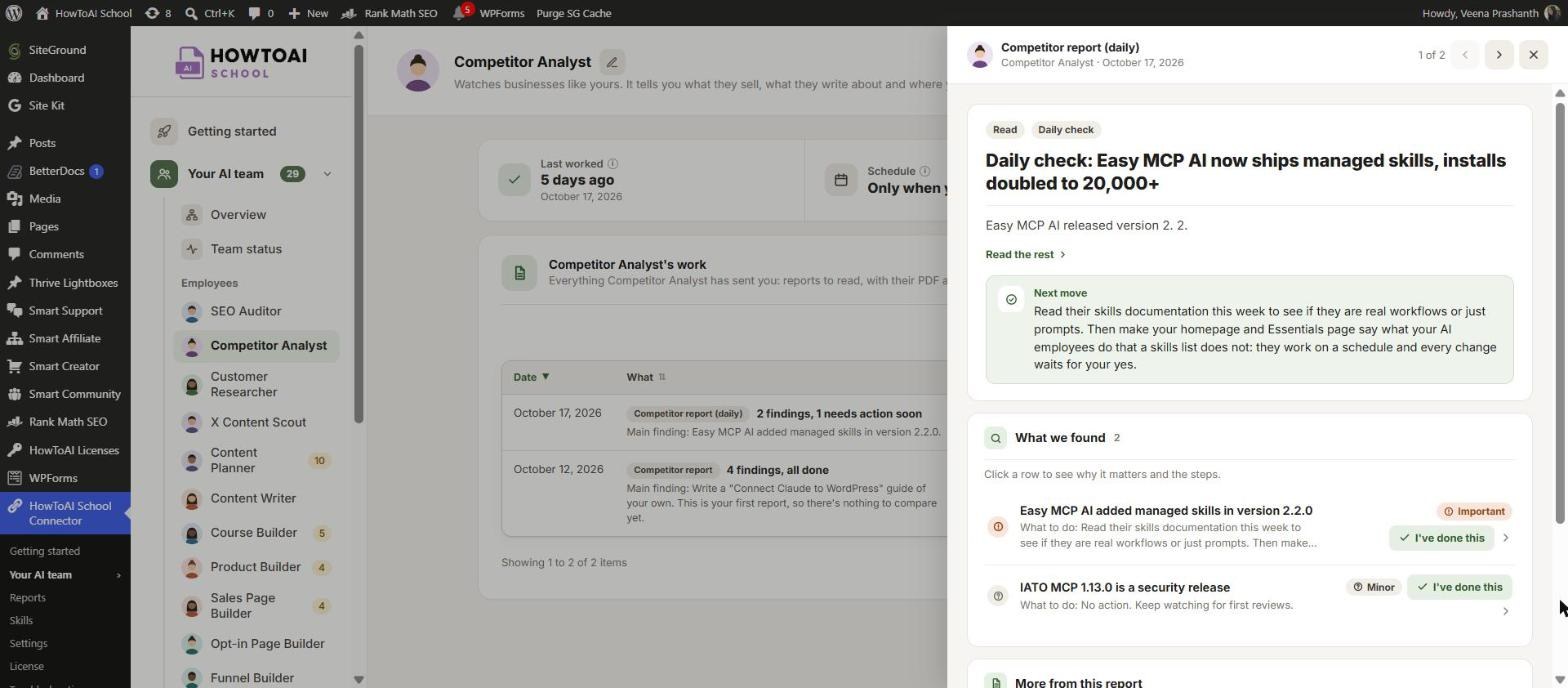
A report opens in a panel on the right. If the employee has sent more than one, the arrows at the top step through them, newest first (“1 of 4”). Close it with the cross or the Esc key.
Opening a report marks it as read: its pill changes from Not read yet to Read. Reports have no Approve or Send back buttons. There is nothing to say yes to: you read them and act on what you want.
What’s in a report
The summary and your next move
At the top is a two-sentence summary. Click Read the rest for the full summary. Under it, a green Next move box says the one thing to do first.
What we found
Each finding is one row, marked Important, Worth doing or Minor. Click a row to open it:
- What they said (customer report): what buyers said, each quote with where it was said.
- Why it matters (competitor report): why this move matters for you.
- What to do: the step to take, often with numbered steps.
- Where: the page it is about, and sometimes about how many minutes it takes.
Some statements carry a small tag: Measured when the employee checked it, or My judgment when it is the employee’s opinion.
Mark what you’ve done
When you’ve done a finding, click I’ve done this on its row. You see “Marked as done. Your team knows on its next run.” and the heading shows your progress, such as “2 of 4 done”. Changed your mind? Click Not done yet to put it back on your list.
More from this report
Everything else is folded under plain names. Open any part to read it. Depending on the report, you may see:
- Customer report: What frustrates them, What they love, Questions they ask before buying, Why they don’t buy, What they’d pay more for, What they wish existed, Their own words, Post ideas from this report.
- Competitor report: one part per competitor, Prices compared, What nobody offers yet, What they have that you don’t, What to watch next month, Other names to consider.
- Both: What’s new since last time, Next moves, and how the employee did its research (What it could and couldn’t read, Where each finding came from, What it searched).
Notes for your team
The last part holds notes for your Content Planner and Content Writer, which they use to suggest and write posts. Nothing to do here.
If the employee sent a full report or a file with it, buttons at the bottom of the panel open them: Open full report and Download file.
What your team does with it
Your Content Planner reads the latest reports and turns them into post ideas for you to approve. Your Content Writer uses the buyers’ own words when it writes. The findings you mark as done tell the next run what is already handled.
Tip: Start with the Next move box and the Important rows. Their own words is the part to keep open when you write a sales page or an email: it is how your buyers really talk.
Tip: Want the report somewhere else? The PDF and Sheet buttons on the employee’s page download it. With no Google Sheet saved, Sheet downloads the findings as a spreadsheet file.
Good to know: Reports never change anything on your website. They are advice for you and notes for your team. A report is only marked as read while your license is active.


