Installing takes about a minute, and after that updates come to you inside WordPress. 🚀
Install the plugin
- Download howtoaischool-connector.zip from your account on howtoaischool.com. Leave the file zipped.
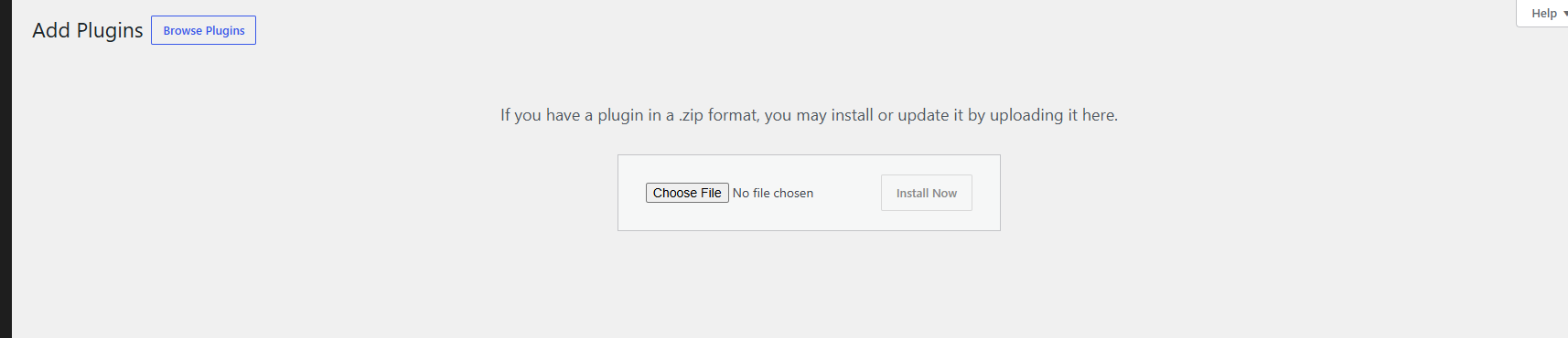
- In WordPress, go to Plugins → Add New Plugin and click Upload Plugin.
- Click Choose File, pick the zip file and click Install Now.
- Click Activate Plugin.
You now have HowToAI School Connector in your WordPress menu, and WordPress opens Getting started for you. Your first job there is your license key: see Activate your license.
Updates from WordPress
Once your license key is saved and active, new versions of HowToAI School Connector show up in WordPress the same way as any other plugin. You don’t need to download anything from your account.
- Plugins screen: under HowToAI School Connector, a line says there is a new version, with update now.
- Dashboard → Updates: the plugin is listed with your other updates. Tick it and click Update Plugins.
- Automatic updates: click Enable auto-updates on its row on the Plugins screen, and WordPress installs new versions by itself.
- Check for updates: the plugin’s row on the Plugins screen has a Check for updates link, so you don’t have to wait for WordPress’s own check.

To update
- Go to Plugins and find HowToAI School Connector.
- Click update now. WordPress downloads and installs the new version.
- Done. Your settings, your team’s memory and everything in your AI team inbox stay as they are.
Updates only come while your key is active on this website: the update server gives the download only to a site with a good key. A site only ever updates to a higher version number.
After an update
- Refresh the tools list in Claude, so it sees any new tools: Customize → Connectors, choose your website’s connector, open the three-dot menu and click Refresh tools list. Then start a new chat.
- Open Skills. If it says Update available, download your skills plugin again and add it in place of the old one. See Update your skills.
Update by hand
If no update shows on the Plugins screen, or your site can’t reach the update server, you can still upload the new version yourself:
- Download the new zip file from your account.
- Go to Plugins → Add New Plugin → Upload Plugin, choose the file and click Install Now.
- WordPress says the plugin is already installed. Click Replace current with uploaded.
Your settings, your team’s memory and everything in your AI team inbox stay as they are this way too.
Tip: No update showing when you expected one? Open License and check it says Active. Then click Check for updates on the Plugins screen. See Troubleshooting: updating the plugin.


