The Follow-up Email Builder writes the emails a buyer gets in the days after they join one of your courses or products, and sets them up in Smart Creator Press to go out on a schedule you approve. Good follow-ups help buyers actually use what they bought, which means fewer refunds and more happy students. 📬
What it does
- Reads your course or product, so every email names your real modules, lessons and files.
- Suggests how many emails to send: usually 3 for a single download, 5 for most products and short courses, and 7 for a bigger course.
- Suggests the type of sequence: Get started, Quick wins, Keep going (for courses) or Next step (leading to another offer, a call or your community).
- Suggests when each email goes out, counted from the moment someone gets access, such as the same day, then Day 1, Day 3, Day 5 and Day 7 at 9 am.
- Writes every email in your voice, each with one clear action and an unsubscribe link at the end.
- Sets the whole sequence up in Smart Creator Press, switched off, to start when someone gets access.
- Leaves your welcome email alone. It still goes out first, the moment someone joins, and is never part of the sequence.
What you need first
- Smart Creator Press switched on, with the course or product already made. A draft is fine, but the emails won’t send until it’s published and you switch them on.
- HowToAI School Connector connected to Claude or ChatGPT. See Connect Claude or Connect ChatGPT.
- Optional: a few samples of your emails, so the emails sound like you. Add them on the Writing style tab of its settings, or see Follow and avoid for rules every employee follows.
How to start it
- Open a new chat in Claude (or ChatGPT) with your website’s connector added.
- Type
/howtoaischool-followupemail, or ask in plain words. - Name the course or product. If you just built it with the Course Builder or Product Builder in the same chat, you can simply say “add follow-ups to it”.
Example requests:
- “Write 5 follow-up emails for my Pricing Worksheet Pack, a get-started sequence.”
- “Add follow-up emails to the Watercolor for Beginners course.”
- “Build a short follow-up sequence for my free guide that leads to my coaching call.”
The questions it asks you
It asks one question at a time and skips anything you already said. On a first run:
- Which course or product the emails are for.
- How many emails you want.
- What the sequence should do (the type).
- Whether the suggested timing works, or which days and time of day to change.
- How you sign your emails, only if you haven’t saved a signature yet.
- Whether to build the sequence, after it shows you the plan.
Saved answers are shown as your pick with “Still right?” so you can keep or change them. In WordPress, open Settings → Employee settings → Follow-up Email Builder:
- Writing style: samples of your emails, links to your writing and special instructions for emails.
- Templates and style: the Emails layout and your Signature, shared with the other employees that write emails. See Templates and style.
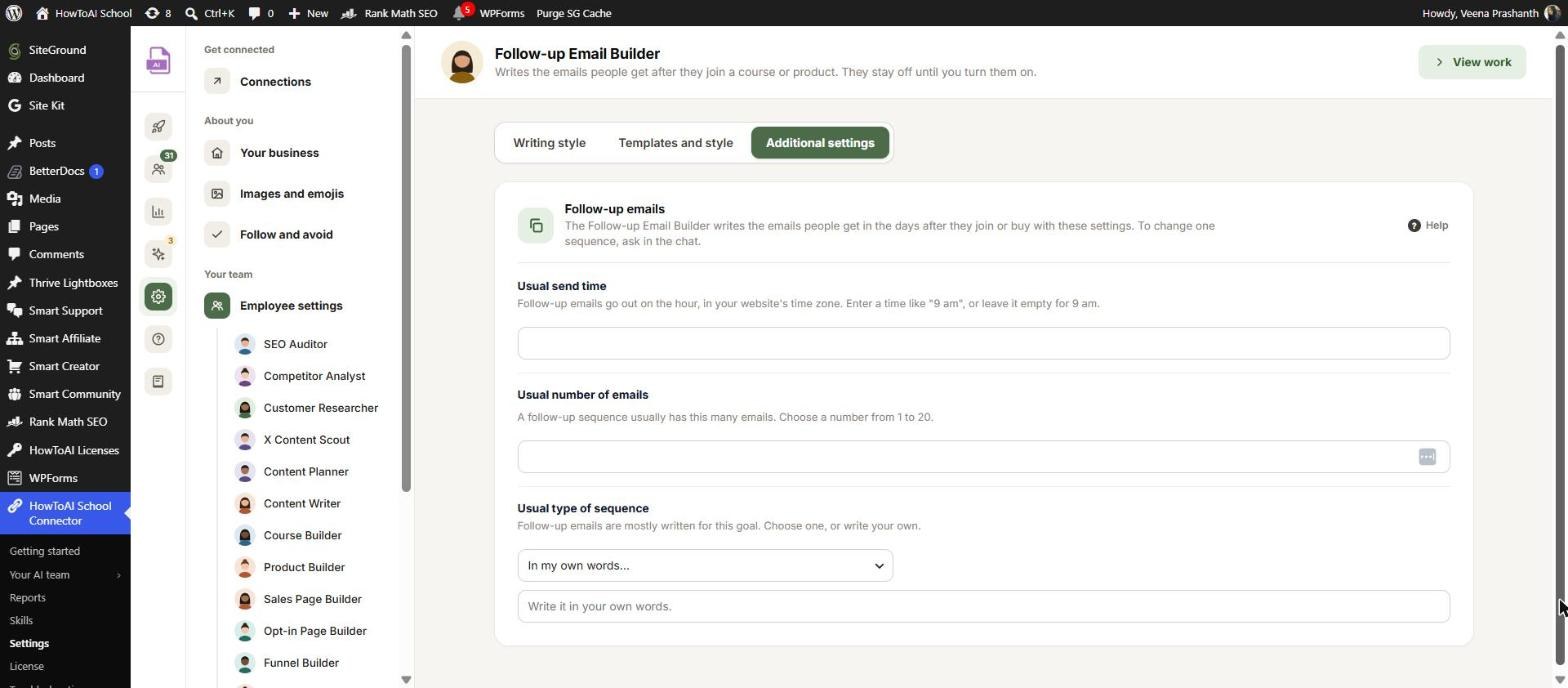
- Additional settings: the Follow-up emails card with Usual send time, Usual number of emails and Usual type of sequence.
See Employee settings.
What you get back
- A plan card in the chat: every email’s timing, subject and first line, plus the first email in full, so you can judge the voice before anything is built.
- After you say yes, the sequence in Smart Creator Press, switched off. No one gets these emails yet.
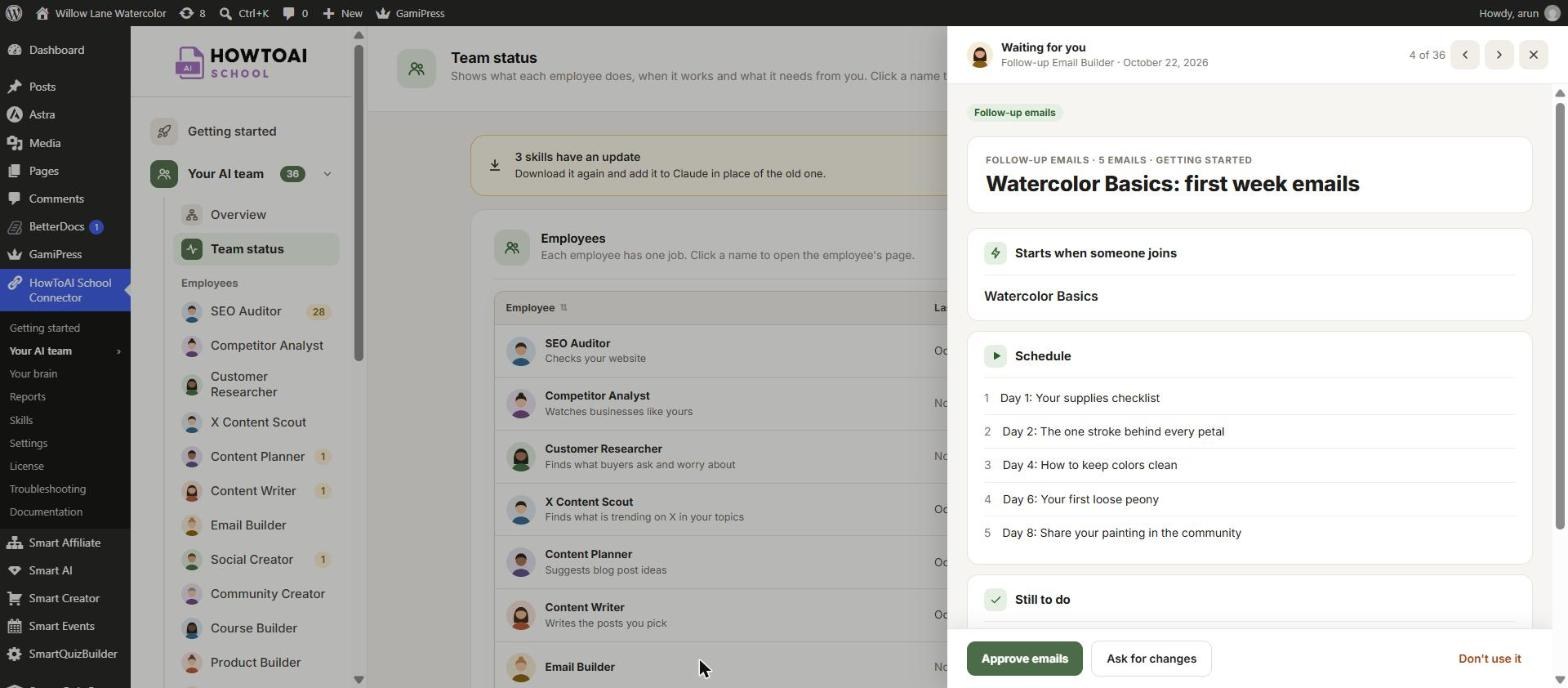
- The sequence on the Follow-up Email Builder’s page in Your AI team → Follow-up Email Builder, with one line per email and what is still to do.
- A hand-over message with the link to the sequence on Smart Creator Press’s Autoresponders screen, and any gaps to fill, such as a real result a buyer got.
- If the sequence tools aren’t on your site yet, a setup file with every email, its subject and its timing, so you can add them yourself.
Review and approve
- On the Follow-up Email Builder’s page, click Review on the sequence, or click Open in Smart Creator Press.
- Read each email. Fill any gaps it listed and check every link.
- Click Approve emails, Ask for changes with a note, or Don’t use it.
- Approving keeps the sequence switched off. Send yourself a test, then switch the sequence on in Smart Creator Press.
More in Review and approve.
Running it on a schedule
You can say “build it tomorrow morning”. It gets the plan approved in the chat first, then sets up a one-time run in Claude. When it runs, it asks nothing and builds only the sequence you approved. If the plan is missing or the course or product is gone, it stops and notes why in Logs.
Tips
Tip: People who join before you switch the sequence on won’t get these emails. Switch it on before you start selling, or soon after you approve it.
Tip: Test it with a test account: get access, then check that the welcome email arrives first and the same-day follow-up lands a few hours after it.
Tip: Each course or product can have one follow-up sequence. To change one, ask in the chat, for example “make email 3 shorter” or “push everything back a day”.
Tip: For an email that goes out when something happens, such as finishing a course or leaving the checkout, use the Automation Builder instead.
Good to know: The Follow-up Email Builder never switches a sequence on, never changes one that is already sending and never rewrites your welcome email. It never makes up results, testimonials, deadlines or bonuses.


