The connection test watches your website for 90 seconds while you reconnect Claude or ChatGPT. Then it tells you what happened: everything works, your host is blocking the app, or the sign-in gets lost on the way. When something is blocked, it gives you a message ready to send to your host. 🔌
When to run it
- Claude or ChatGPT says it couldn’t reach the server, or connecting never finishes.
- Settings → Connections shows “Claude signed in … ago, but hasn’t used the connection since.”
- An employee stops with a message that your website returned a web page, or that your web host blocked the request.
- Your employees used to work and suddenly can’t read or save anything on your site.
Where to find it
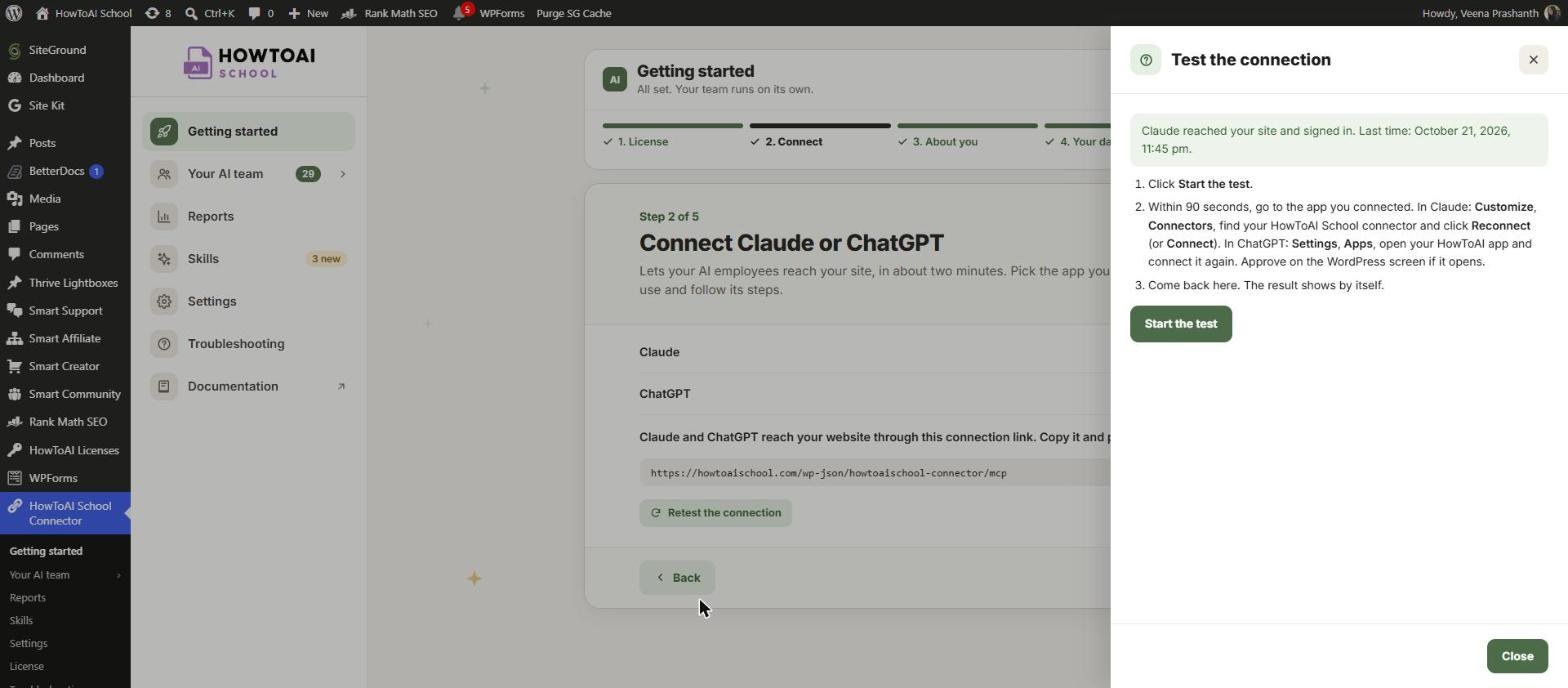
- Open Getting started, go to step 2 (Connect Claude or ChatGPT) and click Retest the connection. The test opens in a panel on the right, titled Test the connection.
- In Settings → Connections, the warning about an unused sign-in has a Test the connection link.
- The Troubleshooting screen points to it in the fixes for connecting.
Run the test
- Click Start the test. The line under it says “Now reconnect in Claude or ChatGPT. Watching for … more seconds.” and counts the requests that arrive.
- Within 90 seconds, reconnect in the app you use. In Claude: click Customize, then Connectors, find your HowToAI School connector and click Reconnect (or Connect). In ChatGPT: open Settings → Plugins, open HowToAI School Connector and connect your account again.
- If the WordPress Approve screen opens, click Approve. See The approve screen.
- Come back to the test. The result shows by itself, and the button changes to Run the test again.
What the result means
Connected
“Your app reached your site, signed in and listed its tools. You’re all set.” Nothing to do. Getting started now shows Connection tested, with the line “Claude reached your website on date”.
No requests from Claude or ChatGPT reached WordPress
Your host, a firewall or a security plugin blocks the app’s servers before WordPress sees them. Nothing inside WordPress can fix that: the block has to be lifted where it is.
- Click Copy on the message under “Send this to your host’s support” and send it to your host. It explains what to allow.
- The panel also lists Claude’s addresses, with a link to Anthropic’s list of IP addresses, in case your host asks.
- If the test spots SiteGround, Cloudflare or Wordfence on your site, it shows “We spotted …” with the exact settings to change there. For example, on Cloudflare: Security, then WAF, then Tools, and allow Claude’s addresses; and turn off Bot Fight Mode or “Block AI bots”.
- Run the test again once the block is lifted.
The requests arrive, but without their sign-in
Your server removes the sign-in from each request, so every request looks signed out. The panel shows one line to add near the top of your site’s .htaccess file, above # BEGIN WordPress. Copy it and add it with your host’s File Manager, or send the line to your host and ask them to pass the sign-in through. Then run the test again.
Your app signed in, but its sign-in was refused
The panel gives the reason. Remove the HowToAI School connector in Claude or ChatGPT, add it again with your connection link, approve it, and run the test once more.
Your app reached your site but didn’t finish connecting
Its requests arrive, so your host isn’t blocking it. Reconnect in Claude or ChatGPT again, click Approve on the WordPress screen, and run the test once more.
Your host blocks some of what your AI employees send
This can show next to any result. Some hosts block a request when it contains certain words or a bit of code, and answer with their own error page instead. After a few of those, the host blocks Claude or ChatGPT for a while and every employee stops working. Copy the message in the panel and send it to your host. This check runs at most once every 15 minutes, so testing again straight away shows the last answer.
What arrived
Under the result, a table lists each request that reached your site during the test: Time, Request, Result, From (the address, and whether it is in Claude’s range) and Sign-in. If your host or a developer asks what happened, this is what to show them.
Tip: Run the test while your host’s support chat is open. They can see the blocked requests on their side at the same moment.
Good to know: The test only watches. It changes nothing on your website or in Claude or ChatGPT. If your host is the problem, only your host can lift the block, so send them the message the test gives you.


