Changed a lot and want a fresh start? You can reset, and undo it for 30 days. ↩️
Reset one setting
A single box has its own Reset link when you changed its starting value. Click it to put just that setting back.
Reset one screen
Click Reset to defaults at the bottom, then Yes, reset to defaults to confirm, or Cancel to keep everything. It shows once something on the screen is saved:
- Your business: empties every field, so your team reads your pages or asks you again.
- Follow and avoid: your rules go back to the starting rules, and their samples and links are removed.
- An employee’s Writing style (under Start over): removes that kind of writing’s samples, links and special instructions. Your Follow and avoid rules stay.
- Lesson format and Email layout on Templates and style: the format goes back to the starting one. Your templates stay, and for emails your emails to copy are removed.
Reset everything
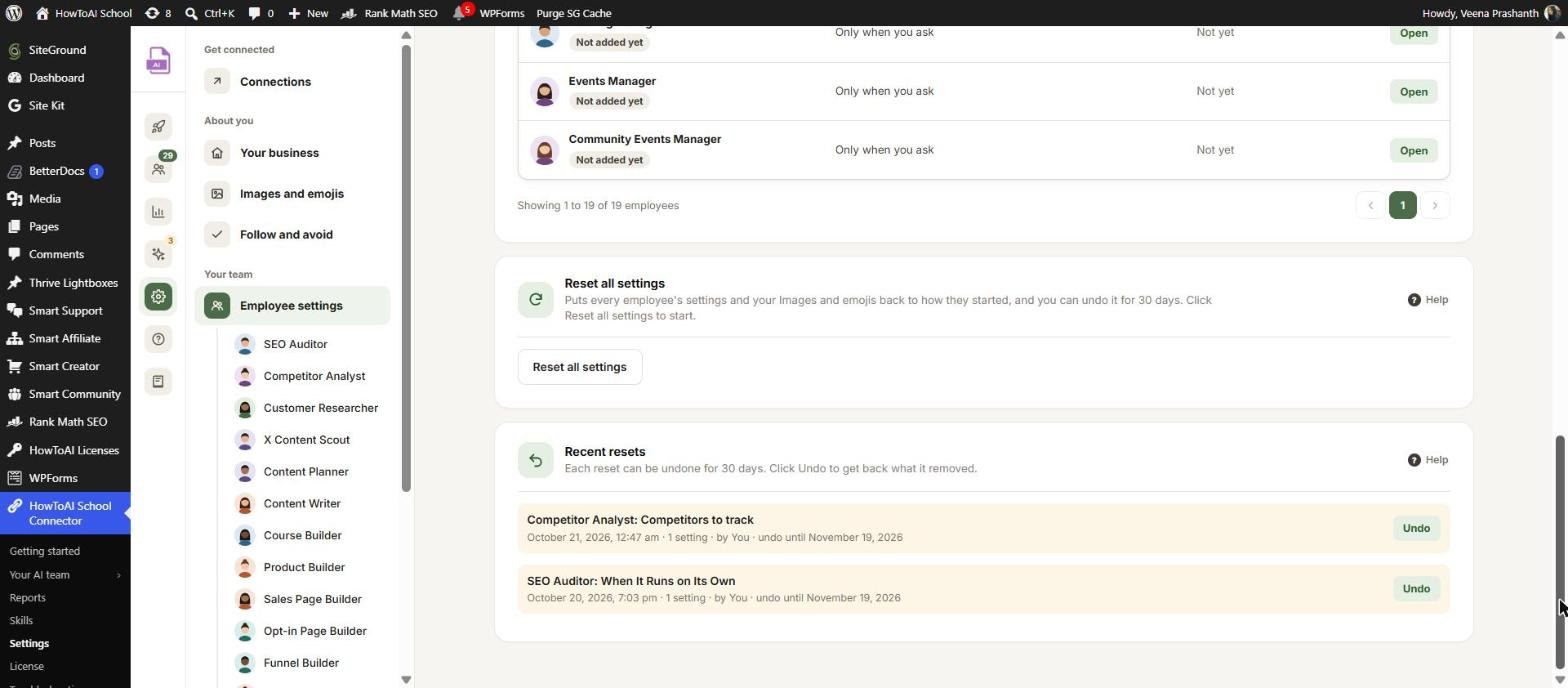
On Settings → Employee settings, click Reset all settings. A list shows every setting that changes back. Click Yes, reset every setting to confirm, or Cancel. It puts every employee’s settings and your Images and emojis back to how they started.
Undo a reset
Right after a reset, the message at the bottom of the screen has Undo. Later, open Settings → Employee settings: every reset from the last 30 days is listed under Recent resets, with what it reset, when, how many settings, who did it and the day you can undo it until. Click Undo to get back what it removed.
Good to know: After 30 days, a reset can no longer be undone.


