HowToAI School Connector follows the roles you already use in WordPress. Administrators run the plugin. People who review can approve your team’s work. Claude and ChatGPT can only do what the person who connected them is allowed to do. 🔐
People who review your team’s work
Reviewers can open these screens:
- Your AI team: Overview, Team status and each employee’s page.
- Reports, Troubleshooting and Documentation.
They can approve, ask for changes, reject and undo their team’s work, and use write on demand once it is on. See Review and approve.
When the plugin is installed, administrators get the right to review. Out of the box, administrators are the only reviewers. To let someone else review, for example an editor on your team, ask your developer to give their role the HowToAI review permission.
Only administrators
These are for administrators only:
- Getting started, Skills, Settings (with Logs and Connections) and License.
- Edit settings on Team status, and the Settings button on an employee’s page.
- Setting up write on demand.
- The license and skills notices on the Dashboard and Plugins screens.
Anyone else who opens one of these sees a short message, such as “Only administrators can change settings” or “Only administrators can change the license”, and is asked to talk to the person who runs the website.
Where the menu takes you
Clicking HowToAI School Connector in the WordPress menu opens Getting started for an administrator until every step is done, then Your AI team. People who review but don’t run the site always land on Your AI team.
The HowToAI Content Agent role
The plugin adds a WordPress role called HowToAI Content Agent. It is meant for a WordPress account that only your AI writer uses. An account with this role can:
- Read your site, write and edit its own posts and pages as drafts, and upload pictures and files.
- Not publish anything, delete anything, edit other people’s posts or change any settings.
Its drafts go live only when a person approves them on your AI Team screens.
Use it for your AI writer
- In WordPress, go to Users → Add New User.
- Give the account a name such as “AI Writer” and an email address you can reach.
- Set Role to HowToAI Content Agent and click Add New User.
- Sign in to WordPress as that account in your browser, then connect Claude or ChatGPT and approve the connection while signed in as it. See Connect Claude or Connect ChatGPT.
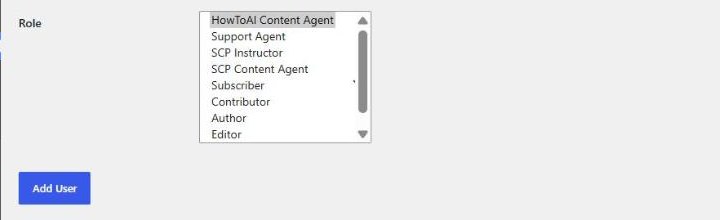
Tip: Connecting as a content agent is the safest choice: even if something goes wrong in a chat, Claude or ChatGPT can only leave drafts for you to approve.
Who can approve a connection
When you connect Claude or ChatGPT, WordPress asks a signed-in person to approve it. Claude or ChatGPT then works as that person and can only do what they are allowed to do on your website. Every action is logged.
Choose who may approve in Settings → Connections, under Who can approve a connection. There is a switch for each role that can write posts. Administrator and HowToAI Content Agent show Always: they can always approve. Click Save changes when you are done.
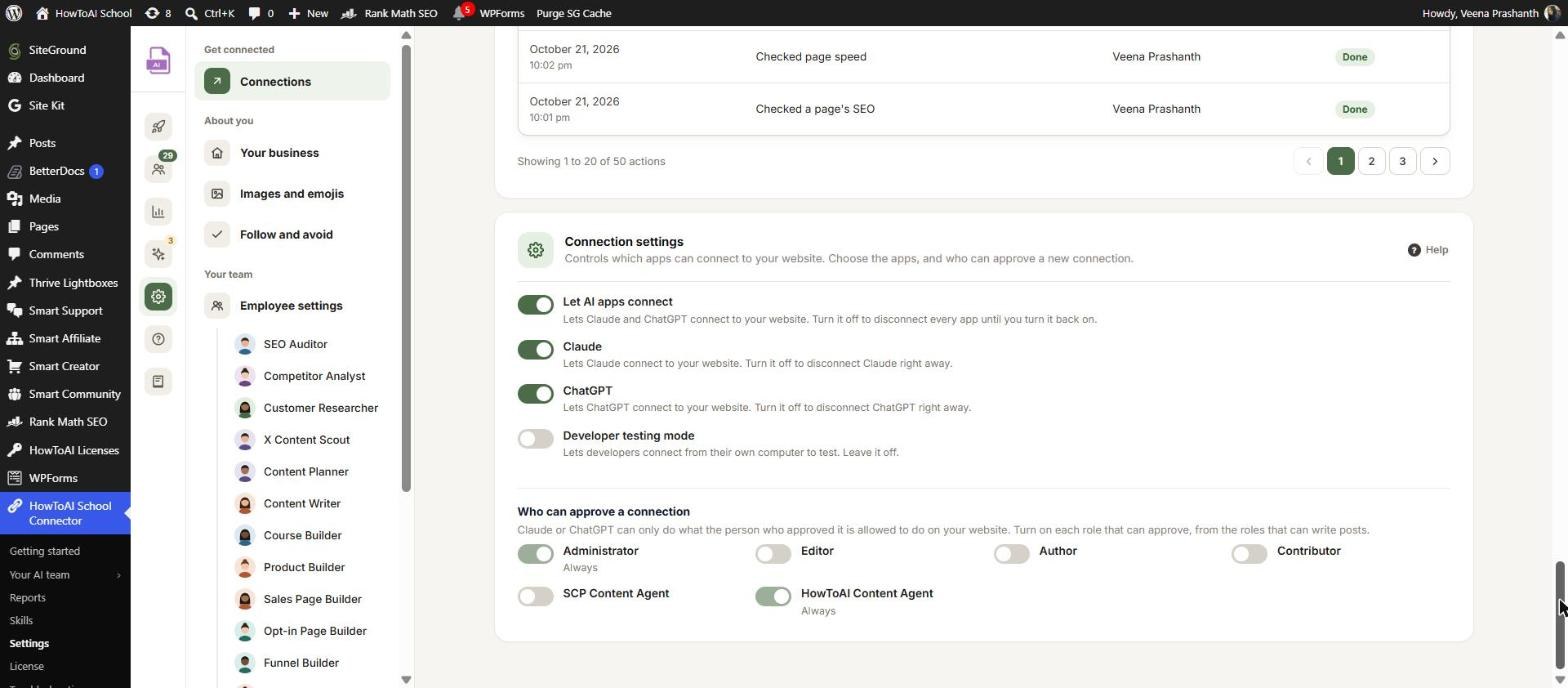
Someone whose role isn’t allowed sees “doesn’t have permission to connect AI apps” on the approve screen, and can only cancel. See Connections.
Good to know: Claude and ChatGPT never get more rights than the person who approved them, and they can never see or change anyone’s password or login details. To stop an app at once, click Disconnect beside it in Settings → Connections.


