Getting started sets up everything your team needs in five short steps. Your progress is saved, so you can stop any time with Finish later and come back.
How to open it
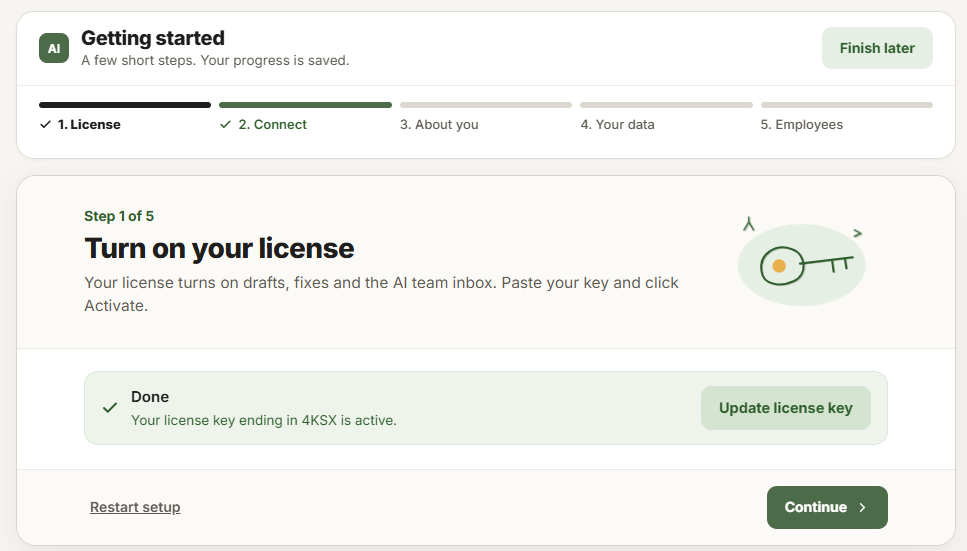
In WordPress, go to HowToAI School Connector → Getting started. WordPress also opens it for you once, right after you activate the plugin. The top card says Getting started and “A few short steps. Your progress is saved.” Each step shows Step N of 5, and whether it takes about a minute or is optional.
The line of steps at the top shows where you are. A step gets a tick once the plugin can see it is done, and then Continue opens the next one. Back goes to the step before.
Good to know: Until your license is active, the plugin opens the License screen instead of Getting started. Add your key there first: see Activate your license.
Step 1: License
Once your key is active, this step says Your license key ending in XXXX is active. To change the key, click Update license key, paste the new one and click Update.
Step 2: Connect Claude or ChatGPT
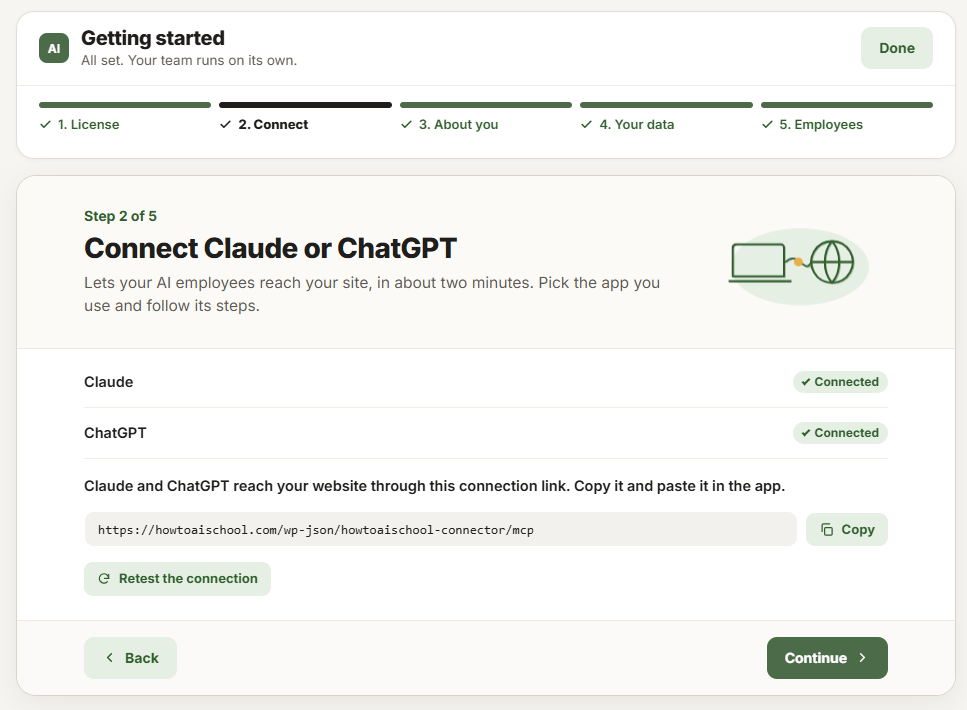
Claude and ChatGPT reach your website through one connection link. Click Copy and paste it into the app you use.
- There is a row for Claude and one for ChatGPT, each with a Connected or Not connected pill.
- On a row that isn’t connected yet, Show me how opens six short steps at the side of the screen, with an Open Claude or Open ChatGPT button and Got it when you are done.
- The step ticks itself as soon as either app is approved. You only need one.
- Retest the connection opens Test the connection, which checks that your website lets the app in.
See Connect Claude or Connect ChatGPT for every click.
Step 3: About your business
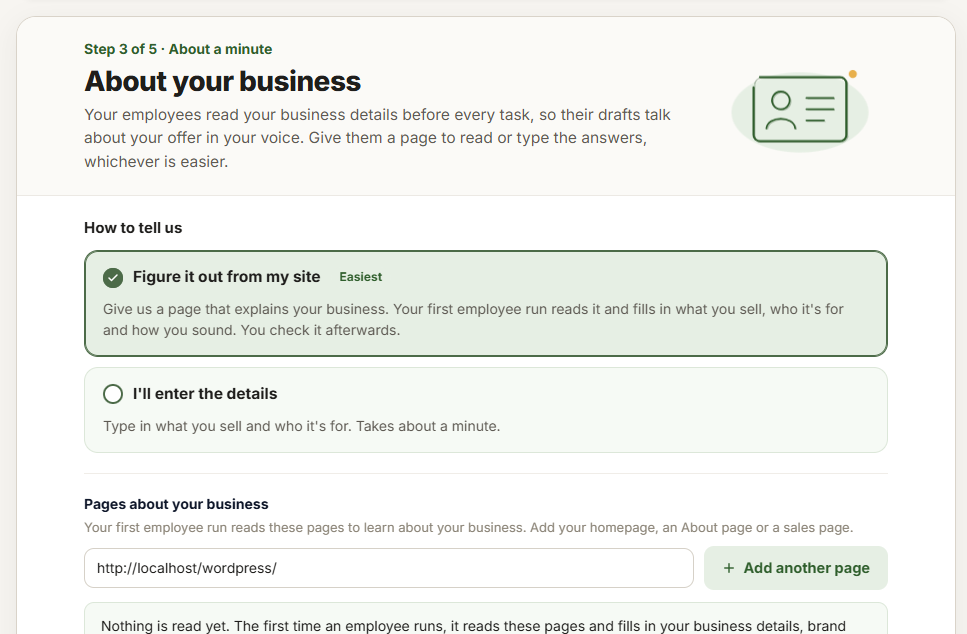
Tell your team what you sell, who it’s for and how you sound. Pick one of two ways:
- Figure it out from my site (Easiest): under Pages about your business, add your homepage, an About page or a sales page, up to five, with Add another page. Nothing is read yet: your first employee run reads them and fills in your business details, brand color and logo.
- I’ll enter the details: type What you sell, Who it’s for and The problem it solves or the result. You can also add a brand color (a small swatch shows it), a link to your logo and a page with more details.
Under Pages you wrote, add links to posts, emails or sales pages you wrote, up to 20. Your team learns your voice from them. It also learns from every change you make to a draft it writes.
Click Continue to save. The step counts as done once you give anything. If you skip it, your first employee run asks you these questions instead. You can review and change everything later under Settings → Your business.
Step 4: Connect your data (optional)
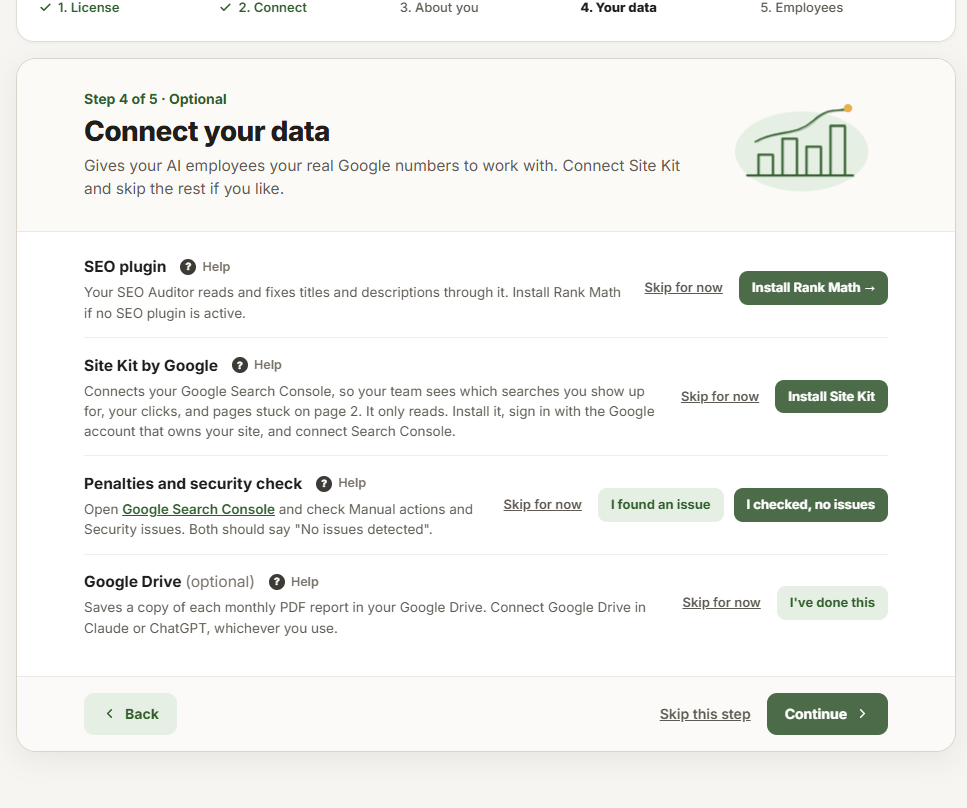
Gives your employees your real Google numbers: an SEO plugin, Site Kit by Google, a quick penalty check and Google Drive. Each row has a ? Help link with screenshots. See Connect your data.
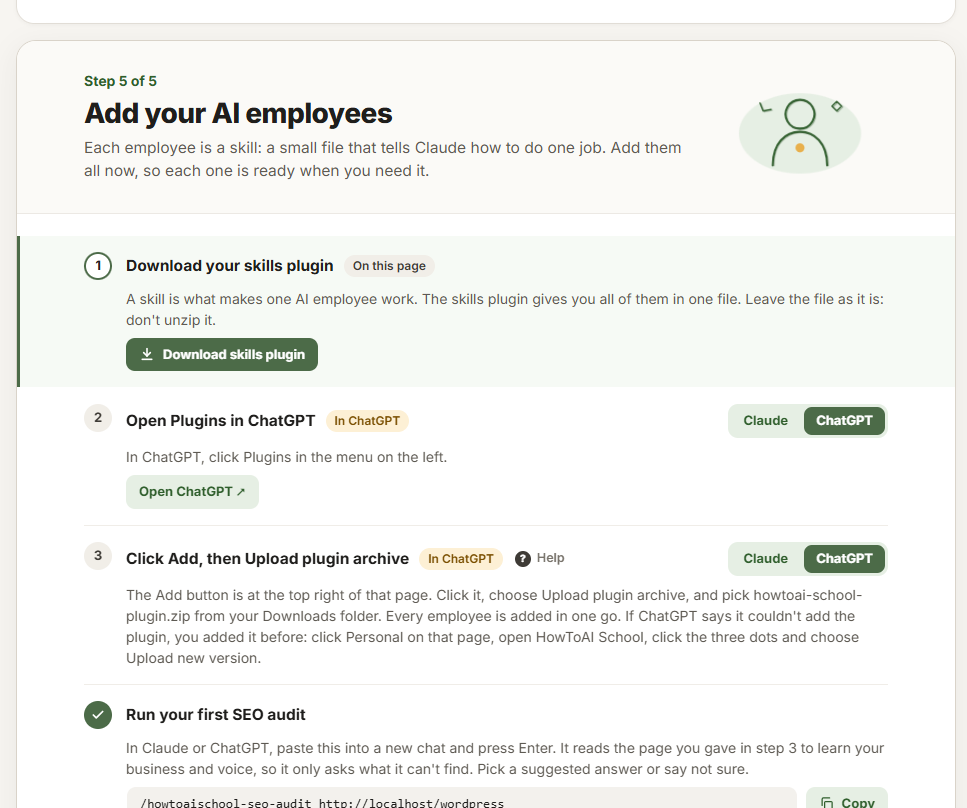
Step 5: Add your AI employees
A switch at the top asks Which app do you use? It opens on the app you connected, and the tasks below follow it.
- Download your skills plugin. Click Download skills plugin. The task ticks itself once you have every released skill, whether you downloaded it here or in your account on howtoaischool.com.
- Add it to your app. In Claude: Open Claude takes you to Plugins, then click Add and Upload plugin. In ChatGPT: Open ChatGPT takes you to Plugins, then click Add and Upload plugin archive.
- Run your first SEO audit. Copy the command, which already has your website’s address in it, and paste it into a new chat.
The step is done when any employee’s first run is logged. View all employees opens a list of commands for the SEO Auditor, Competitor Analyst, Customer Researcher, Content Planner and Content Writer, each with a Copy button. The full list is on the Skills screen.
After your first audit, this step shows what it found and what it fixed. See Run your first SEO audit. At the bottom, the optional Claude Projects box has one line to copy: see Use your team in Claude Projects.
When you are done
Once every step is done, the top card says All set. Your team runs on its own. and Finish later becomes Done. On the last step, Open Your AI team takes you to your team.
Tip: Optional steps have Skip for now. You can come back to any step later. Restart setup asks first, then puts the steps you marked by hand back to “to do”. Steps the plugin can see are done stay done.


