The Community Events Manager adds live Q and A sessions, coworking sessions, workshops and meetups to your community in Smart Community Builder. It asks only for what’s missing, shows you the whole event and saves it as a draft. Members see the right time in their own time zone, where to join and whether they can come. 🤝
What it does
- Creates a one-off event or a repeating series with its title, start and end, where it happens and who can see it.
- Handles online events (a join link), in-person events (an address), both at once, or a place not decided yet.
- Sets up repeats: every day, every week or every few weeks, every month on a date, or every month on a weekday like the second Tuesday, with a stop date and any dates to skip.
- Can make a new Zoom or Google Meet meeting for the event, only after you say yes.
- Writes the event description in your voice if you don’t have one.
- Updates an existing draft event, such as a new time, a room number or skipping a holiday week, and shows you only what changes.
- Saves everything as a draft. You publish.
What you need first
- Smart Community Builder active on your site.
- HowToAI School Connector connected to Claude or ChatGPT. See Connect Claude or Connect ChatGPT.
- To have a meeting made for you, Zoom or Google connected in Smart Community Builder → Settings → Integrations. Your own link needs nothing connected.
- For a member-only event, an access rule already made in Smart Community Builder → Access Rules. This employee can’t make or change rules.
If the community event tools aren’t there, it still collects the details, writes the description and gives you a finished event sheet to copy in yourself.
How to start it
- Open a new chat in Claude (or ChatGPT) with your website’s connector switched on.
- Type
/howtoaischool-scbevent, or just ask in plain words. - Say as much as you know in your first message. It asks only for what’s missing, one question at a time.
Example requests:
- “Add Monday Coworking to my community, every Monday 9 to 11 am on my Zoom link, until December 21.”
- “Set up an in-person meetup on November 20 at 6 pm at our studio, for my VIP members only.”
- “Skip Christmas week on Monday Coworking.”
Group events with registration or a price on Smart Events Calendar belong to the Events Manager, and 1-on-1 calls to the Booking Manager. If your site has both Smart Community Builder and Smart Events Calendar, it asks once which one you mean.
The questions it asks you
It asks only for what you didn’t already say, in this order:
- The event title.
- The start date and time, in your website’s time zone unless the event is held somewhere else.
- The end time, or how long it runs. It never leaves the end blank.
- Where it happens: online, in person, both, or not decided yet.
- Whether it repeats. If yes: how often and the date it stops. It asks about skipped dates only if you mention a break or holiday.
- Who can see it, only if you say it’s for some members. Otherwise the event follows its category’s access, or the whole community’s.
A category, a limit on how many can say they’re going, Maybe answers, the countdown, the feed’s upcoming list, place notes and a cover image come up only if you mention them.
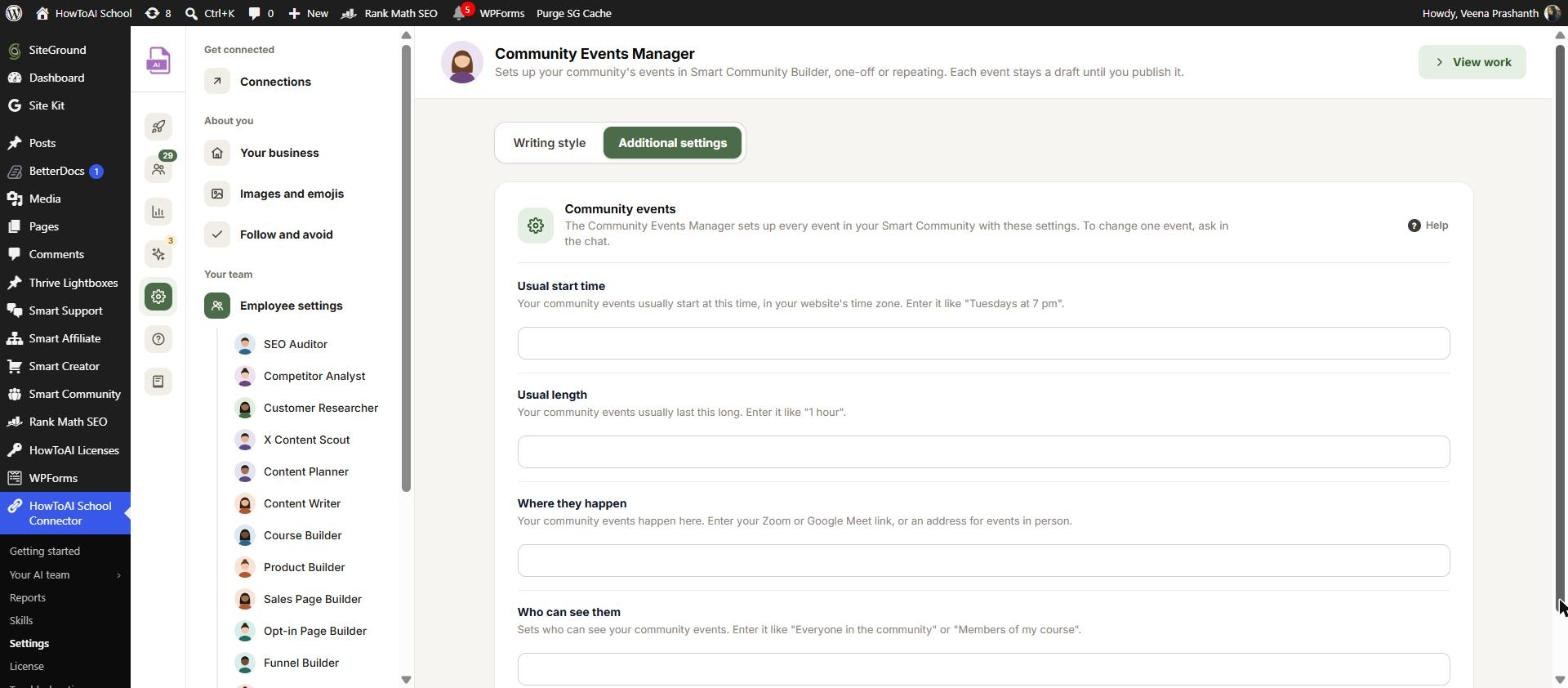
Answers you saved before show as “Saved: … (my pick)”. You can fill them in ahead of time under Settings → Employee settings → Community Events Manager. On the Additional settings tab, the Community events card has Usual start time, Usual length, Where they happen and Who can see them. The Writing style tab holds the samples and special instructions it follows when it writes a description. See Employee settings.
What you get back
- An approval card in the chat with the start, end, repeats, the next few dates, skipped dates, where, who can see it and the description, plus any gaps such as a cover image or a missing link.
- After your yes, the event is saved as a draft in Smart Community Builder. Members can’t see it yet.
- If you asked for a Zoom or Google Meet meeting, that meeting is made right away in that service, even though the event stays a draft.
- A short message with a link to edit the event and a list of what’s left to do before you publish.
Review and approve
You approve an event in the chat, not on a WordPress screen:
- Read the approval card in the chat. Choose Yes, save it as a draft, or Change something and say what.
- Open the draft from the link and check the event page.
- Fill in any gaps, like the cover image or a link that was still to be decided.
- Publish it in Smart Community Builder → Events when it’s ready. The Community Events Manager never publishes for you.
Only drafts can be changed from the chat. Once an event is published, members may have said they’re going, so you change it yourself in Smart Community Builder → Events. Each run is listed in Settings → Logs. See Logs and website changes.
Running it on a schedule
The Community Events Manager is mostly a chat employee. A scheduled run asks nothing and builds only from a plan you already approved and saved. If there isn’t one, it logs the reason and stops. See Run employees on a schedule.
Tips
Tip: One event can repeat on only one day of the week. For “Mondays and Thursdays”, it makes the Monday event now and the Thursday one next.
Tip: Save your usual Zoom link or address under Where they happen in Employee settings, so you only confirm it each time.
Tip: Not sure where it will be yet? Save it as “not decided yet”. The card reminds you to fill it in before publishing.
Good to know: Nothing goes live without you. The Community Events Manager saves drafts only, never publishes, cancels or deletes an event, and never touches RSVPs, access rules or categories. It makes a Zoom or Google meeting only after your yes, and never makes up dates, links or addresses.


