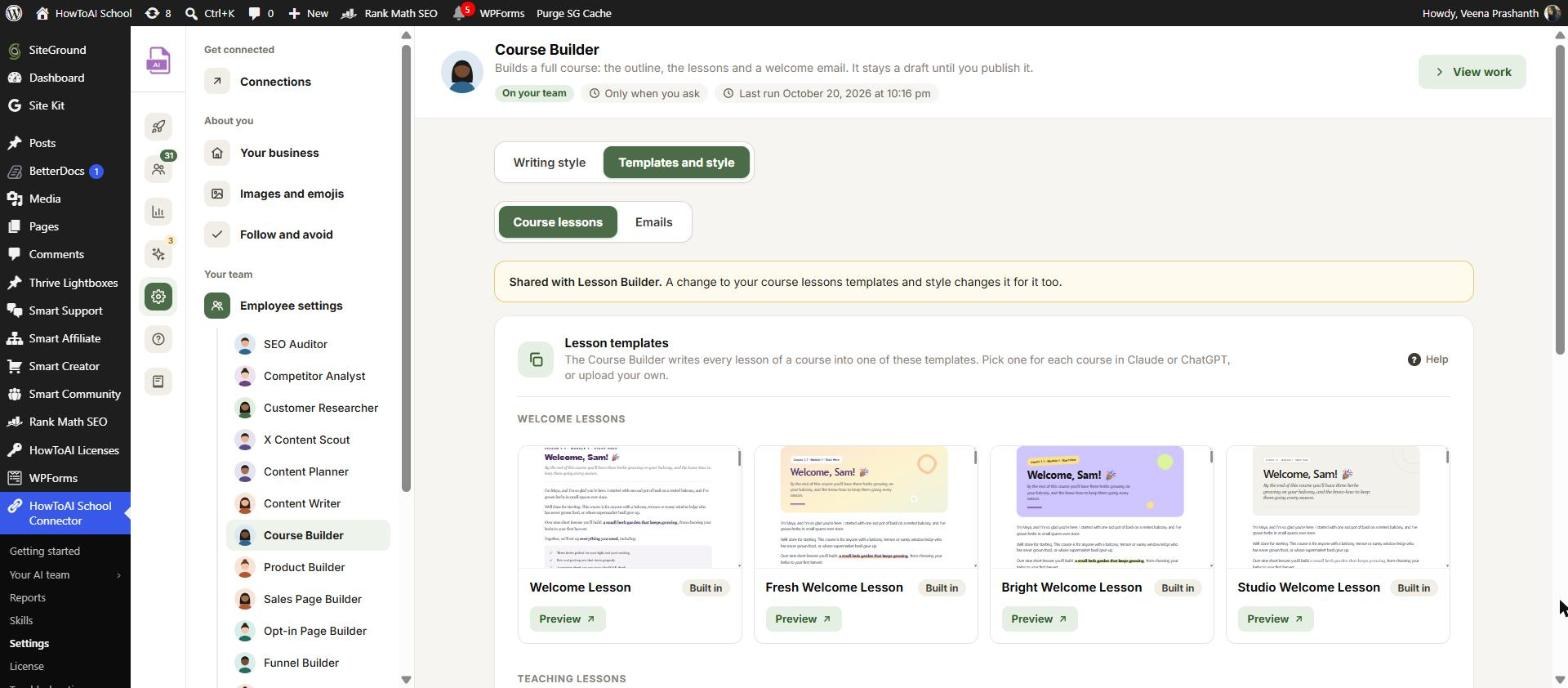
Every builder on your team makes its pages, lessons and emails on a template. The Templates and style tab shows those templates, lets you upload your own design, and sets how lessons and emails are laid out. 🎨
Where to find it
- Open Settings → Employee settings.
- Click Open beside a builder, such as the Course Builder.
- Click the Templates and style tab.
Each builder shows the kinds of things it makes. When it makes more than one, round tabs under Kind of page switch between them:
- Sales Page Builder: Sales pages.
- Opt-in Page Builder: Opt-in pages.
- Course Builder: Course lessons and Emails.
- Product Builder: Products and Emails.
- Funnel Builder: Upsell pages.
- Follow-up Email Builder and Automation Builder: Emails.
Good to know: When another employee uses the same kind, a yellow note says “Shared with” and their names. A change here changes it for them too. For example, the Course Builder shares its lesson templates with the Lesson Builder.
The built-in templates
Every builder comes with templates ready to use:
- Sales page templates: Playful, Modern, Clean and Bold.
- Opt-in page templates: Playful, Challenge, Modern, Clean and Bold.
- Lesson templates: Classic, Fresh, Bright and Studio, each as a welcome lesson and a teaching lesson.
- Product templates: Product Description, Fresh, Bright and Studio.
- Upsell page templates: Fresh, Upsell Page, Bright and Studio.
Each card has a small preview and a pill: Built in or Yours. Click Preview to open the template full size in a new tab. Built-in templates can’t be edited. They come from HowToAI School and stay up to date by themselves once your license is active. To look for new ones straight away, click Check for new templates.
Upload your own template
Have a page design you love? Add it as a template, and your builder copies its look, never its words.
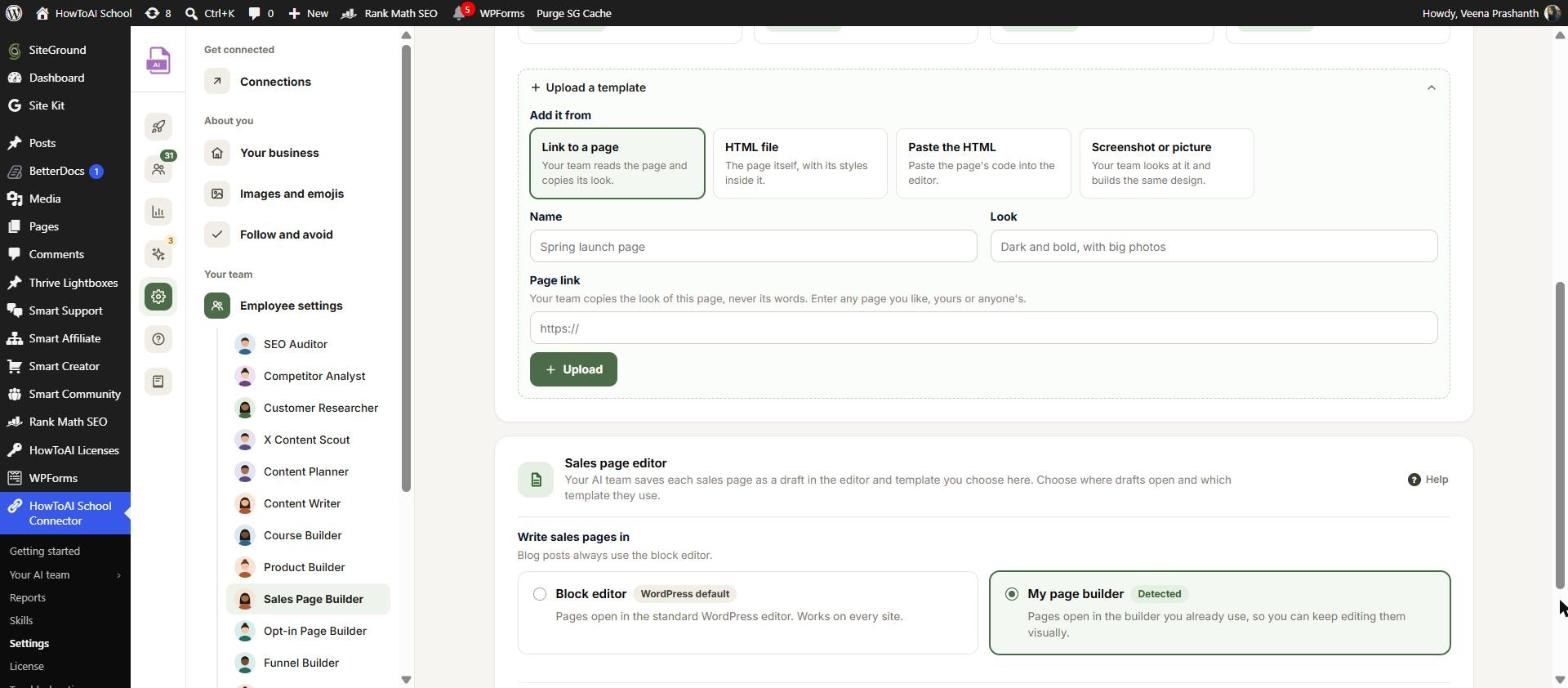
- On the templates card, click Upload a template to open it.
- Under Add it from, pick one way: Link to a page (any page, yours or anyone’s), HTML file (an .html file up to 500 KB, with its styles inside it), Paste the HTML (paste the code in the editor’s Code view, or build it in Visual) or Screenshot or picture (choose one from your Media Library).
- Type a Name, such as “Spring launch page”.
- Describe its Look, such as “Dark and bold, with big photos”. For a lesson template, pick the Lesson type instead: Welcome lesson or Teaching lesson.
- Click Upload.
Your template now shows with the pill Yours. A template from a link has Open page, and one from a picture has View picture, instead of Preview. Click Edit to change its name, look or page, then Save template. Click Remove, then Click again to remove, to delete it.
Sales page editor
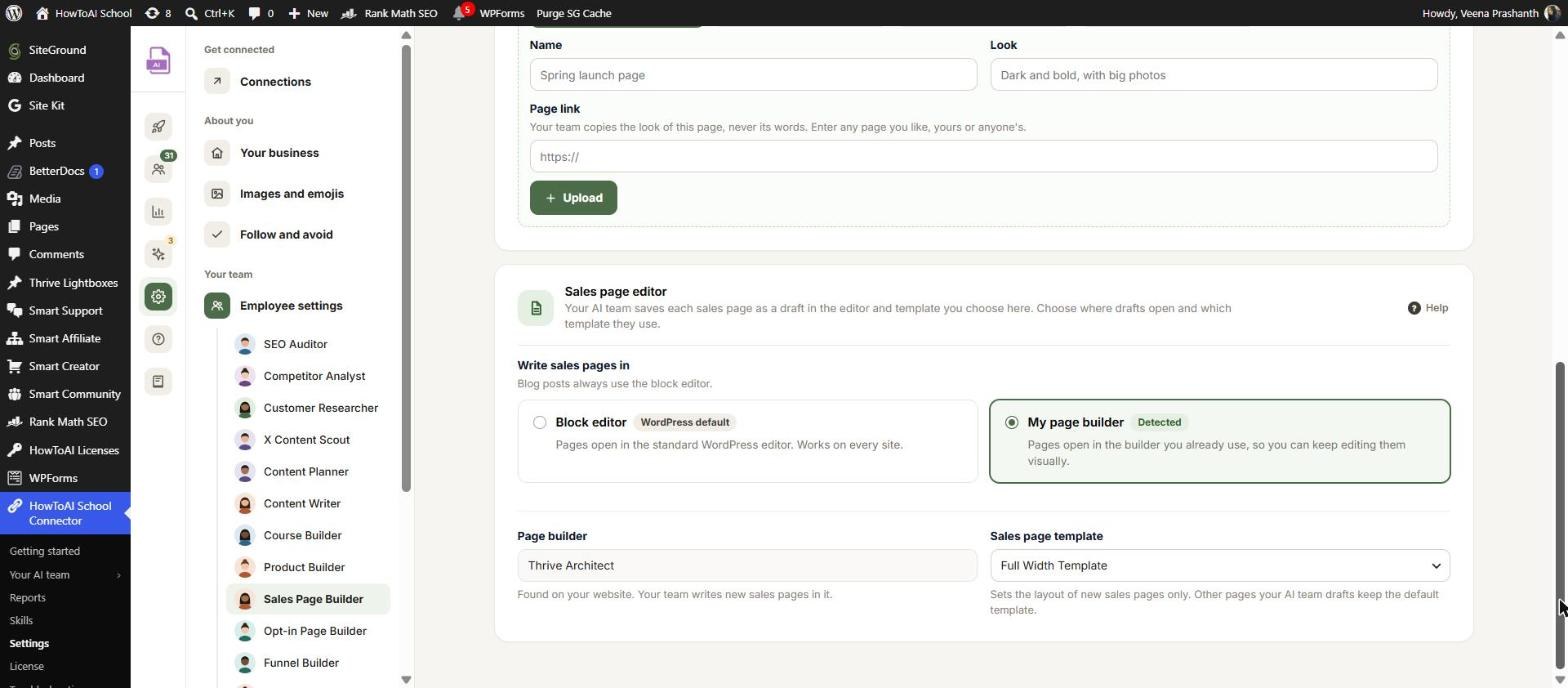
On the Sales Page Builder, the Sales page editor card sets where new sales page drafts open:
- Write sales pages in: Block editor (the WordPress default, works on every site) or My page builder. My page builder shows Detected when Thrive Architect, Elementor or Divi is on your website, so you can keep editing pages visually. Blog posts always use the block editor.
- Sales page template: the page layout new sales pages use, or None (the site default). The hint may suggest the one most of your published sales pages use.
If the template you chose is removed from your website, a warning says so, and new sales pages are refused until you choose another one.
Lesson format
On the Course Builder’s Course lessons tab, Lesson format lists the parts every lesson is written with, one part per line, from top to bottom. Change them to match how you teach. The lesson’s design still comes from the template you pick for each course.
Email layout
On the Emails tab, Email layout lists the parts of each email, one per line, plus your Signature, such as “Talk soon, Sam”. Under Emails to copy, paste links to emails you like: your team copies their layout, never their words.
Each of these cards ends with Start over. Click Reset to defaults, then Yes, reset to defaults, to go back to the starting parts. You can undo it for 30 days. See Reset settings and undo.
Welcome email
On the Course Builder’s Emails tab, Welcome email sets how the email students get when they join a course looks: A short greeting and one button to the course, Longer, with a map of the course or My own template. It is signed with your Signature.
Save your changes
When you change something, a bar says “You have unsaved changes”. Click Save changes. Uploading or removing a template saves at once. The next run uses your change.
Picking a template for each build
You don’t pick the template for a build on this screen. When you run a builder in Claude or ChatGPT, it shows you the templates, built-in and yours, and asks which one to use. See Employee settings for the other tabs.
Tip: A screenshot of a page you like is the quickest way to get your own look. Your builder rebuilds the design, so the words on the screenshot never end up on your page.
Good to know: Templates only change how new pages, lessons and emails look. Anything already built stays as it is, and every new build still waits for you to approve it.


