Hi there, and welcome. 👋
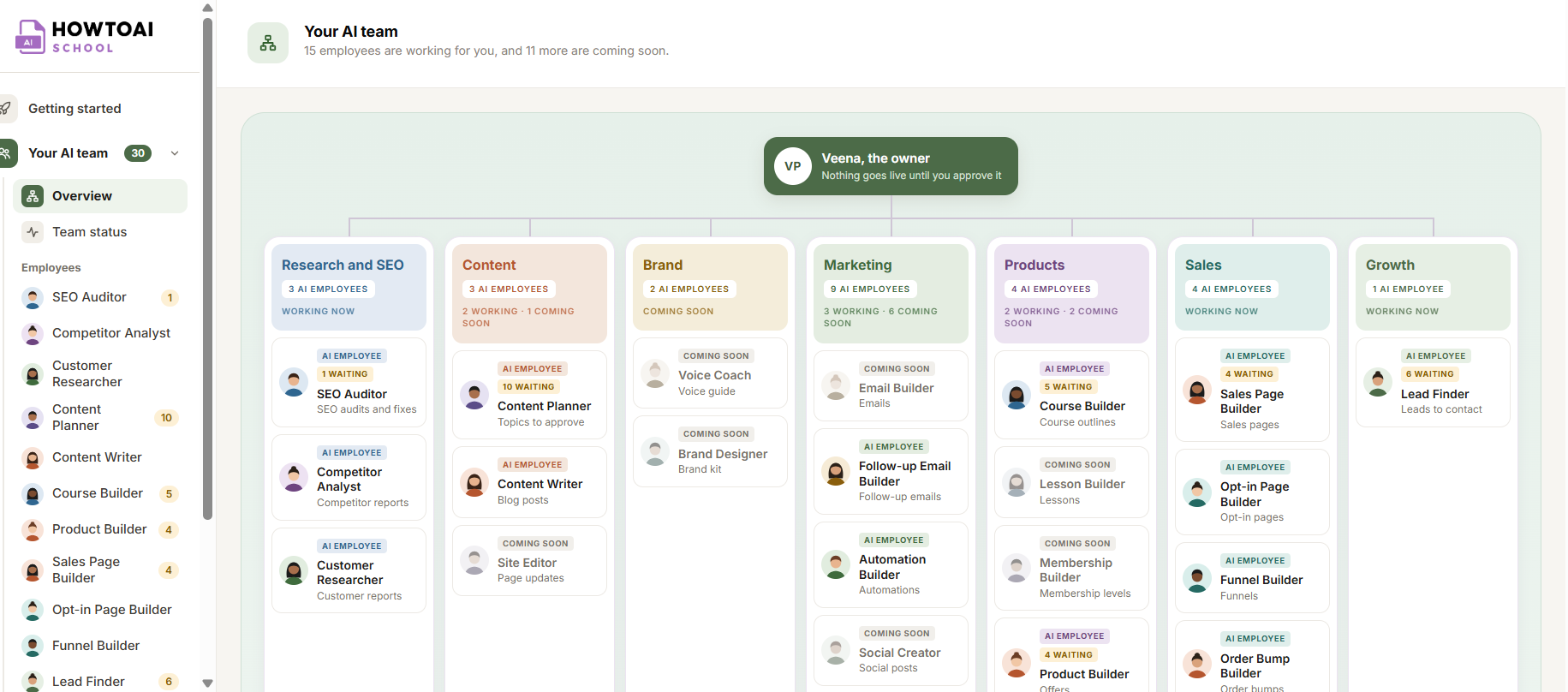
HowToAI School Connector gives your WordPress website a team of AI employees. Each one does one job for you: checking your SEO, planning and writing blog posts, building courses, products, sales pages and more. They work in Claude or ChatGPT, and they read and save everything on your website through this plugin.
The most important part: nothing goes live until you approve it. Every draft, fix and idea waits in your AI team inbox for your yes.
How it works
Three parts work together:
- The plugin on your website. HowToAI School Connector keeps your team’s memory (your business, your voice, your look), the AI team inbox where you approve their work, your reports and every setting.
- The connection. Claude or ChatGPT connects to your website with one link. That lets your employees read your pages and save drafts, and nothing more than you allow.
- The skills plugin. Each AI employee is a skill: a small file that tells Claude or ChatGPT how to do one job. You add all of them at once, as one plugin.
Your license key turns all of this on. Without an active license, your employees can’t use your website at all, and Claude or ChatGPT can’t be connected. See Activate your license.
What’s in the menu
After you install it, HowToAI School Connector shows in your WordPress menu. Point at it to see its screens:
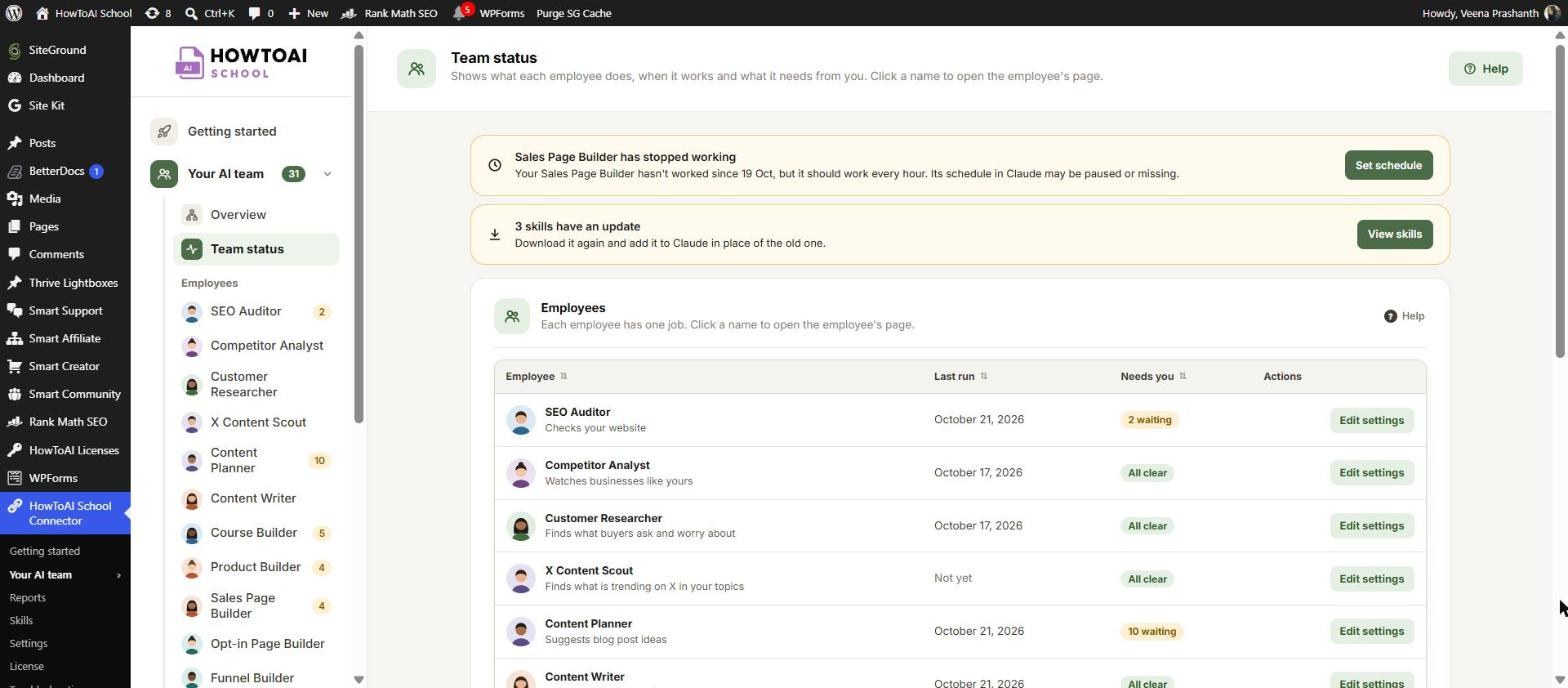
- Getting started: five short steps that set everything up. The menu opens here until setup is done.
- Your AI team: Overview shows every employee, what they do and what is waiting for you. Team status shows when each one last worked and what needs you. Each employee also has its own page, listed by name.
- Reports: visits from Google, page speed and your website’s health score in one place.
- Skills: download your skills plugin and see when a skill has an update.
- Settings: tell your team about your business, how you write and how things should look, once, and every employee uses it. Your connections live here too.
- License: add, change or remove your license key.
- Troubleshooting: fixes for the problems owners run into most, each with a button to the screen that fixes it. It opens even before your license is active.
- Documentation: opens this Help Center.
On the Plugins screen, the plugin’s row also has a Settings link and a Documentation link.
Tip: Look for the ? Help link at the top right of each card in the plugin. It opens the steps for that card at the side of the screen.
Where to start
When you activate the plugin, WordPress opens HowToAI School Connector → Getting started for you. It walks you through five short steps, and saves your progress as you go. The next articles in this section follow the same steps.
Good to know: Updates to the plugin arrive on your WordPress Plugins screen like any other plugin, once your license key is saved. See Install and update the plugin.


