Your employees run in Claude or ChatGPT, not on your website, so your website can’t see their schedules. What it can see is every run they log. When an employee should have worked by now and hasn’t, the plugin tells you, so work doesn’t quietly stop. ⏰
What you see
- “Name has stopped working”. A bar on Your AI team → Team status and on that employee’s page. It says, for example: “Your Content Writer hasn’t worked since 12 Oct, but it should work every day at 9:00 am. Its schedule in Claude may be paused or missing.” If it never ran, it says “has never run”.
- “3 ideas you approved are still waiting”. You approved post ideas more than 24 hours ago and the Content Writer hasn’t run since. This bar comes first, because it is work you already said yes to.
- Both bars have a Set schedule button.
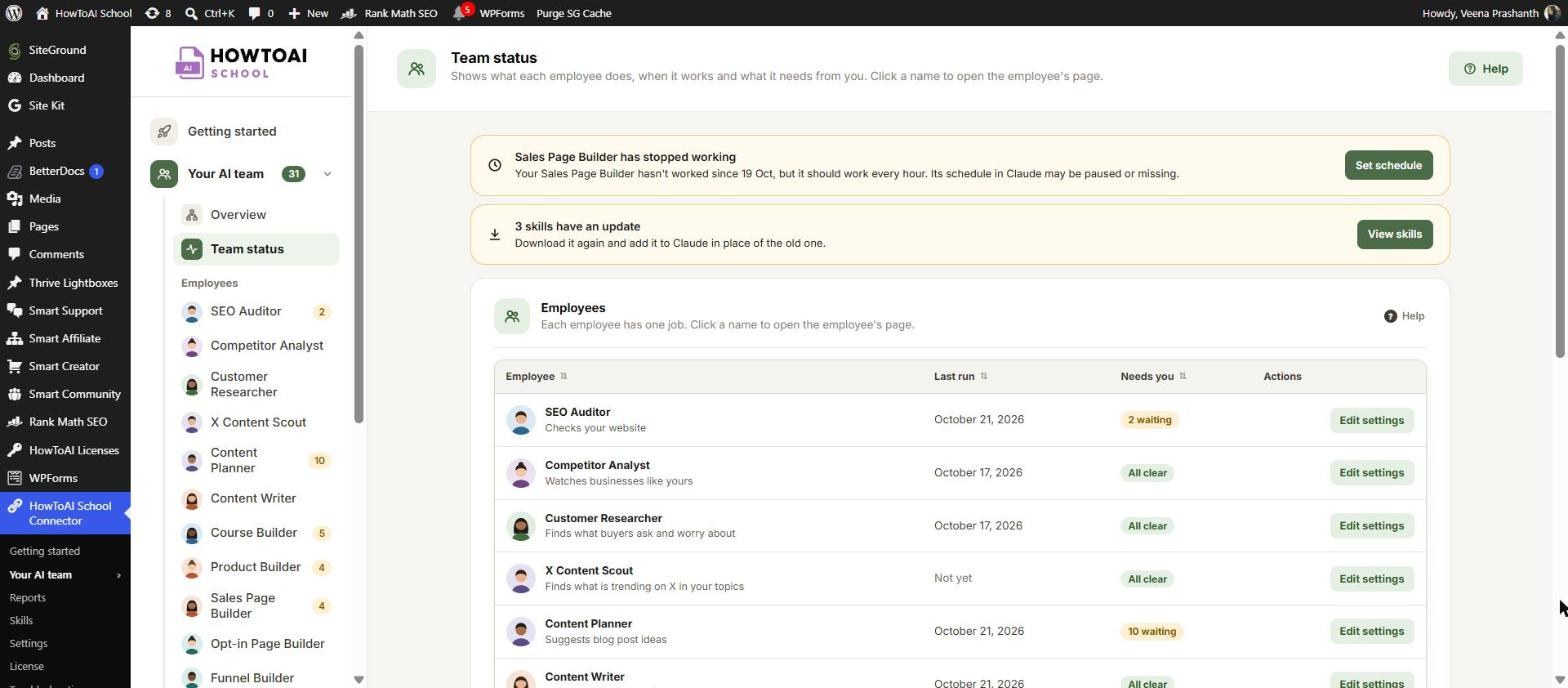
When the alert appears
- When no run has been logged for longer than the employee’s own schedule, plus 6 hours. A daily employee is flagged after about 30 hours, a weekly one after about a week and 6 hours.
- If an employee saved no schedule, the plugin uses its usual rhythm: the SEO Auditor weekly, and the Competitor Analyst, Customer Researcher, Content Planner and Content Writer daily.
- An employee set to Only when you ask never gets this alert, and neither does one that isn’t on your team yet.
- The alert goes away by itself after the employee’s next run. There is nothing to dismiss.
Why an employee stops
Go through these in order. The first one is the most common.
The schedule is paused, missing or was never set up
The schedule lives in Claude (or ChatGPT), not on your website. It may have been paused, deleted, or never created in the first place. Click Set schedule to set it up again (see below).
The scheduled run is waiting for a yes
Claude and ChatGPT ask before each tool until you allow it. A scheduled run has nobody there to say yes, so it waits and does nothing.
- In Claude: click Customize, then Connectors, choose your website’s connector and set its tools to Always allow.
- In ChatGPT: open Settings → Plugins, click HowToAI School Connector, click Permission and choose Allow all.
- Or run the employee once yourself and allow each box as it appears.
You reached your usage limit
Every run uses part of your Claude or ChatGPT plan. When you reach the limit, scheduled runs stop until it resets. Run the busiest employees weekly instead of daily. See Troubleshooting: Claude.
Your host blocked the requests
If an employee says your website returned a web page, or that your web host blocked the request, your host is stopping Claude or ChatGPT before WordPress sees them. The employee tries once more and then stops for that chat. Run Test the connection and send your host the message it gives you.
Your license isn’t active
Without an active license, your employees’ tools are turned off. Open License and check that your key says Active. See Activate your license.
A tool is missing after an update
Claude keeps the list of your website’s tools from when you connected it. After a plugin update, open Customize → Connectors, choose your website’s connector and click Refresh tools list in its three-dot menu. In ChatGPT, see Use your team in ChatGPT.
Set the schedule again
Click Set schedule on the alert. A popup titled “Set up name’s schedule” opens, with three steps:
- Copy the message below. Click Copy message. The message asks Claude to set up a scheduled task for this employee, at its usual time in your website’s time zone, with the right command, and to always allow its tools so it runs without asking you.
- Open Claude and paste it. Click Open Claude, paste the message into the new chat and send it. Claude creates the schedule in your account.
- Done. The alert on Team status goes away by itself after the first run.
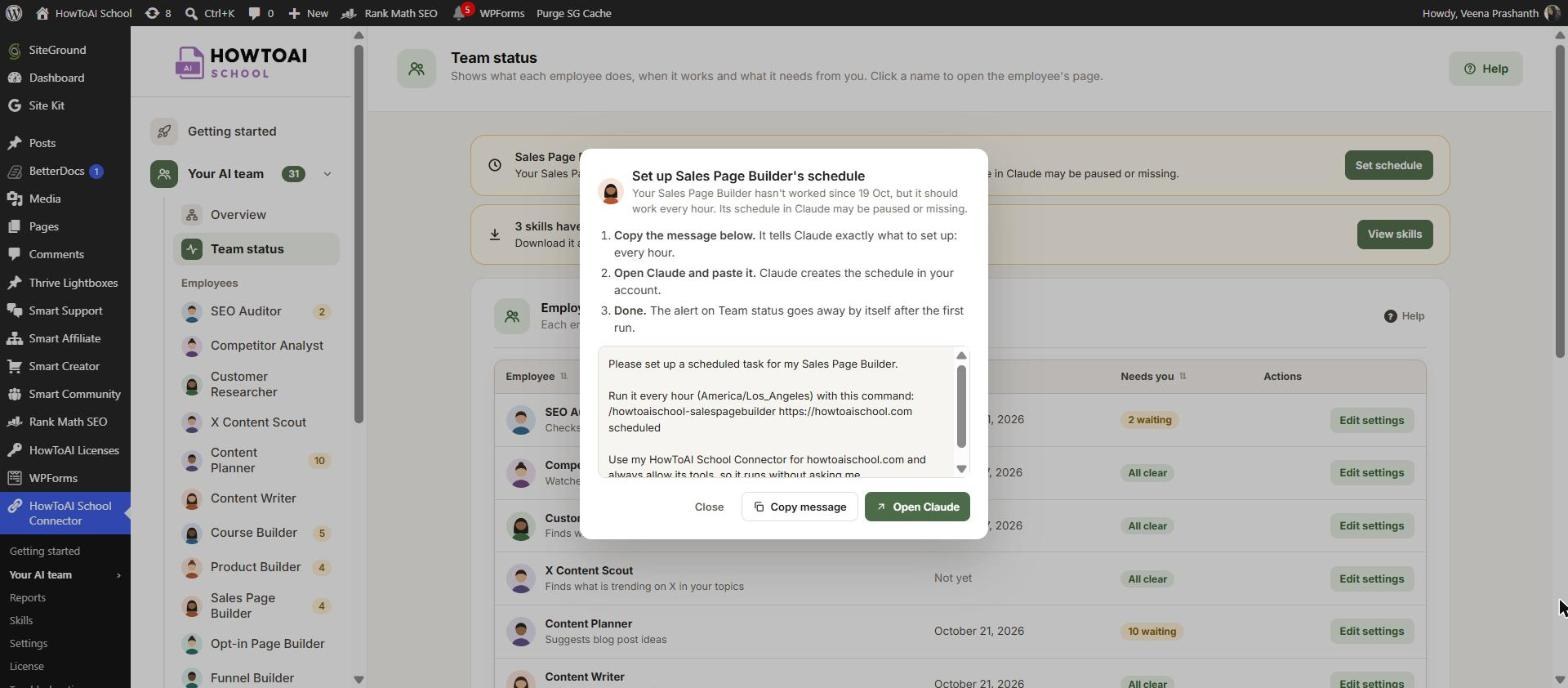
On the “ideas you approved are still waiting” alert, the popup also has Write it now when Write on demand is turned on. It starts the Content Writer straight away on the oldest idea that is waiting.
Tip: Using ChatGPT? The popup is written for Claude. Start the employee yourself in ChatGPT with its command and answer its question about how often to run. If that chat can’t set up a schedule, the employee says so and runs only when you ask.
Builders that can’t work yet
On a builder’s page (such as the Course Builder or Funnel Builder) you may see a different bar instead:
- “Smart Creator Press isn’t turned on” with Go to Plugins. Install or turn on Smart Creator Press.
- “Smart Creator Press needs an update” with Update now. The bar says which version the builder needs.
- “WordPress needs an update” with Update now. The builders need WordPress 6.9 or newer.
After you fix it, start a new chat in Claude or ChatGPT so the builder sees the new tools. The buttons only show for people who can update plugins.
Good to know: The plugin can’t start, pause or change a schedule in Claude or ChatGPT for you. It only notices that a run is missing and hands you the message to fix it. The Last run column on Team status shows when each employee last worked.


