The SEO Auditor checks your website the way a search expert would, finds what is costing you clicks on Google, and hands you a ranked list of fixes with the exact place to click. A full check-up once a month and a quick check-up in between mean problems are caught early, not months later. 🔍
What it does
- Reads every page and post: titles, descriptions, headings, word count, image descriptions (alt text), links and the hidden tags Google reads.
- Checks which pages Google can find and show, your sitemap and robots.txt, and pages nothing on your site links to.
- Uses your Search Console numbers to find pages seen a lot but rarely clicked, pages stuck on page 2 and pages losing clicks.
- Tests how fast your top pages load on a phone, and whether your key pages answer your buyer’s question clearly enough for AI answers to quote.
- Finds places outside your site where your business could be named, such as directories, roundups and podcasts that fit your buyer.
- Writes a full check-up in 8 tabs and a short PDF with your logo and brand color.
- Sends text fixes for blog posts and pages to your site, such as a better Google title, a Google description or a missing picture description.
What you need first
- HowToAI School Connector connected to Claude or ChatGPT. See Connect Claude or Connect ChatGPT.
- Google Search Console, if you can. It is optional, but it adds real search numbers and easy wins. See Connect your data.
How to start it
- Open a new chat in Claude.
- Type
/howtoaischool-seo-audit, or ask in plain words. - Answer the setup questions the first time. After that, it starts straight away.
Example requests:
- “Run an SEO audit on my site.”
/howtoaischool-seo-audit https://yoursite.com- “Do a weekly check of my site.” (runs the quick check-up instead)
The questions it asks you
It reads your site first, so every question comes with suggested answers and its pick first. On the first run it asks, one at a time:
- What do you sell, and which offer matters most right now?
- Who is it for?
- What problem does it solve, or what result do buyers get?
- What would a buyer type into Google to find you?
- Where should the report go: your approval screen in WordPress, a Google Sheet, or the chat?
- How often should it run?
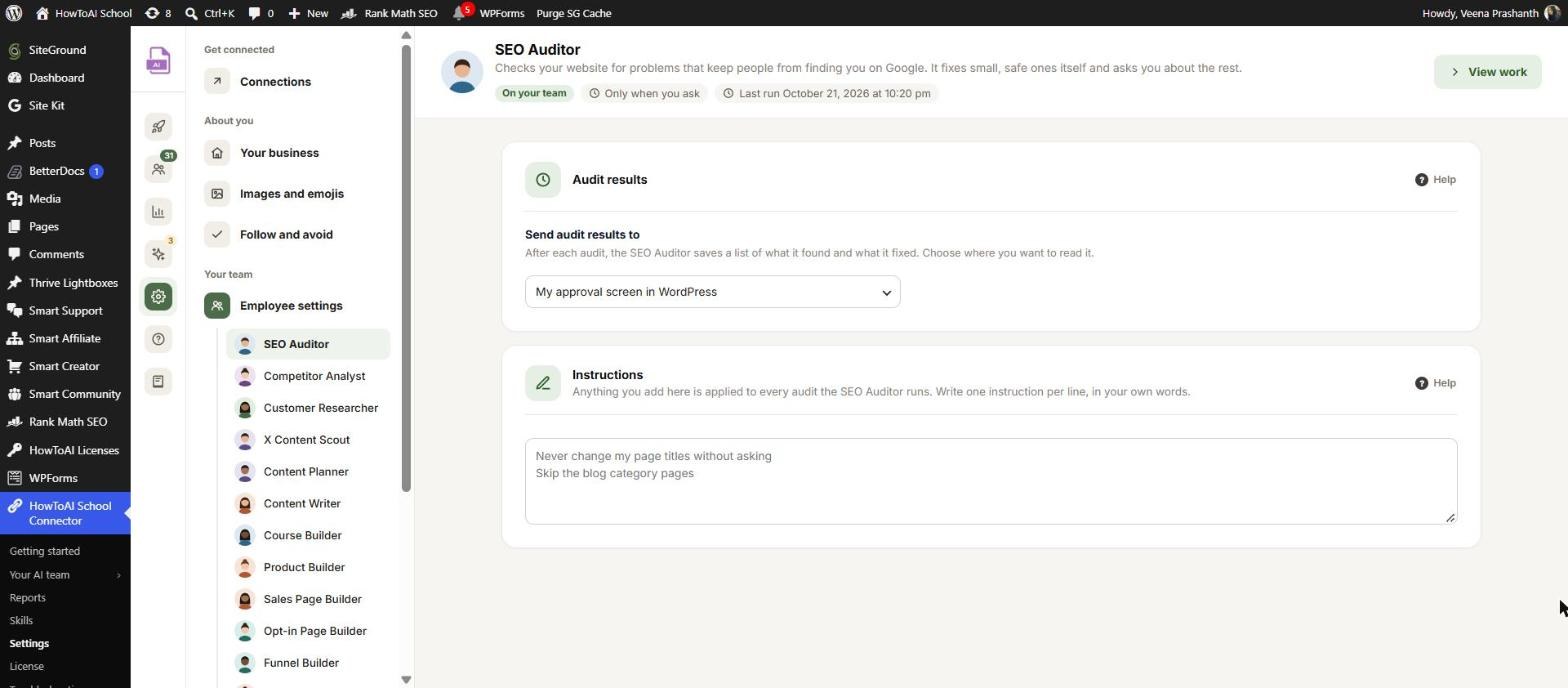
If another employee already saved your business answers, it shows questions 1 to 4 as one “Still right?” check. Next time, saved answers are shown the same way. You can also change them in WordPress under Settings → Employee settings → SEO Auditor: the Audit results card holds the schedule and where results go, and the Instructions card takes anything it should always do or skip. See Employee settings.
What you get back
- The full check-up goes to the SEO Auditor’s page: open Your AI team → SEO Auditor. It also feeds your website’s health score and the Latest from your team card on Reports. See Reports.
- The PDF is attached in the chat, and each check-up’s row on its page has PDF and Sheet buttons.
- Fixes for blog posts and pages. A fix that only fills an empty field, such as a missing Google description, goes live on its own and says “Added automatically because the field was empty.” A fix that changes text you already wrote waits for you.
- Everything else stays in the Problems to fix tab as steps for you or a developer, with the exact screen to open.
- In the chat, a short summary: your score and the top 3 fixes.
Its page in WordPress
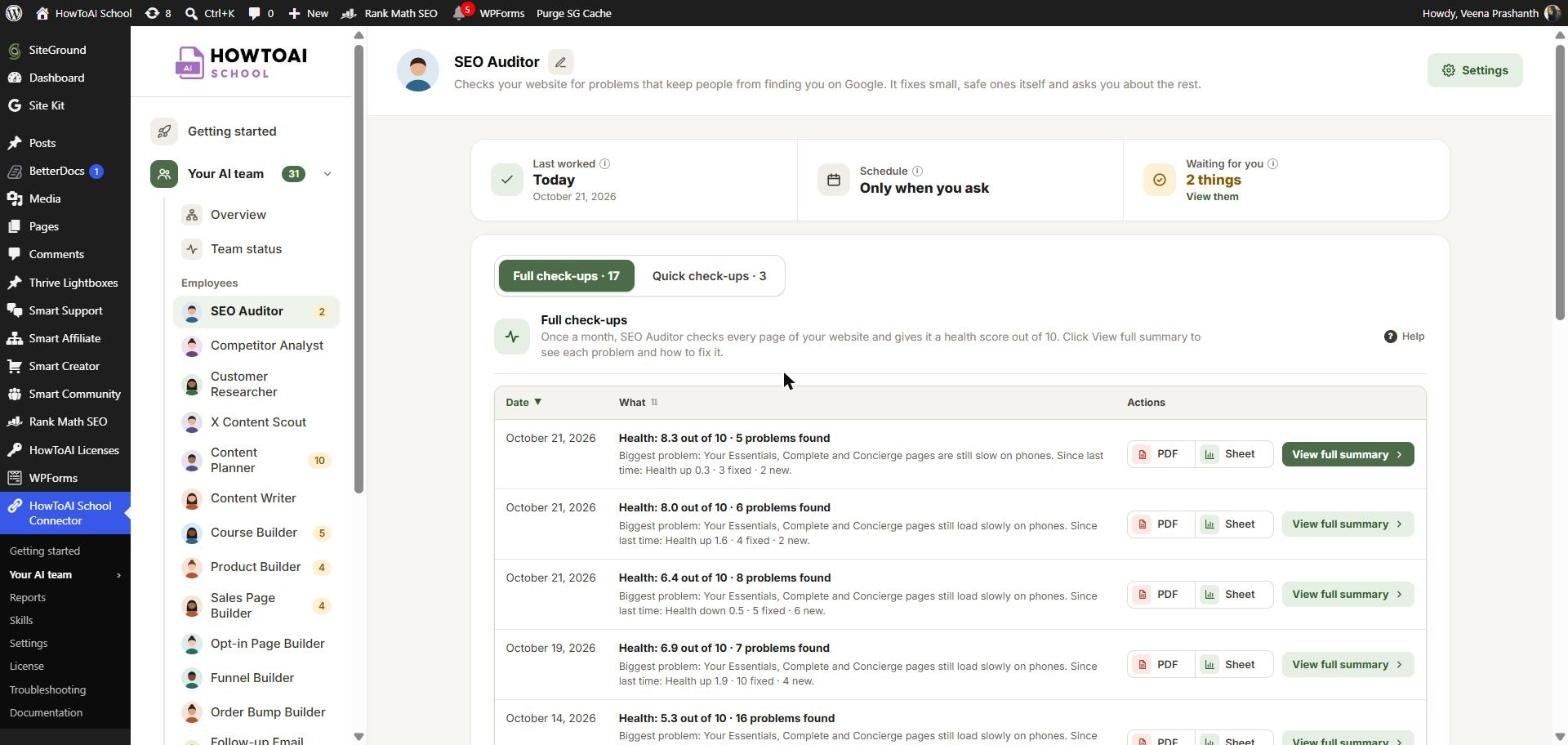
Open Your AI team → SEO Auditor. The boxes at the top show Last worked, Next quick check-up, Next full check-up and Waiting for you. Below them are two tabs: Full check-ups and Quick check-ups. Click View full summary on a row to open that check-up right there on the page.
A full check-up has 8 tabs: Summary, Problems to fix, Easy wins, Every page, Found by Google, Speed, AI answers and Opportunities. The PDF and Google Sheet use the older names for the same parts (Issues, Quick Wins, Page Checks, Indexing, AI Readiness).
Review and approve
- On the SEO Auditor’s page, click View full summary on the newest full check-up. If something waits for you, the Waiting for you box has a View them link that opens the right check-up.
- Start with Summary, then Problems to fix. Problems are ranked by how much they matter, with your main offer’s pages near the top. Each says what is wrong, why it matters, the next step and who does it.
- The changes this check-up sent are listed inside Problems to fix. Click Review on one to see the text now and after. Click Put it live to make the change, Edit text to change the words first, Ask for changes to send it back with a note, or Don’t change it to leave your page as it is.
- A change that is live can be undone with Undo, as long as nobody changed that field since.
- Make the by-hand fixes in your own time. The next check-up marks them fixed and shows whether those pages gained clicks.
More in Fix SEO problems, SEO check-ups and health score and Review and approve.
Running it on a schedule
The usual schedule is every Monday, with the full check-up on the first Monday of the month. You can also pick every day, monthly on the 1st, or only when you ask. On the first run it sets up the schedule in Claude for you.
Each quick check-up looks at posts and pages you published or changed, pages losing clicks, whether your site still loads for Google, and new searches. It sends safe fixes and reports only what is new. If nothing changed, it sends nothing. Scheduled runs never ask you anything. If a run is missed, a “SEO Auditor has stopped working” bar shows on Team status and on its page, with a Set schedule button. See Run employees on a schedule.
Tips
Tip: Each month, open Manual actions and Security issues in Search Console yourself. The audit can’t check them, so the Summary reminds you.
Tip: After a full check-up you start by hand, the employee starts your Content Planner, so searches with no page yet turn into blog post ideas.
Tip: Places in the Opportunities tab that need a person to reach out are picked up by your Lead Finder, which writes the message for you.
Tip: Pick the daily schedule only if you publish often. It uses more of your Claude or ChatGPT allowance.
Good to know: The SEO Auditor never changes Google Search Console. On your site it only changes the SEO text, picture descriptions and a few safe settings of blog posts and pages, and anything that rewrites your own text waits for your approval. Every change is listed in Logs and website changes.


