Your first SEO audit is the best way to see your team at work. It also learns your business and sets up its schedule. 🔍
Start it
- In Claude or ChatGPT, start a new chat.
- Paste the command from Getting started step 5, for example
/howtoaischool-seo-audit https://yoursite.com, and press Enter. In ChatGPT, press Enter twice. - It reads the pages you gave in step 3 to learn your business and voice, so it only asks what it can’t find. Pick a suggested answer, or say not sure.
- It asks how often to run. Pick a schedule, or Only when you ask.
A full audit takes a while: it checks every page, your titles and descriptions, how Google sees your site, your page speed and more.
Back in Getting started
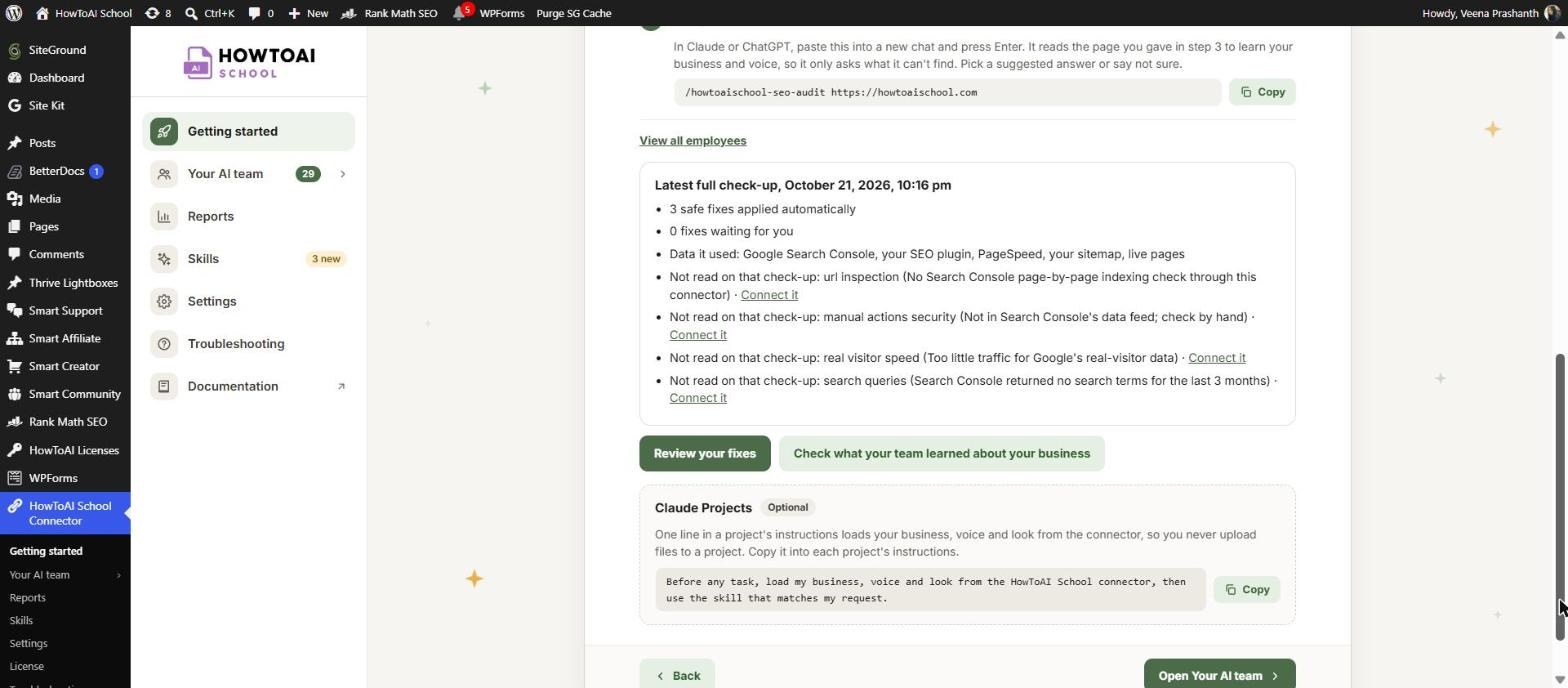
Step 5 ticks itself when the audit reaches your AI team inbox. It then shows a short summary of that check-up, titled Latest full check-up with its date:
- How many safe fixes were applied automatically.
- How many fixes are waiting for you.
- Data it used: for example your SEO plugin, Google Search Console and PageSpeed.
- Not read on that check-up: anything it couldn’t read, with the reason and a Connect it link to step 4.
Two buttons follow: Review your fixes opens the SEO Auditor’s page, and Check what your team learned about your business opens Settings → Your business, so you can correct anything it got wrong.
Find the results
Open Your AI team → SEO Auditor in WordPress. Each full check-up is a row with its health score, the biggest problem and what changed since last time.
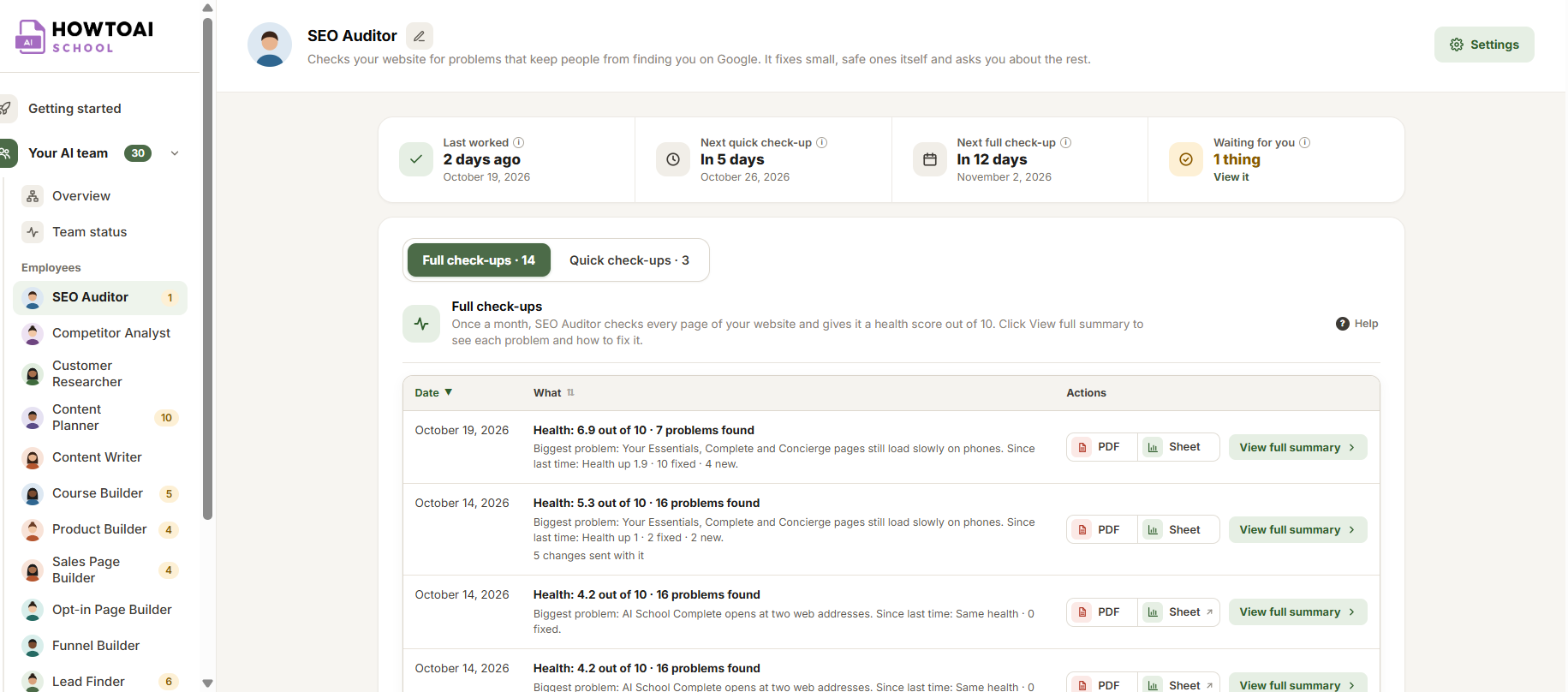
Click View full summary to open the report. See SEO check-ups and your health score and Fix SEO problems.
Tip: Small, safe fixes, like filling in a missing description, can be applied straight away. Every other change waits for your yes.
Good to know: Between full audits, the SEO Auditor runs a shorter weekly check-up on a schedule, using the answers it saved on this first run. See SEO Auditor.
For a longer guide to what a Claude SEO audit checks and how to choose which fixes to make, read How to run a Claude SEO audit on your WordPress site.


