Course Builder plans a full course with you, writes every lesson in your voice and builds it on your site as a draft in Smart Creator Press. You get a finished course you only need to read and publish, instead of weeks of writing lessons one by one. 🎓
What it does
- Plans the outline with you: modules named for what the student can do, and a plan for every lesson.
- Writes every lesson in full, as written content, in your voice. Each lesson has one picture that explains the idea and ends with 2 to 4 action items, at least one asking students to comment.
- Writes a welcome lesson that welcomes the student, names their problem, shows where they will be at the end and explains how the course works.
- Builds the course in one go: the course as a draft, every module and lesson, and the price.
- Sets up the welcome email students get when they join.
- Makes a featured image, a banner image and a sidebar image for the course, if you want them.
- Opens each lesson to check how it looks on a computer and on a phone, fixes what it finds and tells you anything still to fix.
What you need first
- Smart Creator Press switched on, with HowToAI School Connector on your site.
- The connector added to Claude or ChatGPT. See Connect Claude or Connect ChatGPT.
- Anything you want to teach from: notes, a pasted outline, a file or pages on your site. If you have nothing yet, it can plan the course from scratch.
- A lesson, email or post you wrote, so it can learn how you write. Pages you list on its Writing style tab work too.
How to start it
- Open a new chat in Claude (or ChatGPT) with your website’s connector on.
- Type
/howtoaischool-coursebuilder, with the course name after it if you have one. Or just ask in plain words. - Answer its questions one at a time. Each one has buttons, with its suggestion first.
- Check the outline card and the two sample lessons, then say yes to build.
A few ways to ask:
/howtoaischool-coursebuilder Watercolor for Beginners- “Build a course about watercolor for beginners.”
Tip: Not sure what to teach next? The X Content Scout suggests course ideas from what’s trending on X in your topics. On a course idea in its report, click Generate content to get a ready message you paste into a new Claude or ChatGPT chat, and Course Builder starts with that idea.
The questions it asks you
If you type the slash command with no course name, the course name is always the first question. It then asks one question per message, in this order:
- Who it’s for: one student with one problem.
- The result: what they can do at the end.
- What you have to teach from: paste or attach it, use your site, or start from scratch.
- Size: for example 4 modules of about 16 lessons, or a short list of 5 to 7 lessons.
- Price: it suggests one, or uses the price already saved for this course.
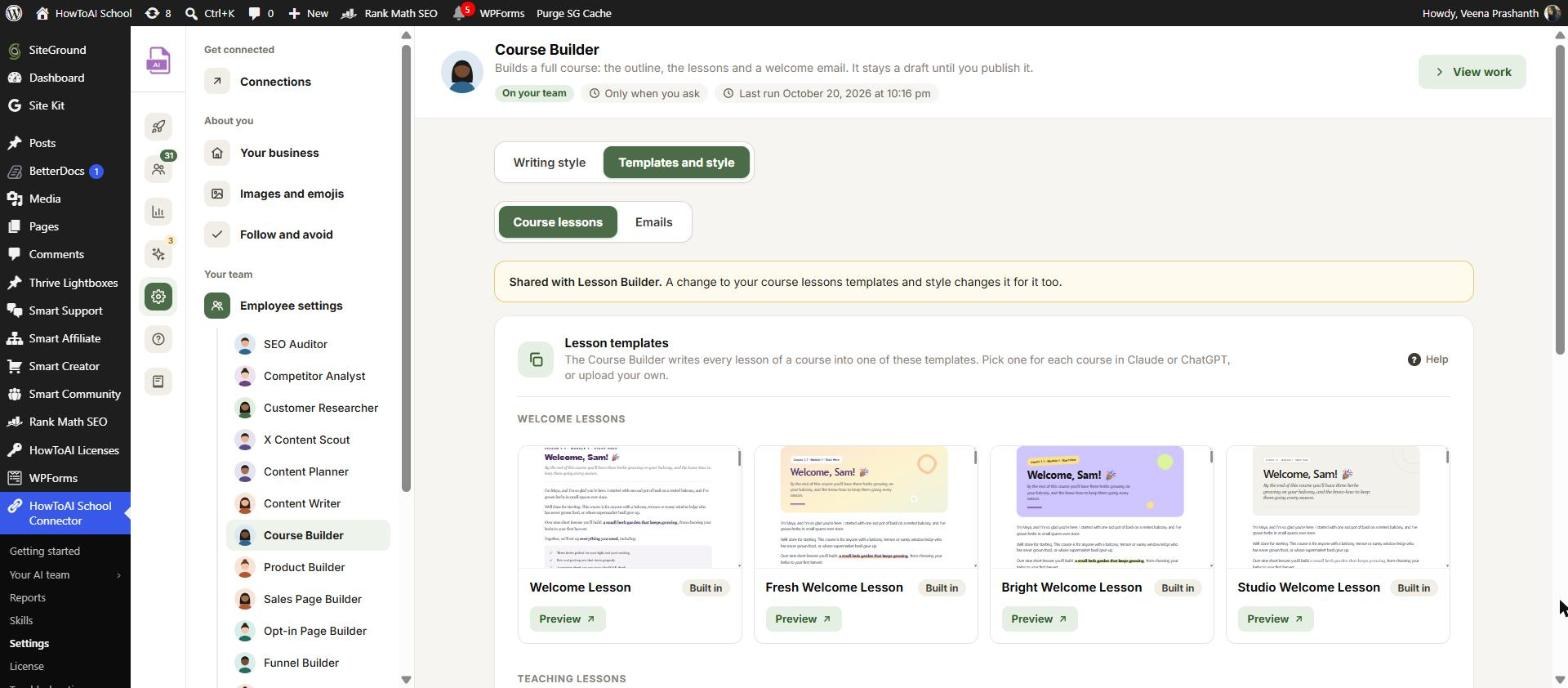
- Lesson look: Classic, Fresh, Bright, Studio or a template you uploaded, each with a preview.
- Your brand: the brand color, second brand color and fonts it will use.
- Voice: use your saved writing style, add a sample or replace it.
- Images: whether to make the featured, banner and sidebar images, then the style, people and text.
- Lesson pictures: hand-drawn stick figures, cards your site draws, or a mix.
On your first course it also sets your defaults: image style, people and text in images, lesson pictures, the welcome email style and how you sign your emails. Each answer is saved straight away.
From the second course on, saved answers show first as “Saved” and its pick, so one tap confirms them. A different answer counts for that course only, unless you say “make that the default”. Who it’s for, the result, your material, size and price are asked fresh for every course.
Where its settings live in WordPress
- Settings → Employee settings → Course Builder, Writing style tab: lesson samples, links to your writing and special instructions for lessons.
- The Templates and style tab, Course lessons: the welcome and teaching lesson templates (Classic, Fresh, Bright, Studio and any you uploaded) and the lesson format. Emails: the welcome email style, your signature and the email layout. See Templates and style.
- Settings → Images and emojis: image style, people and text in images, and pictures inside lessons, shared with your other builders. See Images and emojis.
See Employee settings.
What you get back
- A draft course in Smart Creator Press. The lessons are published inside it, but students can’t see anything until you publish the course.
- The welcome email, set on the course, in the style you chose.
- The three course images, if you said yes.
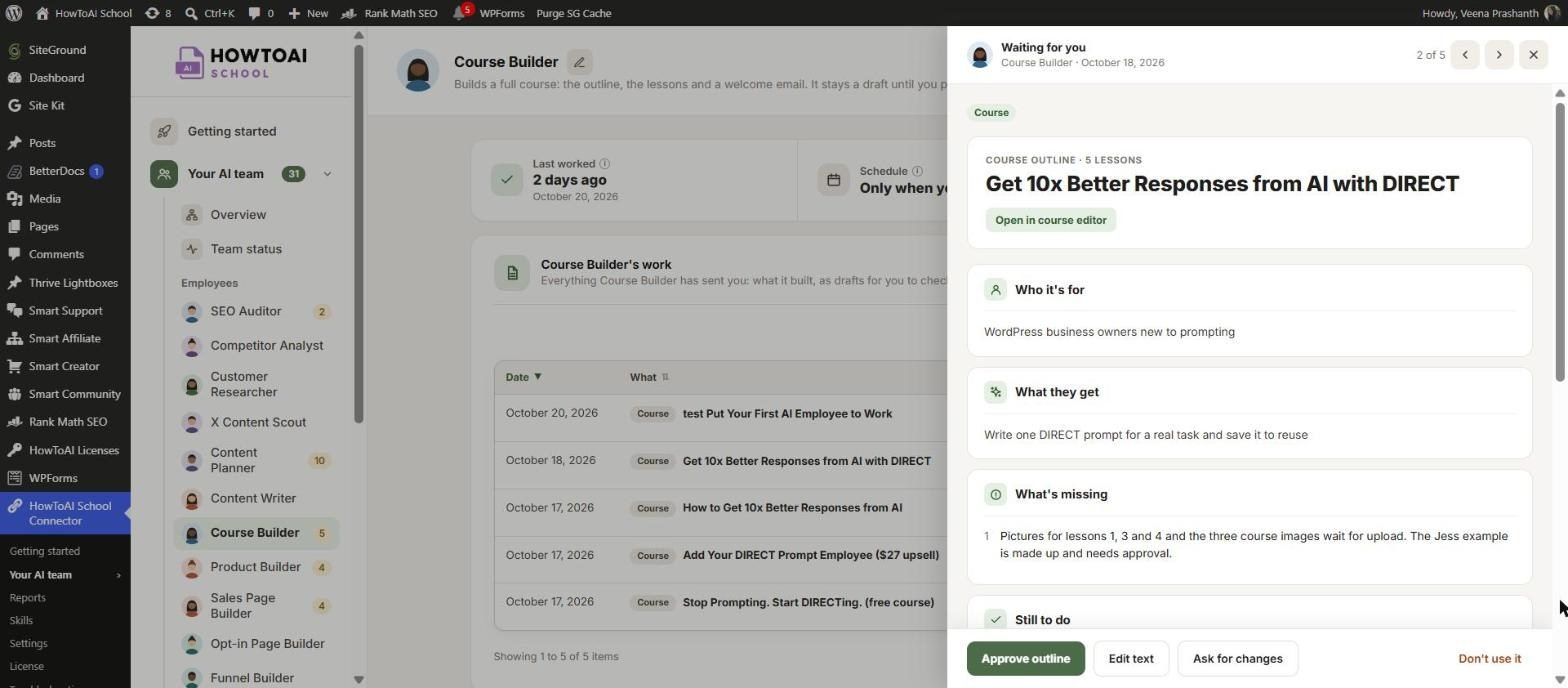
- The course on Course Builder’s page in Your AI team → Course Builder, with the student, the result, the number of modules and lessons, and what is still to do.
- A hand-over message in the chat with the course editor link, the price, every link and download used, and a “From you” list: stories, results or screenshots you could add, with the lesson each one belongs in.
- The course is added to Built by your team, so your other employees know its name, price and link.
Review and approve
- Open Your AI team → Course Builder and click Review on the course, or use the editor link in the chat. Open in course editor takes you straight to it.
- Read the lessons. Add anything on the “From you” list, and check that comments are switched on for the lessons, or the comment action items have nowhere to go.
- Click Approve outline. The course stays a draft. Or click Ask for changes and say what to change, or Don’t use it.
- When you’re happy, publish the course in the course editor. Course Builder never publishes it for you.
More in Review and approve.
Running it on a schedule
You can have Course Builder build a course while you are away. A scheduled run asks nothing. It builds one course and uses your saved answers and voice.
- Build an approved course later: plan it and say yes in the chat, then say “build it tomorrow”. It saves the plan and builds exactly that.
See Run employees on a schedule.
Tips
Tip: Give it something you wrote. Your own lessons, emails or pages are what makes the course sound like you.
Tip: Share your real stories, results and numbers in the chat. It never makes them up, so without them the lessons talk about the student’s situation instead.
Tip: Once the course is built, ask the Follow-up Email Builder for emails that keep students going, and the Sales Page Builder for a page that sells it.
Tip: For a scheduled run, set your AI app’s connector tools to always allow. A run that waits for a permission box builds nothing.
Good to know: Nothing goes live without you. The course is always a draft, Course Builder builds one course per run, and it never publishes, changes a published course or deletes anything.


