Open Skills in the plugin’s menu. It lists every skill your license includes, all in one plugin, and tells you when there is something new. ⚡
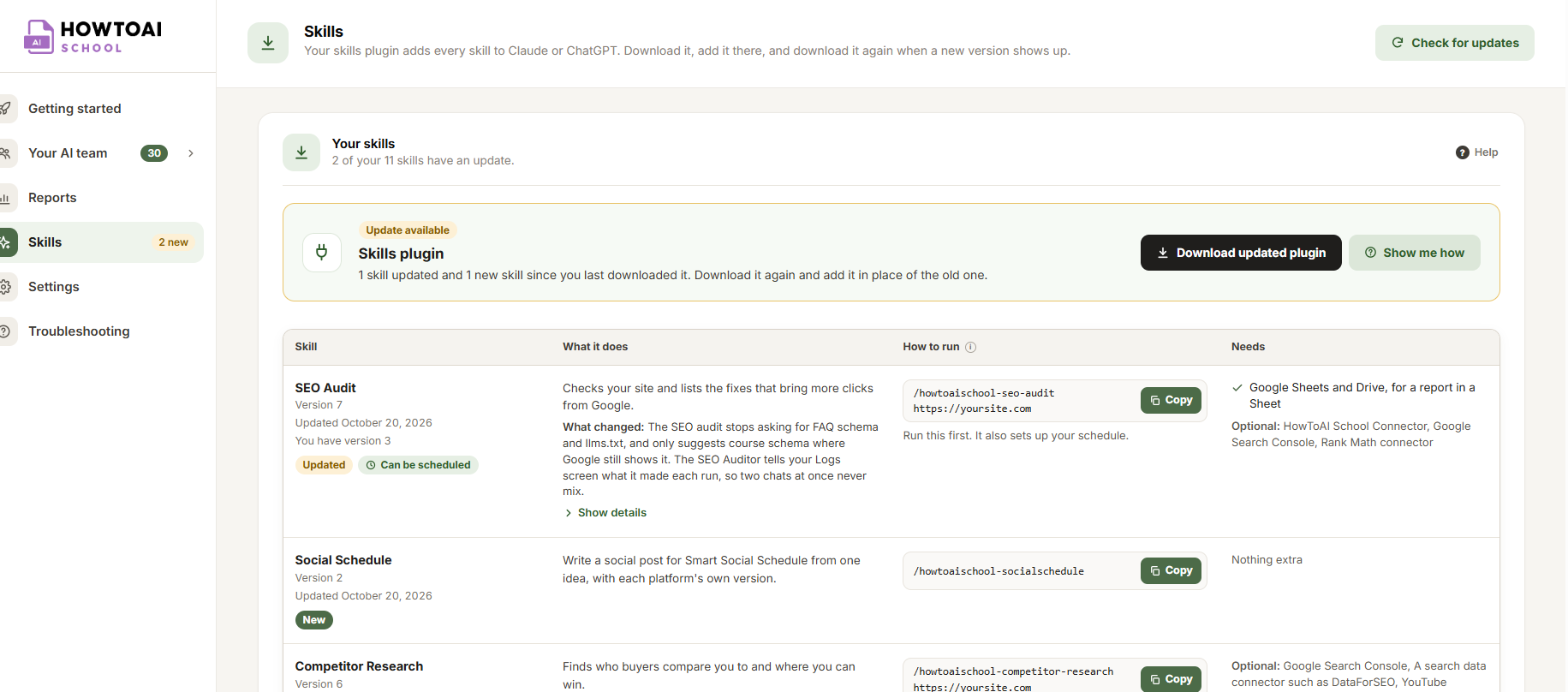
Only administrators can open it. When there is something new to download, the menu shows N new beside Skills, and a notice with See Skills shows on your Dashboard and Plugins screen.
The skills plugin
At the top of the Your skills card is a bar for your skills plugin:
- Download plugin gets every skill in one file. After a download it rests for five minutes and shows Wait N min.
- Show me how opens the steps to add it to Claude or ChatGPT at the side of the screen, with a switch for each app.
- When a skill has a new version, the bar says Update available and how many skills were updated or added since you last downloaded it. The button then says Download updated plugin. See Update your skills.
The table
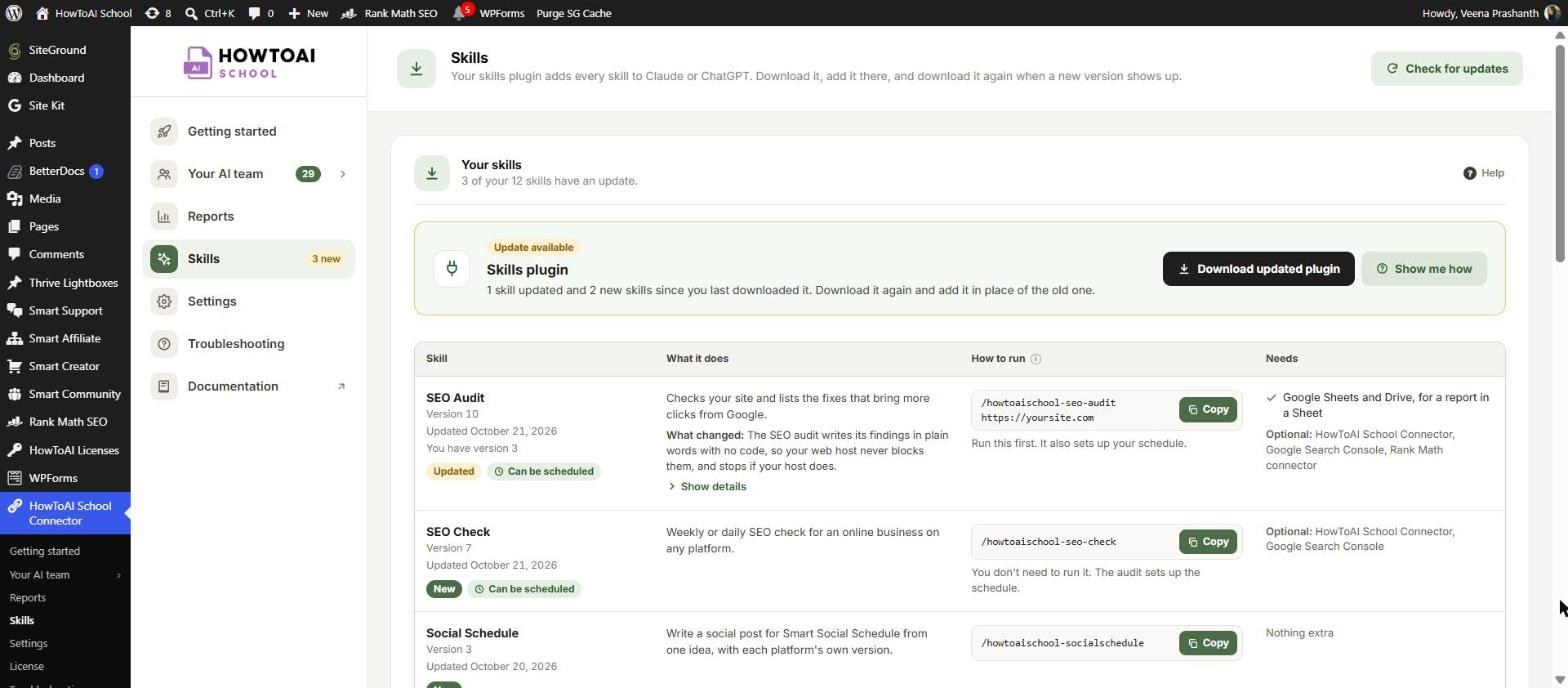
- Skill: its name and version, the day it was last updated, and “You have version N” if you have an older one. A pill shows where you stand: New, Updated, Up to date, Update skipped or Not downloaded yet. Can be scheduled means it can run on its own: point at it to see how often.
- What it does: one line, and what changed in the newest version. Show details opens its steps and what you get.
- How to run: the command to type in a new chat, with a Copy button. Where do I type it? explains where it goes.
- Needs: what it needs (with ticks), what makes it better if you connect it (Optional), or Nothing extra.
A skill marked Coming soon shows the day it releases. It isn’t in your plugin until then. On that day it shows as New, ready to download with the rest.
Skills that aren’t employees
Most skills are one AI employee each. Two are helpers:
- Smart Prompt (
/howtoaischool-smart-prompt): turns a vague request into a clear one, asks only the questions that matter, then does the task. See Smart Prompt. - SEO check (
/howtoaischool-seo-check): the SEO Auditor’s weekly or daily check-up. It runs on a schedule after your first full audit, and hands over to the full audit once a month. You don’t usually start it yourself.
Checking for updates
Your website checks for new skills by itself about once a day. To look now, click Check for updates at the top right. You can check once every 15 minutes: until then the button says Check again in N min. Opening the screen shows the list your website saved, without checking.
If a check fails, the card says “Couldn’t check for updates just now.” and the date of the list it shows.
Tip: A skill you downloaded in your account on howtoaischool.com counts as downloaded here too, so both places say the same.


