Click an employee’s name in the menu, on the Overview or in Team status to open its page. Everything that employee has sent you is here, and anything waiting for your yes is easy to find.
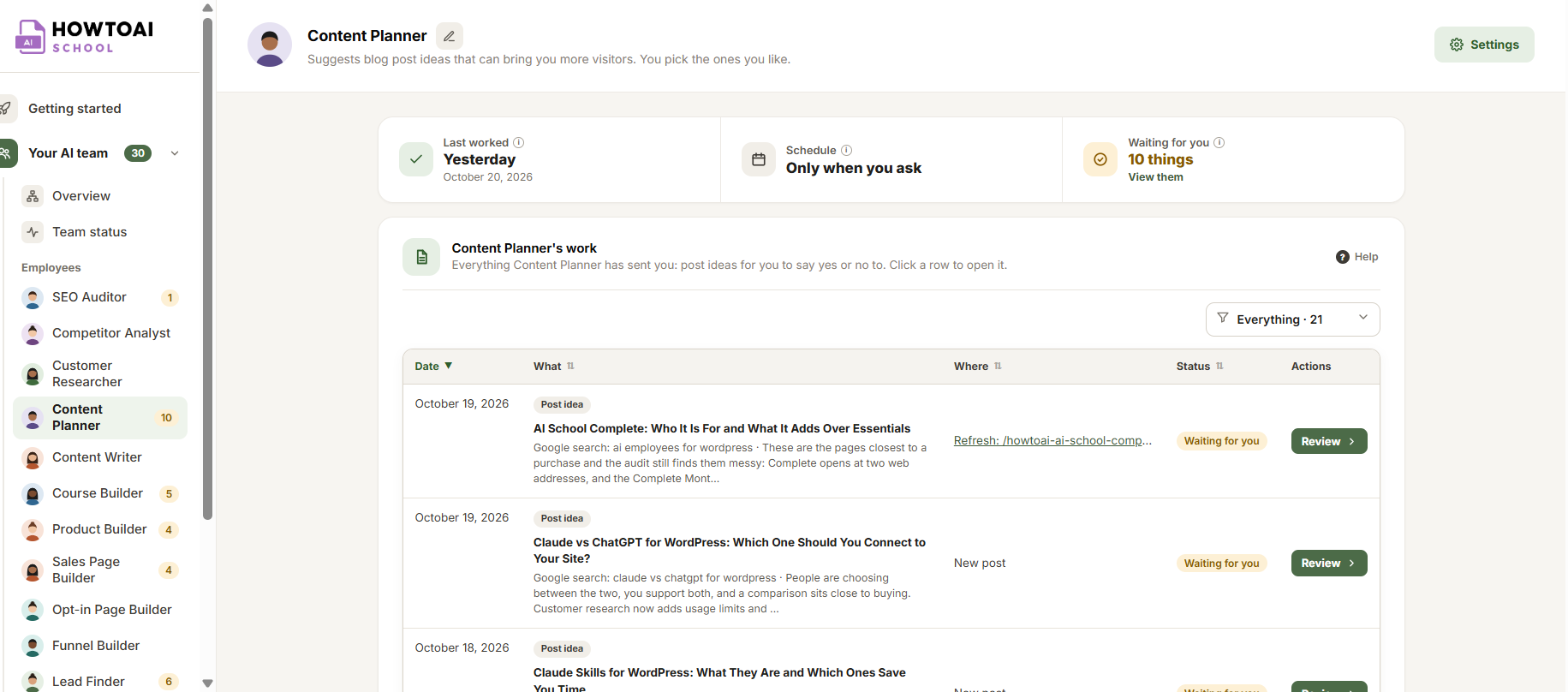
At the top
The employee’s name, with a pencil beside it. Click the pencil to give it a name of your own, then save. Leave the box empty to go back to its role name, like Content Writer.
- Last worked: the last day it did any work for you.
- Schedule: how often it works, in the words of its schedule, or that it has no fixed day and starts when you ask.
- Next quick check-up and Next full check-up: on the SEO Auditor’s page, in place of Schedule.
- Next full report: on the Competitor Analyst’s and Customer Researcher’s pages, in place of Schedule.
- Waiting for you: how many things need you: changes to approve or reports to read. Click View them to see only those.
- Settings: opens this employee’s settings. Only administrators see it.
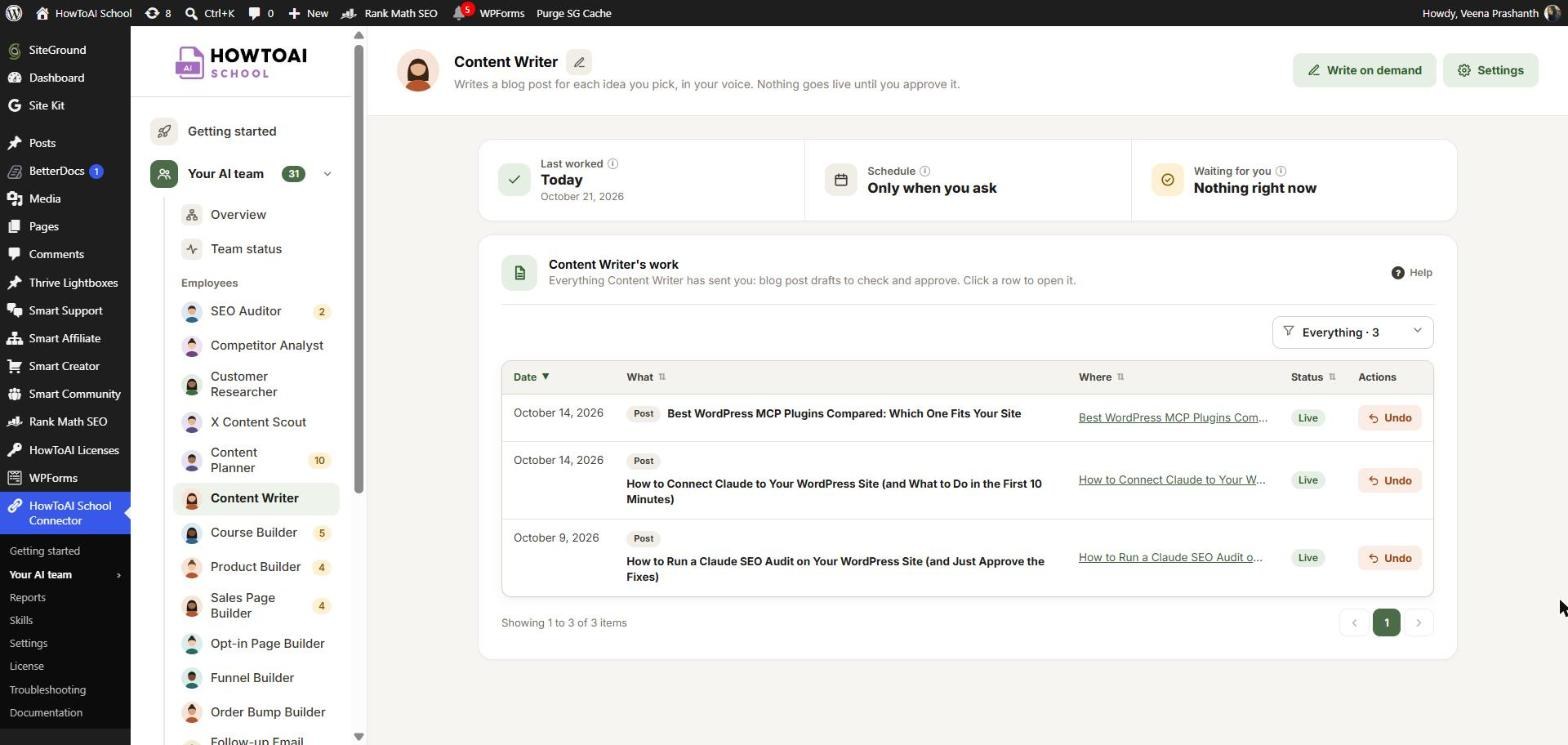
- Write on demand: on the Content Writer’s page only. It starts the writer with one click. See Write on demand.
Alerts that need you
Some alerts show above the summary boxes, only for this employee:
- Has stopped working: it should run on a schedule but hasn’t worked for a while. Click Set schedule. See When an employee stops working.
- Smart Creator Press isn’t turned on, needs an update, or WordPress needs an update: a builder can’t work until the plugin it needs is on and up to date. Click Go to Plugins or Update now.
Its work
Everything the employee has sent you, newest first, with its date, what it is, where it is on your website and its status. Use the Show dropdown to see everything, only what is waiting for you, only reports, or only work.
- Review: it is waiting for your yes. Click it, or the row, to open it. See Review and approve your team’s work.
- Open: look at something that is already decided.
- Undo: on something you already approved, published or scheduled.
- Your note: under a row you sent back, with what you asked for. Its status shows Being rewritten until the employee sends a new version.
Other statuses you may see: Being written, Live, Didn’t work, Not used, Undone and Expired (a post idea that waited more than 7 days). A report says Not read yet until you open it, then Read.
Reports and their files
A report’s row has a PDF and a Sheet button. No PDF or No Sheet means that report didn’t come with one. When no Google Sheet was saved, Sheet downloads the report as a spreadsheet file instead.
Employees with their own layout
- SEO Auditor: two tabs, Full check-ups and Quick check-ups, each with how many there are. Click View full summary to open one. See SEO check-ups and your health score.
- Competitor Analyst and Customer Researcher: their reports open at the side of the screen. See Read a competitor or customer report.
- X Content Scout: a list of its X trend reports. Each one holds its ideas. See X Content Scout.
- Lead Finder: its leads, with tiles and filters of its own. See Lead Finder.


