Nothing your team makes goes live until you approve it. You check each piece, then say yes, ask for changes or say no. ✅
Find what’s waiting
- On Your AI team → Team status, the Needs you column shows how many things each employee is waiting on. Click the employee’s name to open its page.
- On the employee’s page, click Review on a row, or the row itself. View them in the Waiting for you box shows only what needs you.
- In Settings → Logs, a run’s rows also have Review on anything still waiting.
Open it
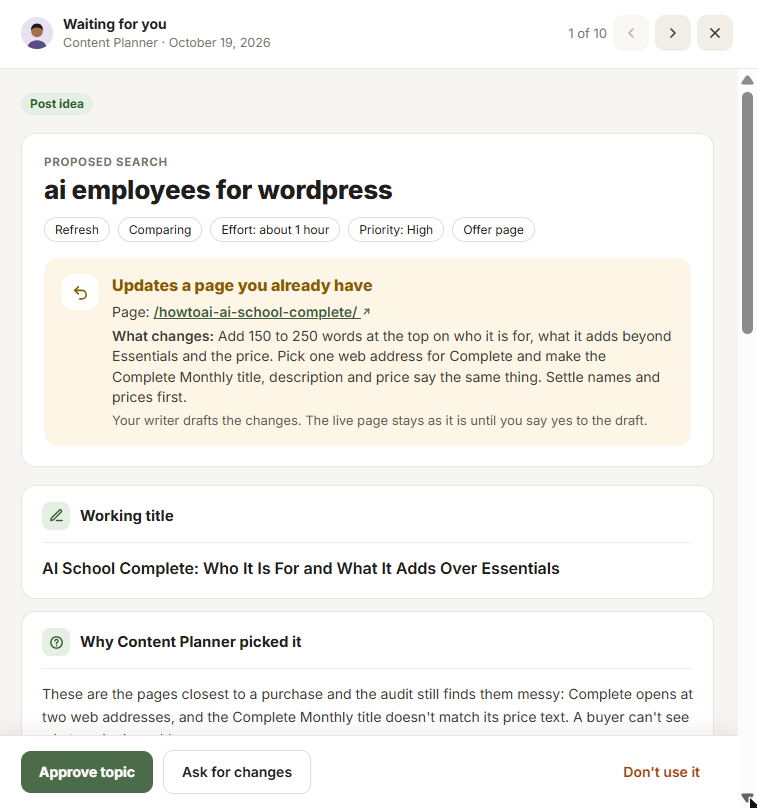
It opens at the side of the screen with everything you need to decide: what it is, why the employee made it, and what changes on your website. The When you approve box says exactly what happens when you say yes, and reminds you that you can undo it later. If the plugin it needs isn’t turned on, the box says so, and approving won’t work until it is.
Decide
- Approve: the button names what happens, like Approve and publish for a blog post or page, Approve topic for a post idea, Approve outline for a course, Approve product, Approve funnel, Approve order bump, Approve emails, Approve automation, or Approve and copy for a lead. Builds like courses, funnels and automations stay drafts or switched off until you publish or switch them on yourself.
- Ask for changes: a box opens, Send back to the employee. Write what to change (a note is needed), then click Send back. The employee reads your note on its next run and sends a new version, marked as a new version with your note.
- Don’t use it: it’s set aside and nothing changes on your website. You can add a reason if you like, then click Reject.
Use the arrows at the top to move to the next thing waiting.
What each kind shows
SEO changes
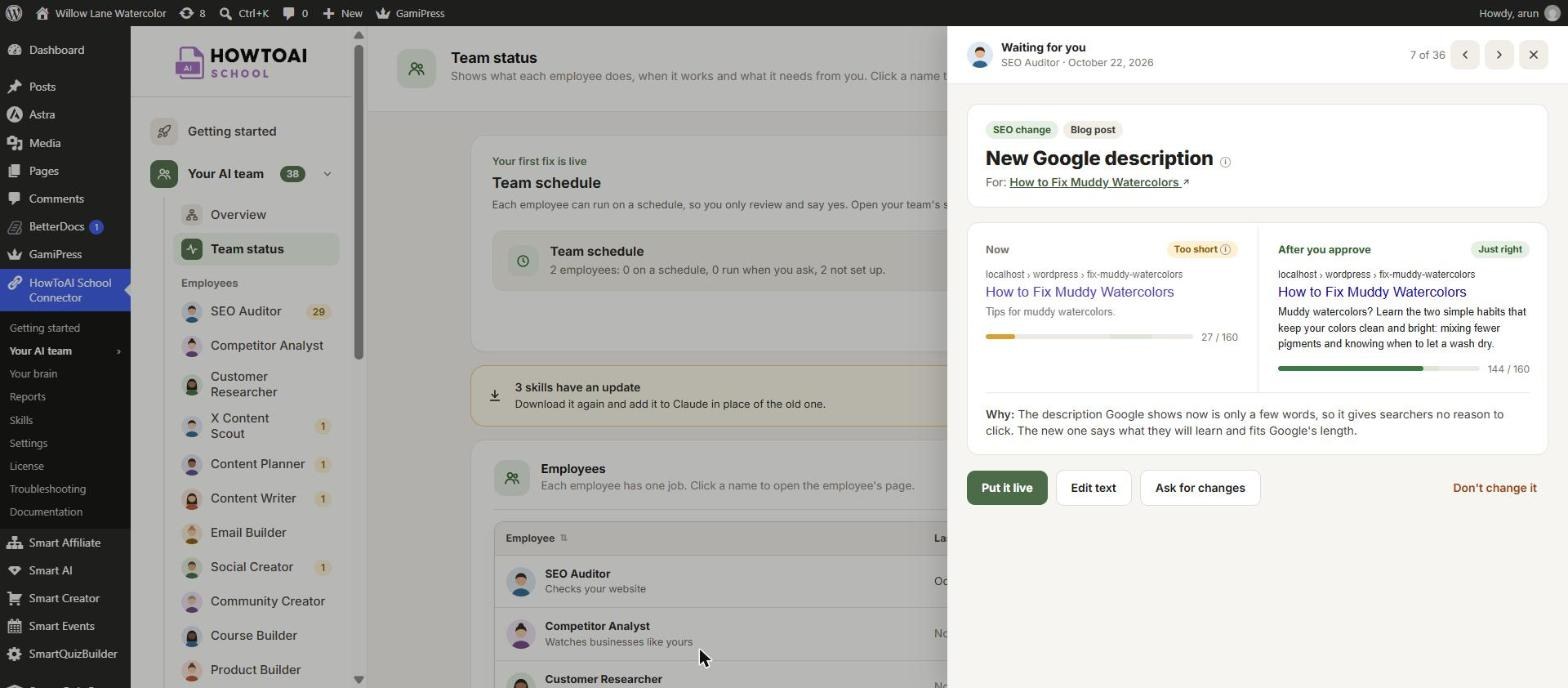
A change to a blog post or page, like a new title or description. You see Now and After you approve side by side, as Google would show them, with a length meter that says Too short, Just right or Too long. The buttons are:
- Put it live: makes the change on your website.
- Edit text: change the new text yourself, then click Save text.
- Ask for changes: send it back with a note.
- Don’t change it: leaves your page as it is.
Post ideas
A Progress tracker shows where the idea is: Suggested, Approved, Writing, Draft ready and Live. Once the draft is ready, click Open draft to review the post. An idea that waits more than 7 days becomes Expired and leaves your list. With write on demand on, you also get Approve and write and Approve only. See Write on demand.
Emails
Switch between Desktop and Mobile to see how it looks. Click Send test email to get a copy in your own inbox first.
Reports
Reports have no Approve button. Opening one marks it as read. See Read a competitor or customer report.
If something didn’t work
If an approved item couldn’t go live, it says why and shows Try again. Fix the cause, like turning on the plugin it needs, then click it.
Undo
Right after you approve, the message at the bottom of the screen has Undo. Later, open the finished item: it shows What happened and What’s next, with View live to see it on your website and Undo to take it back. Undoing an SEO change puts the old value back, as long as nobody changed that field since.
Tip: Every change your team makes to your website is listed under Settings → Logs → Website changes, where you can undo it. See Logs and website changes.


