Open a full check-up and click Problems to fix. The most important problems are at the top. 🔧
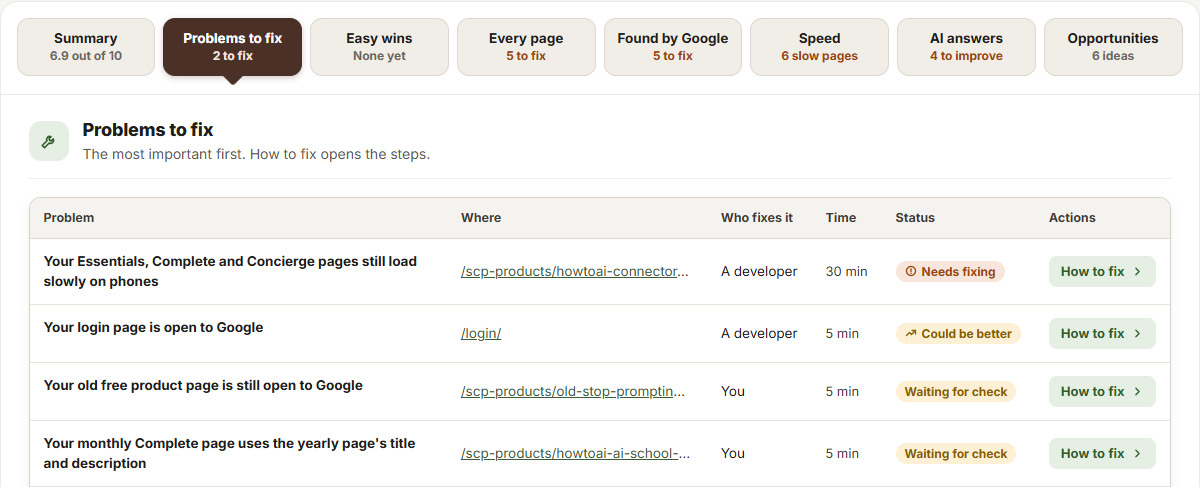
Read the table
- Problem and Where: what’s wrong, and the page with the problem.
- Who fixes it: The plugin, You or A developer.
- Time: about how long the fix takes.
- Status: Needs fixing, Could be better, Waiting for your yes (the plugin wrote a change for you to approve) or Waiting for check (you said you fixed it, and the next check-up checks it again).
The table also lists the changes this check-up sent to your website, with Review on the ones waiting for you and Undo on the ones already live.
Open a problem
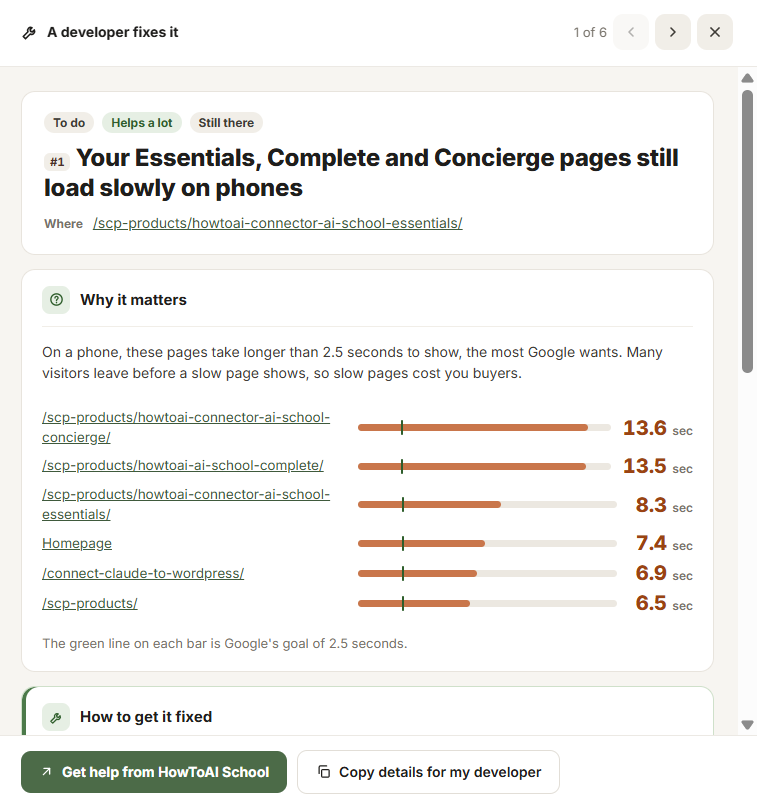
Click How to fix. A panel opens with Why it matters and the steps to fix it, naming the WordPress screen to open and what to click. Use the arrows to move to the next problem.
- The plugin fixes it: its change waits for your approval. Click Review on the SEO Auditor’s page, then approve it and it goes live.
- You fix it: follow the steps, then click I’ve done this. Once you have, click Check it now to check straight away (when that’s possible), or Not done yet if you clicked by mistake. With no steps written yet, click Ask HowToAI School.
- A developer fixes it: click Copy details for my developer and send it, or Get help from HowToAI School. The panel has a note written for your developer.
Auto fix
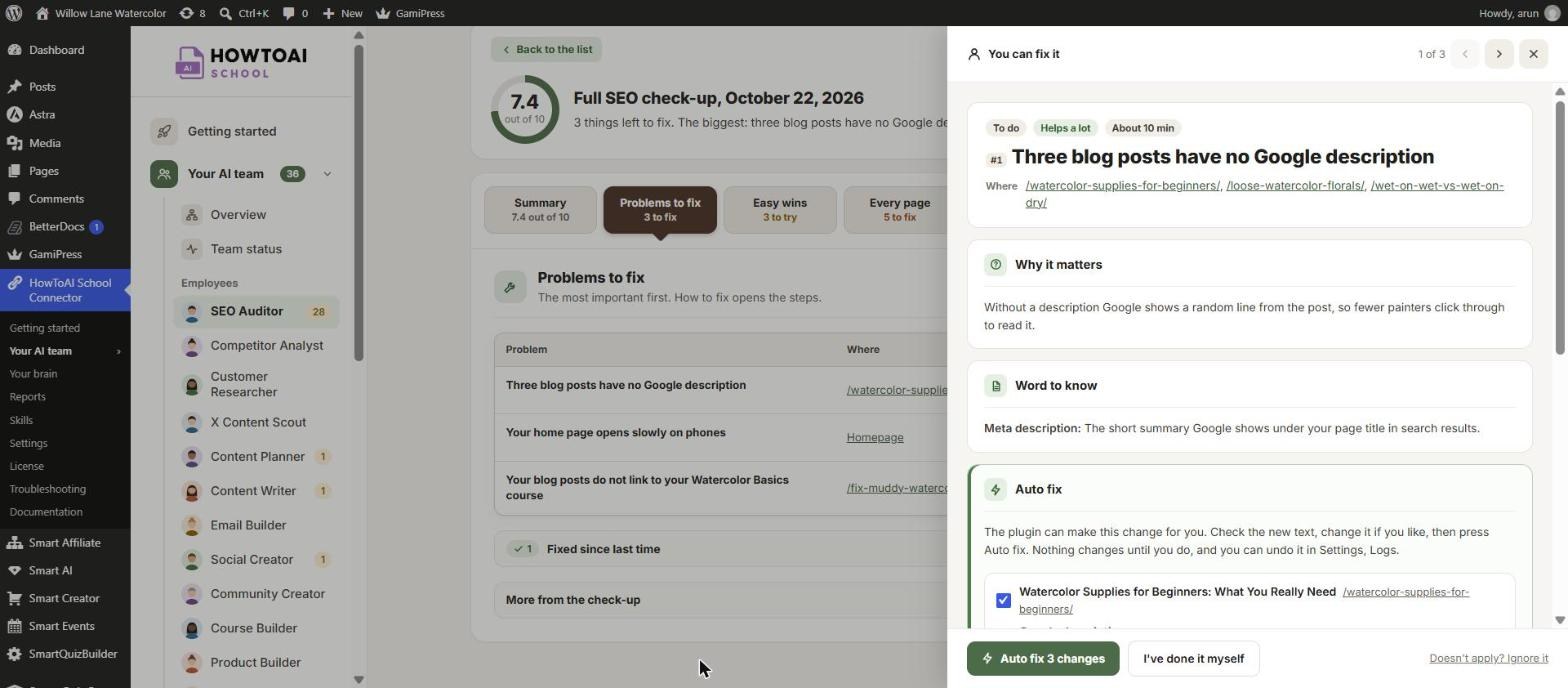
Some problems on blog posts and pages have an Auto fix button. The panel shows the new text for each page, with a character count. Untick any page you want to leave, change the text if you like, then click Auto fix (it says how many changes). Nothing changes until you click it, and you can undo every change in Settings → Logs.
For two posts that compete for the same search, Auto fix asks you to pick the post to keep. The plugin sends visitors from the other one to it and moves the other one to the Trash. Prefer to do it by hand? Click I’ve done it myself.
More in the panel
- Suggested wording: new text the auditor wrote for you to copy, like a better title for a course.
- Technical details from the check-up: folded away. What the auditor measured, for you or your developer.
Set aside and fixed
If a problem doesn’t apply to your website, click Doesn’t apply? Ignore it. Under the table, Fixed since last time lists what got better, and Set aside lists what you ignored. Open one you set aside and click Bring it back to put it back on your list.
Tip: The next check-up checks every problem again and marks the fixed ones.


