Open Settings → Your business. Your team reads these facts before it writes anything, so it never has to ask again. 🏠
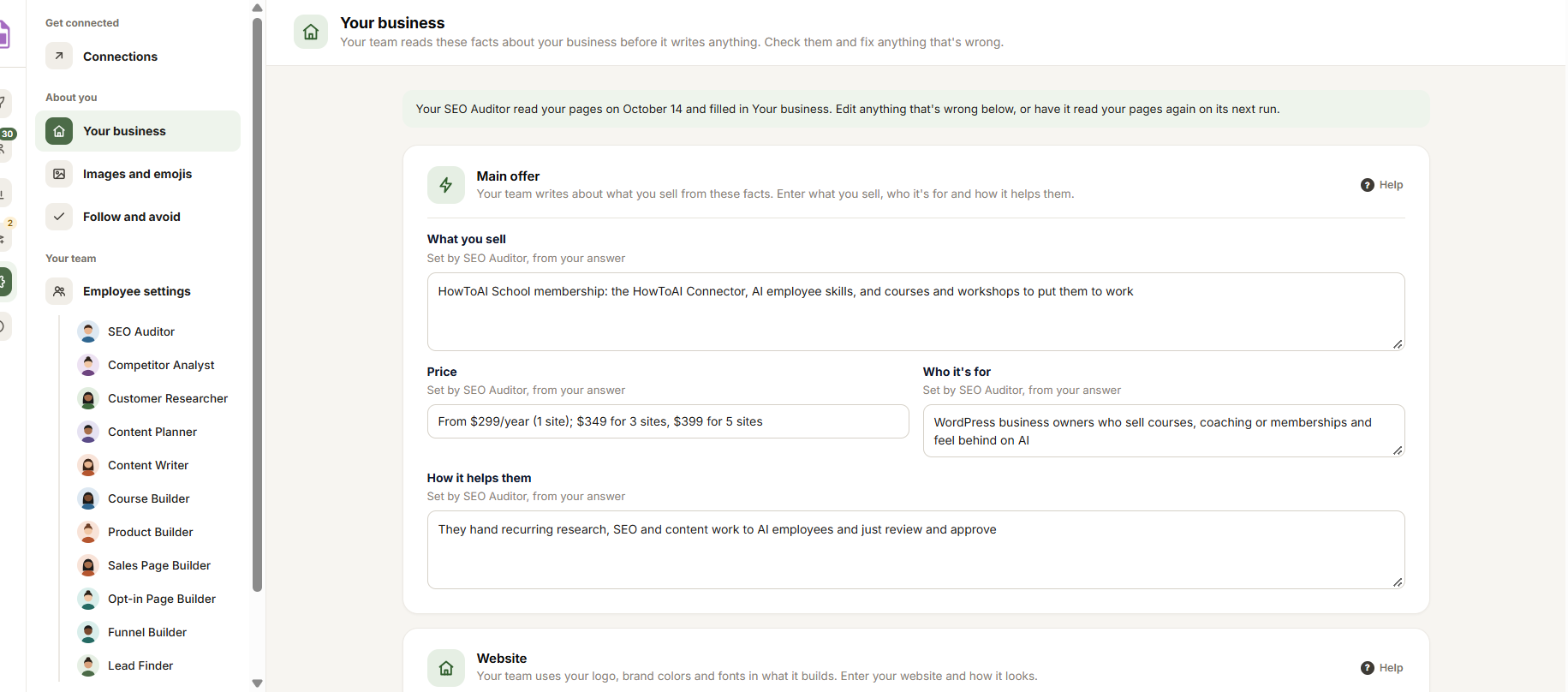
Your team fills it in
On its first run, an employee reads your website and fills in what it can. Under each field it says who filled it in, and a guess when it wasn’t sure. The note at the top says when it last read your pages. Click Read again on next run to have it read them again.
An empty field shows a grey value inside the box: that is what your team uses until you fill it in, like your Smart Creator Press font.
The cards
Main offer
- What you sell
- Price: once your courses and products are saved, this says each product has its own price in Built by your team.
- Who it’s for
- How it helps them
Website
- Website and What your website runs on.
- Logo link: the address of your logo. A small picture of it shows beside the box.
- Brand color and Second brand color: type a color code, or click the color box beside it to pick one.
- Fonts: pick one from the list.
- Pages about your business: pages your team reads to fill in this screen, one per line, like your homepage, About page or a sales page.
Buyer searches
- What they type into Google: what people search for to find something like yours, one per line.
Save
Fix anything that’s wrong. A bar appears at the bottom saying you have unsaved changes: click Save changes, or Cancel. Every employee uses the change from its next run.
Tip: Reset to defaults at the bottom empties every field, so your team reads your pages or asks you again. You can undo it for 30 days. See Reset settings and undo.


