Open Settings → Employee settings to see every employee, its schedule and when it last ran. Click Open, or an employee’s name, to change how it works. ⚙️
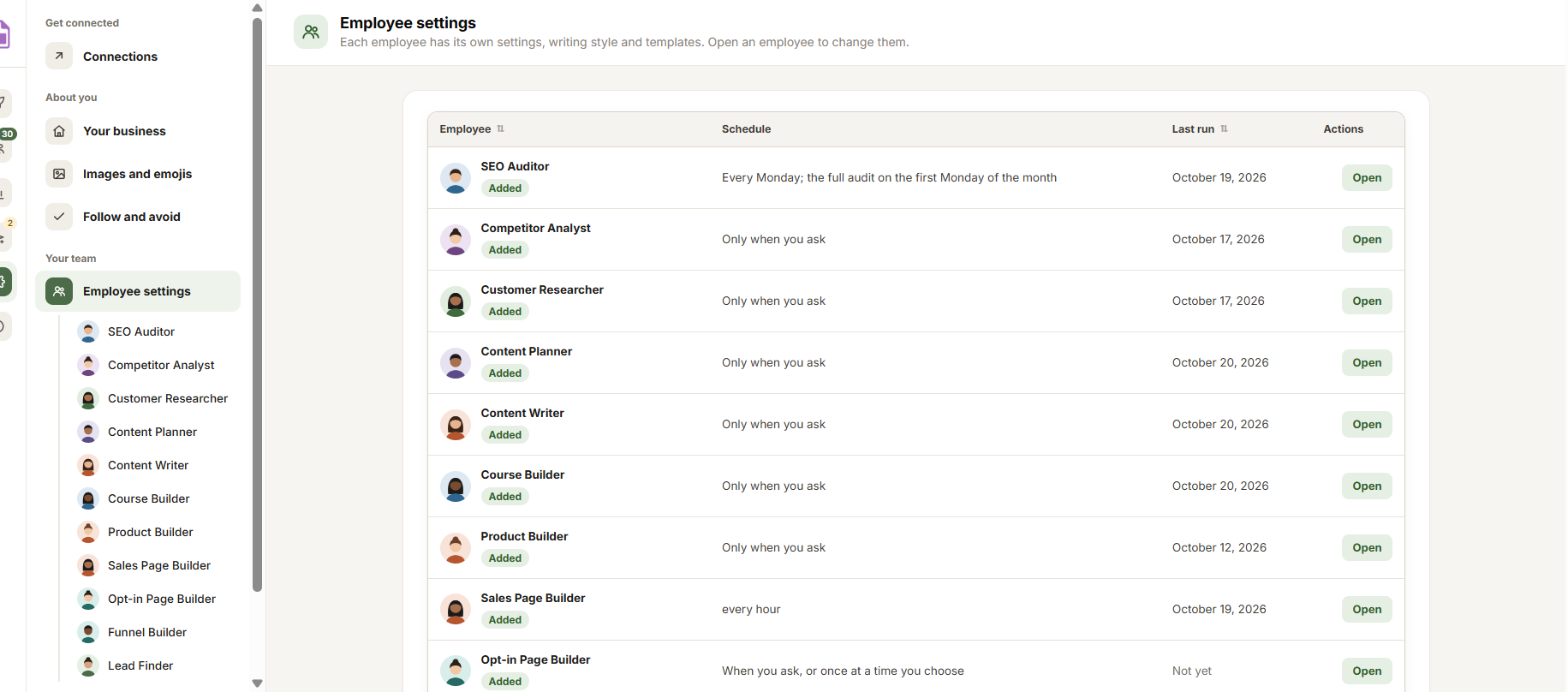
The list has four columns: Employee (with Added or Not added yet under the name), Schedule, Last run and Actions. An employee shows here once its skill is available.
An employee’s page
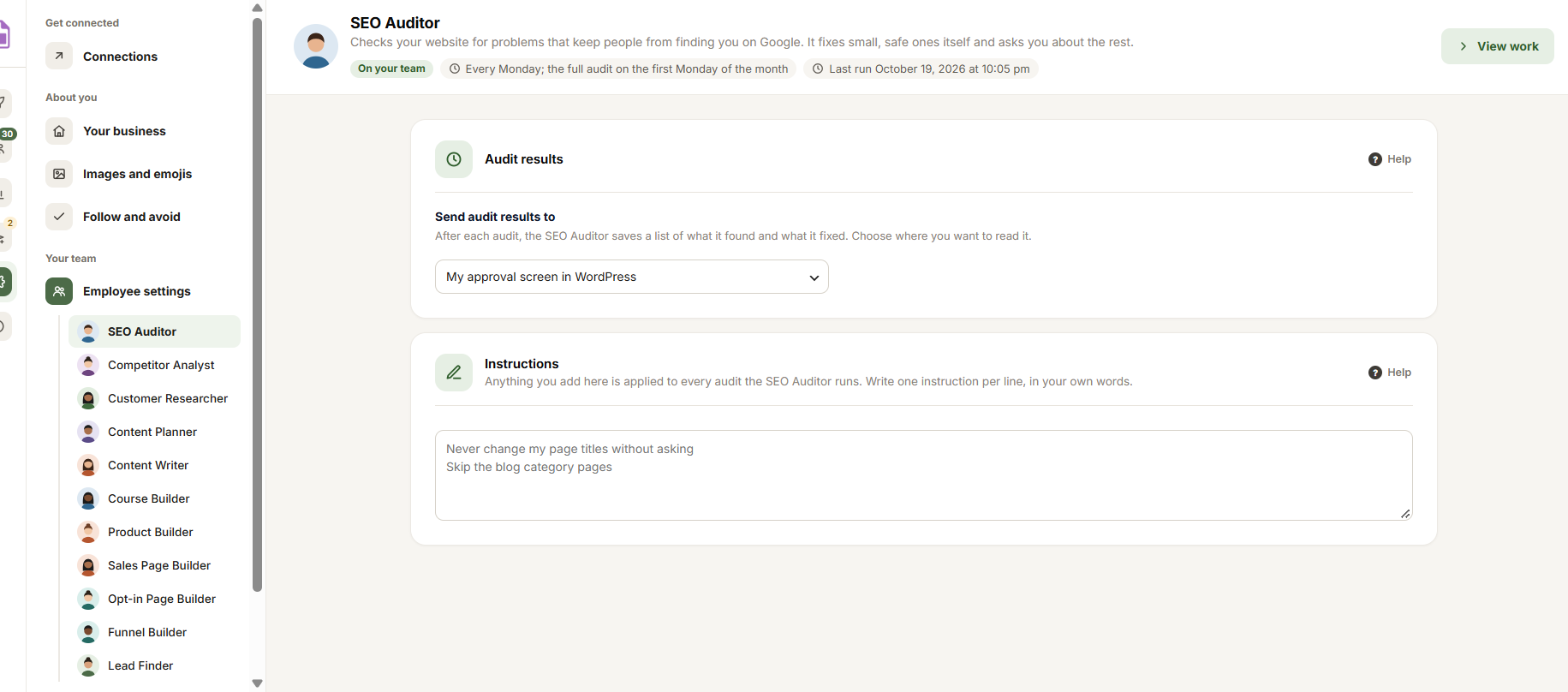
At the top: what the employee does, then On your team (or Sets itself up on its first run when it hasn’t saved its setup yet), how often it works, and when it last ran. Click View work to open its page on Your AI team.
What comes next depends on the kind of employee.
Employees that research or check
The SEO Auditor, the Competitor Analyst, the Customer Researcher, the Lead Finder and X Content Scout have one Settings page. It holds the settings only that employee uses, like where the SEO Auditor sends its audit results, plus Instructions: anything else it should do every time, in your own words, one per line. When an instruction and a setting disagree, the setting wins.
X Content Scout
Its card, What it watches on X, has your main category, the topics to watch (one per line), the kinds of ideas to make, the X searches and accounts to watch, the topics and accounts to stay away from, how far back to look, how many posts to list, and how many ideas of each kind. Searches and accounts it worked out from your topics say so: change them any time. It has no schedule, because it reads X in your own browser. See X Content Scout.
Employees that write or build
Every employee that writes or builds has up to three tabs:
- Writing style: how you write this kind of thing.
- Templates and style: for builders. The templates it builds on, your lesson format and email layout. See Templates and style.
- Additional settings: its other settings, like how many emails a follow-up sequence usually has. It shows only when the employee has some.
Writing style
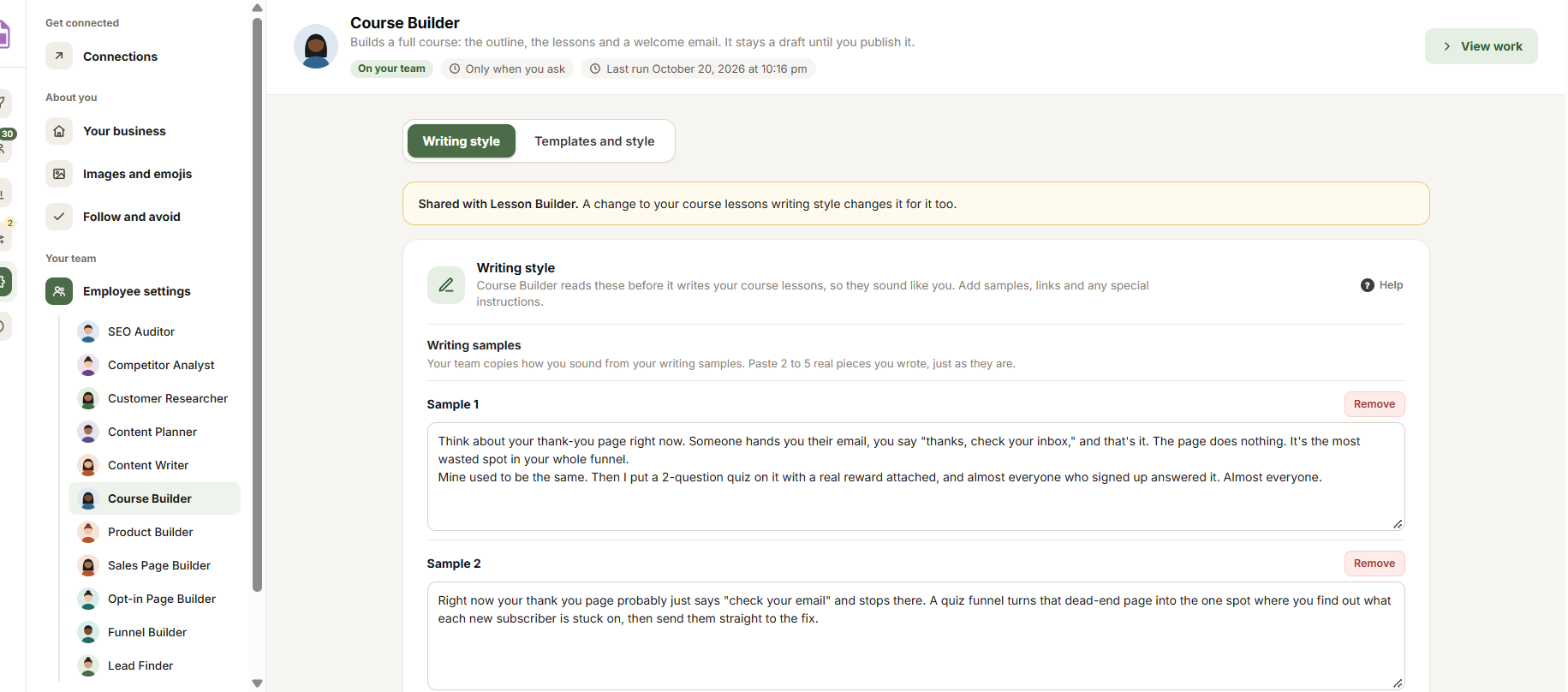
- Writing samples: paste 2 to 5 real pieces you wrote, just as they are. Click Add a sample for each one. The count under them says how many you have, like “2 of 5 samples”. Your team copies how you sound, not what you said.
- Links to your writing: pages you wrote. Claude reads each one and keeps its words as a sample of this kind of writing.
- Special instructions: two boxes, Also follow and Also avoid, with rules for this kind of writing only, on top of your Follow and avoid rules. One rule per line.
An employee that writes more than one kind of thing, like sales pages and emails, has a round tab for each kind. Start over at the bottom removes this kind’s samples, links and special instructions. Your Follow and avoid rules stay.
Templates and style
Pick a template to see it with Preview, or upload your own. You also set the parts of every lesson, your email layout and your welcome email. See Templates and style for every option.
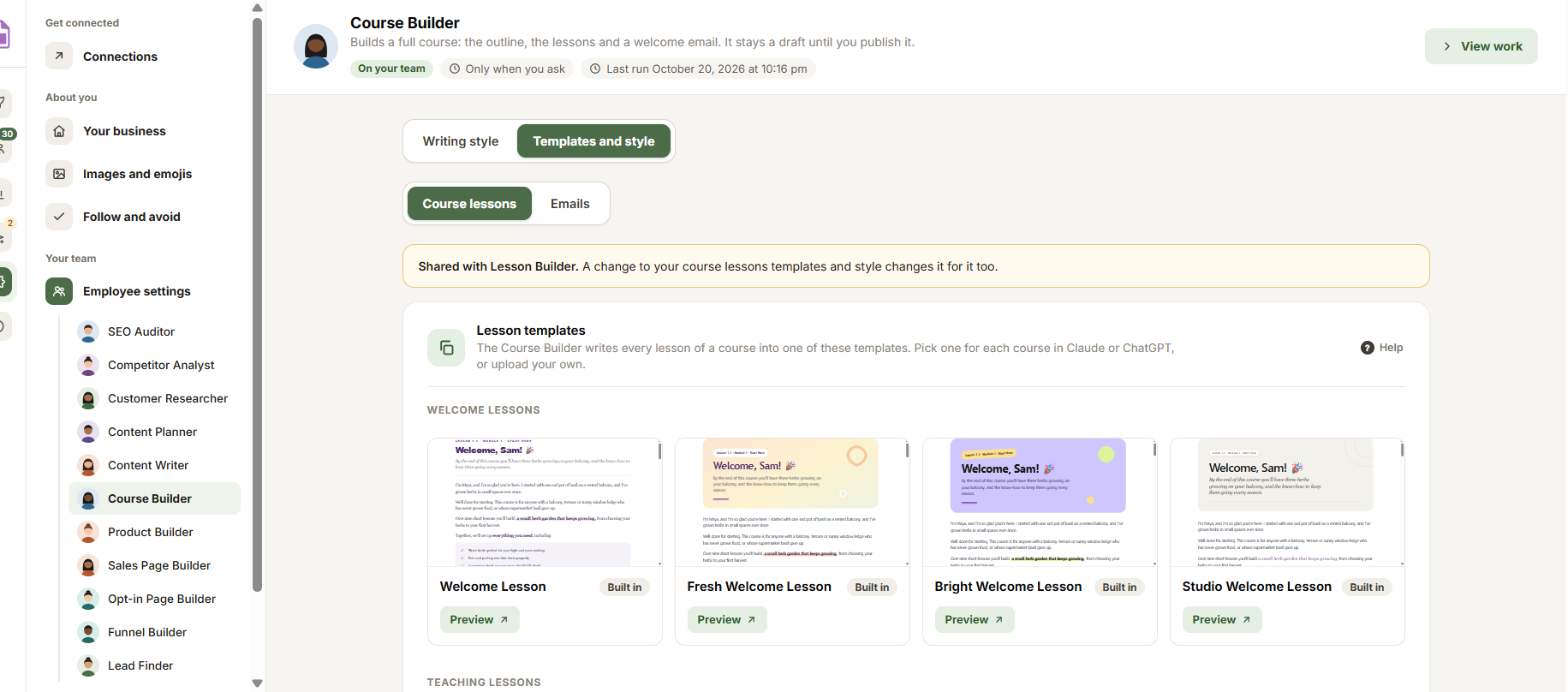
Good to know: Some employees share settings. A yellow note says who, like “Shared with Lesson Builder”: a change here changes it for them too.
Click Save changes in the bar at the bottom. The next run uses your change.


