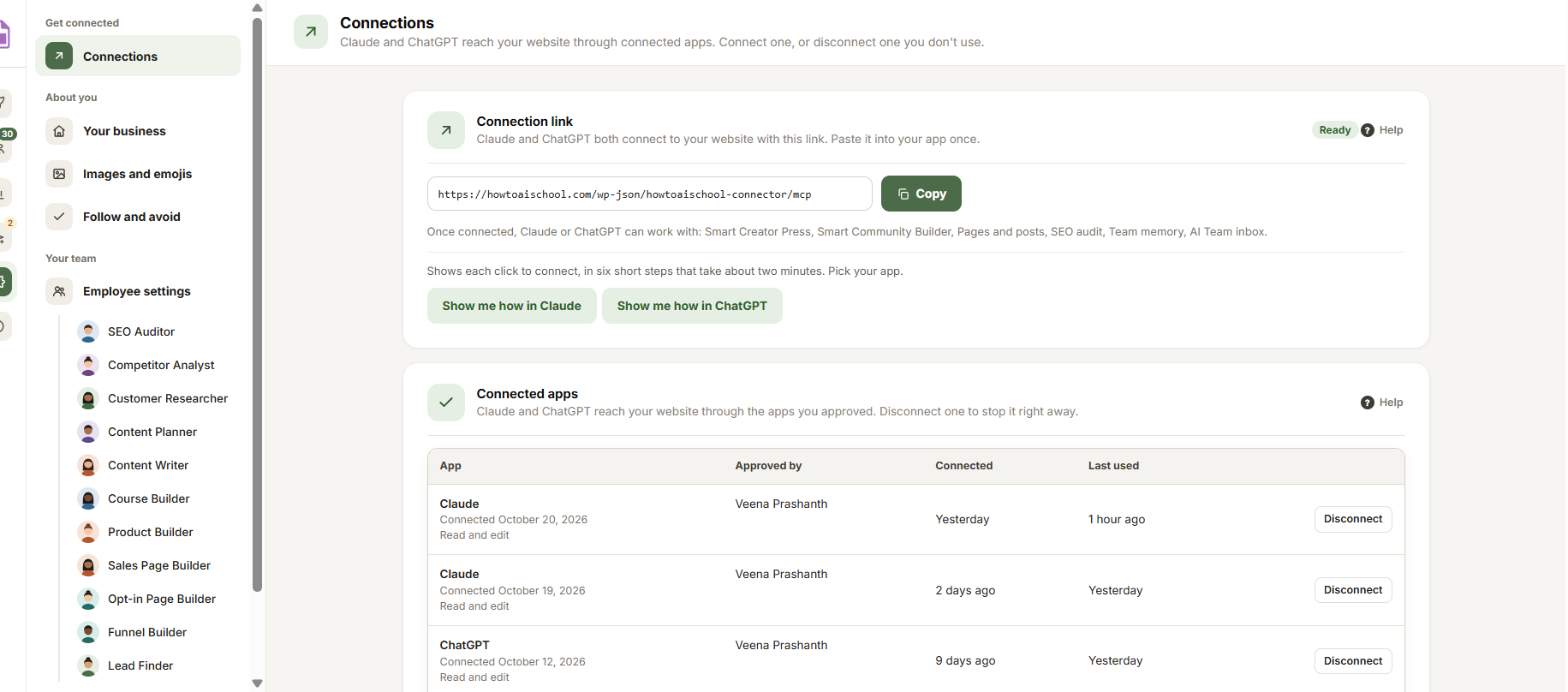
Open Settings → Connections to manage how Claude and ChatGPT reach your website: the link they use, the apps you approved, what they did lately and who can connect. 🔗
When Claude signed in but went quiet
If Claude signed in but nothing from it reached your website afterwards, a yellow bar at the top says Claude signed in N ago, but hasn’t used the connection since. Usually your host blocks Claude or removes its sign-in. Click Test the connection in the bar to find out which. See Test the connection.
Connection link
Claude and ChatGPT both connect to your website with this one link. You paste it into your app once.
- The pill says Ready when apps can connect, or Turned off when Let AI apps connect is off below.
- Click Copy to copy the link. A small message says Connection link copied.
- Under the link, a line lists what Claude or ChatGPT can work with once connected, for example your posts and pages and Smart Creator Press.
- Show me how in Claude and Show me how in ChatGPT open the six steps at the side of the screen, with the link ready to copy. If an app is switched off below, a pill says so, for example Claude is switched off.
The last step in the side panel: a WordPress screen opens, you click Approve, and the app shows under Connected apps. Then, in a chat, switch it on from the tools menu and ask, for example, “List my courses”. See Connect Claude and Connect ChatGPT.
Connected apps
Every app you approved, in a table:
- App: Claude or ChatGPT, the day it was connected, and its access: Read and edit or Read only.
- Approved by: the WordPress user who clicked Approve. The app can only do what that person may do on your website.
- Connected and Last used: how long ago each happened, or Not yet.
- Disconnect: click it, then Yes, disconnect. That app stops reaching your website right away. You can connect it again any time.
With nothing connected, the card says No connected apps yet.
Tip: Connected the same app twice? Each connection shows the day it was made, so you can disconnect the old one.
Recent activity
The last 50 actions Claude or ChatGPT took on your website, newest first, a page at a time. Each line shows When, What it did, Who it acted for, and the Result. Point at a result to see the reason.
- Done: it worked.
- Not allowed: it was stopped, for example because the person it acts for may not do that.
- Failed: something went wrong.
When something failed, open Troubleshooting in the plugin’s menu, or see Troubleshooting: connecting to your website. For every change your team made to your website, see Logs and website changes.
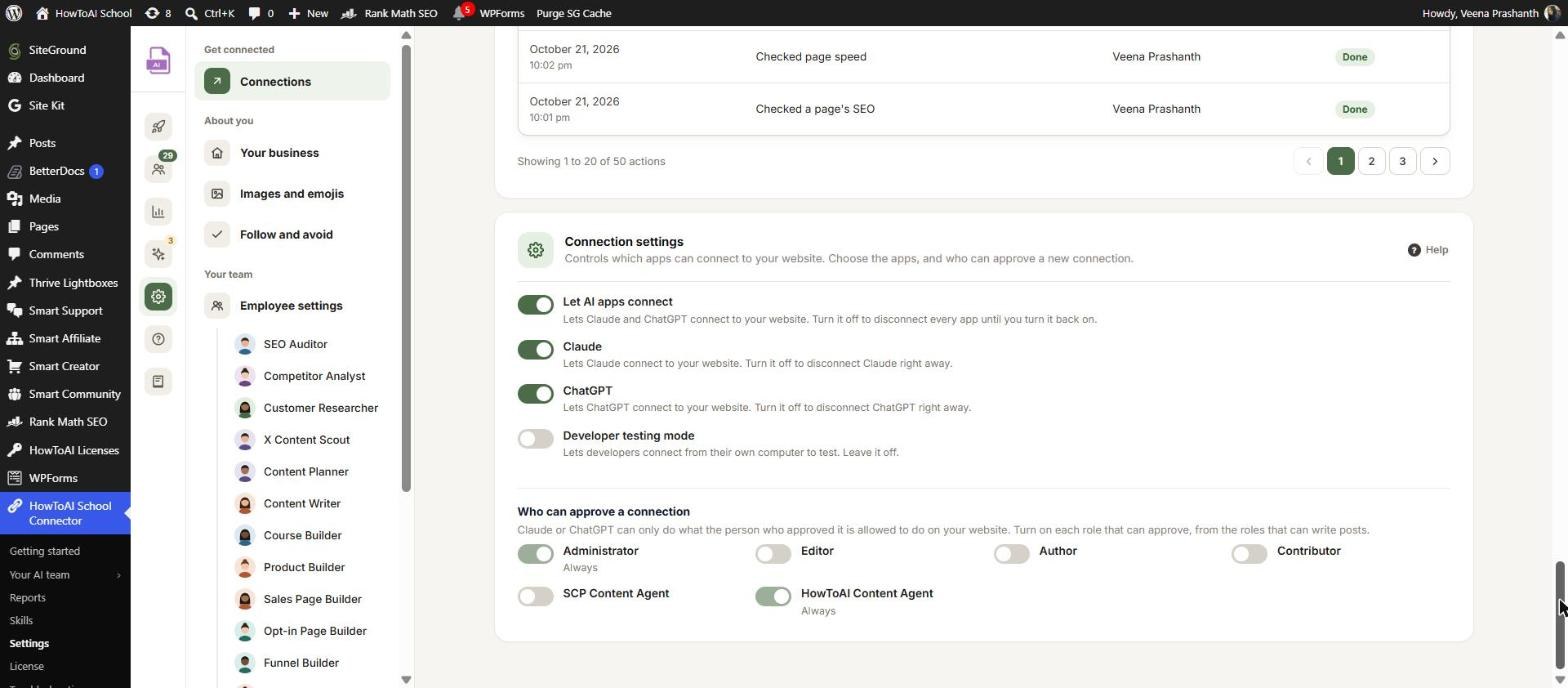
Connection settings
Switches that control which apps can connect:
- Let AI apps connect: turn it off to disconnect every app at once, until you turn it back on.
- Claude: turn it off to disconnect Claude right away.
- ChatGPT: turn it off to disconnect ChatGPT right away.
- Developer testing mode: lets developers connect from their own computer to test. Leave it off.
Who can approve a connection
One switch per role, from the roles that can write posts. Turn on each role whose users may click Approve when Claude or ChatGPT asks to connect. Administrators and the HowToAI Content Agent role always can: their switches say Always.
Click Save changes when you are done. Nothing changes until you save.
Good to know: Claude or ChatGPT can only do what the person who approved it may do on your website. Only administrators can open Settings and change these switches.


