When the Skills screen says Update available, download the plugin again and add it the same way as the first time. 🔄
How you know there is an update
- The menu shows N new beside Skills.
- A notice with See Skills shows on your Dashboard and Plugins screen.
- On the Skills screen, the plugin bar says Update available and how many skills were updated or added, and rows are marked New or Updated with what changed.
Click Download updated plugin. A file you downloaded in your account on howtoaischool.com counts too: the Skills screen then says Up to date.
In Claude
- Click Customize, then Plugins, then Add and Upload plugin.
- Pick the new file. It takes the place of the old one.
- Start a new chat. An old chat keeps the skills it started with.
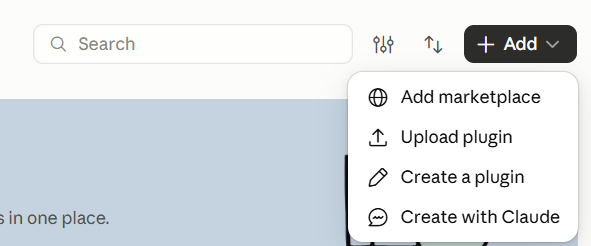
Tip: Added the plugin from the marketplace (veenaprashanth/howtoai-skills)? Then updates arrive by themselves.
In ChatGPT
- Click Plugins, then Personal.
- Open HowToAI School, click the three dots and choose Upload new version.
- Pick the new file. The plugin’s page shows the new version number.
Good to know: Updating the skills is separate from updating the HowToAI School Connector plugin on your website. When the plugin itself updates, also refresh the tools list in Claude. See Install and update the plugin.


