The Competitor Analyst finds out who your buyers really compare you to, shows where those competitors win and lose in their own customers’ words, and turns it into moves you can make this week. You price, position and write your pages from evidence instead of guesses. 🧭
What it does
- Builds a search list of 8 to 15 phrases your buyers really type into Google, for you to approve, and records who shows up on page 1 for each.
- Writes a card for each competitor: what they sell, price, their angle, recent moves, and where they win and lose, with customer quotes.
- Keeps a dated pricing table and notices price changes.
- Finds gaps: things buyers want that no competitor offers well.
- Lists pages and offer features competitors have that you don’t, but only ones buyers actually mention.
- Gives you an action plan, content titles for your Content Planner, and a list of what to watch over the next 30 days.
What you need first
- HowToAI School Connector connected to Claude or ChatGPT. See Connect Claude or Connect ChatGPT.
- Google Search Console, if you can. It is optional, but it makes the search list better. See Connect your data.
- A list of competitors you already know, if you have one. Paste it when the employee asks.
How to start it
- Open a new chat in Claude.
- Type
/howtoaischool-competitor-research, or ask in plain words. - Answer the setup questions and approve your search list. Then it starts the research.
Example requests:
- “Research my competitors.”
- “Who do buyers compare my watercolor course to, and what are they doing better?”
/howtoaischool-competitor-research https://yoursite.com
The questions it asks you
It reads your site, runs a few Google searches and skims Reddit first, so each question comes with suggested answers and its pick first. On the first run it asks, one at a time:
- What do you sell, and which offer matters most right now?
- Who is it for?
- What problem does it solve, or what result do buyers get?
- What would a buyer type into Google to find you?
- Who do buyers compare you to? Direct competitors (up to 5), and other options buyers pick instead, such as free videos.
- Where are your buyers, and in what currency?
- Where should the report go: your approval screen in WordPress, a Google Sheet, or the chat?
- How often should it run?
Last, it shows the search list it built for you to approve, or to add and drop phrases. If your business answers are already saved, questions 1 to 4 appear as one “Still right?” check, and next time all saved answers do.
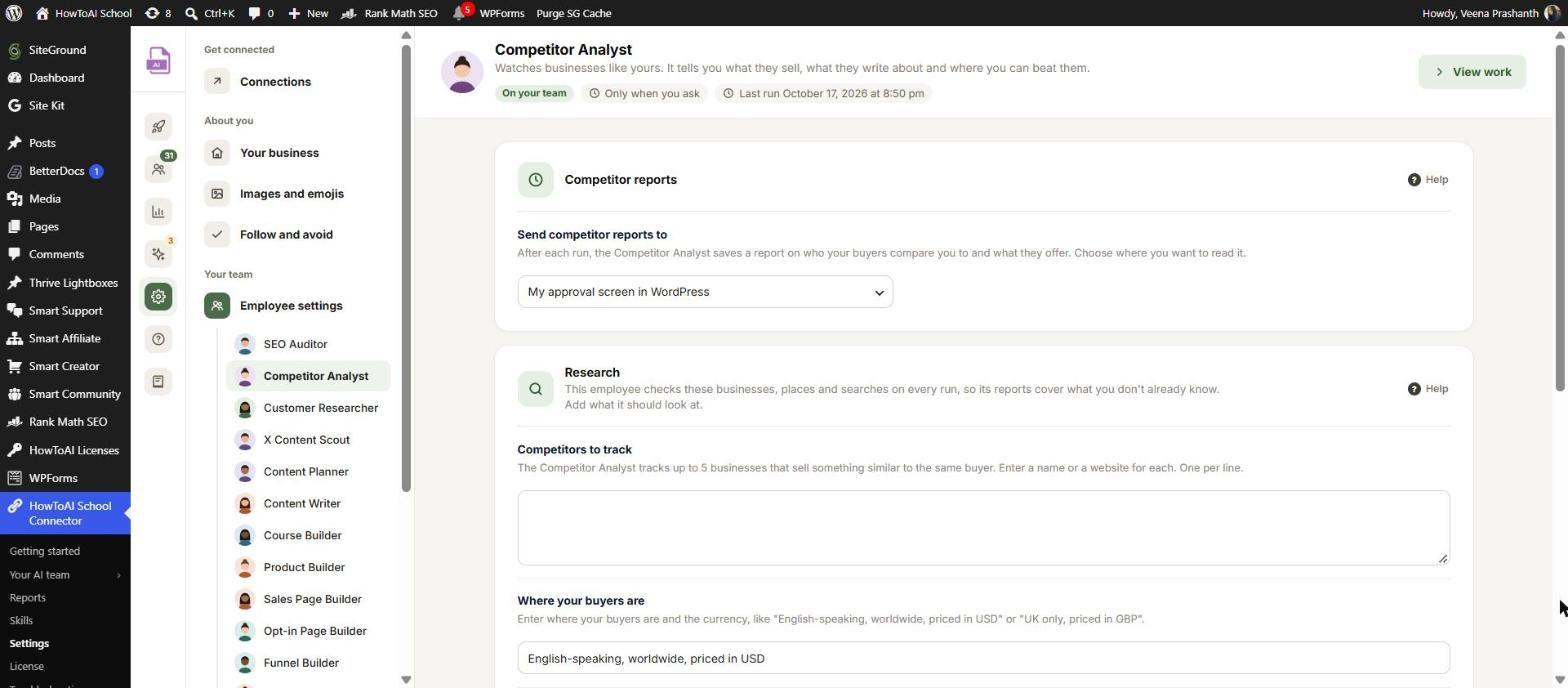
You can also change these in WordPress under Settings → Employee settings → Competitor Analyst. The Competitor reports card holds the schedule and where reports go, the Research card holds Competitors to track, Where your buyers are and Google searches it checks, and the Instructions card takes anything else it should always do. See Employee settings.
What you get back
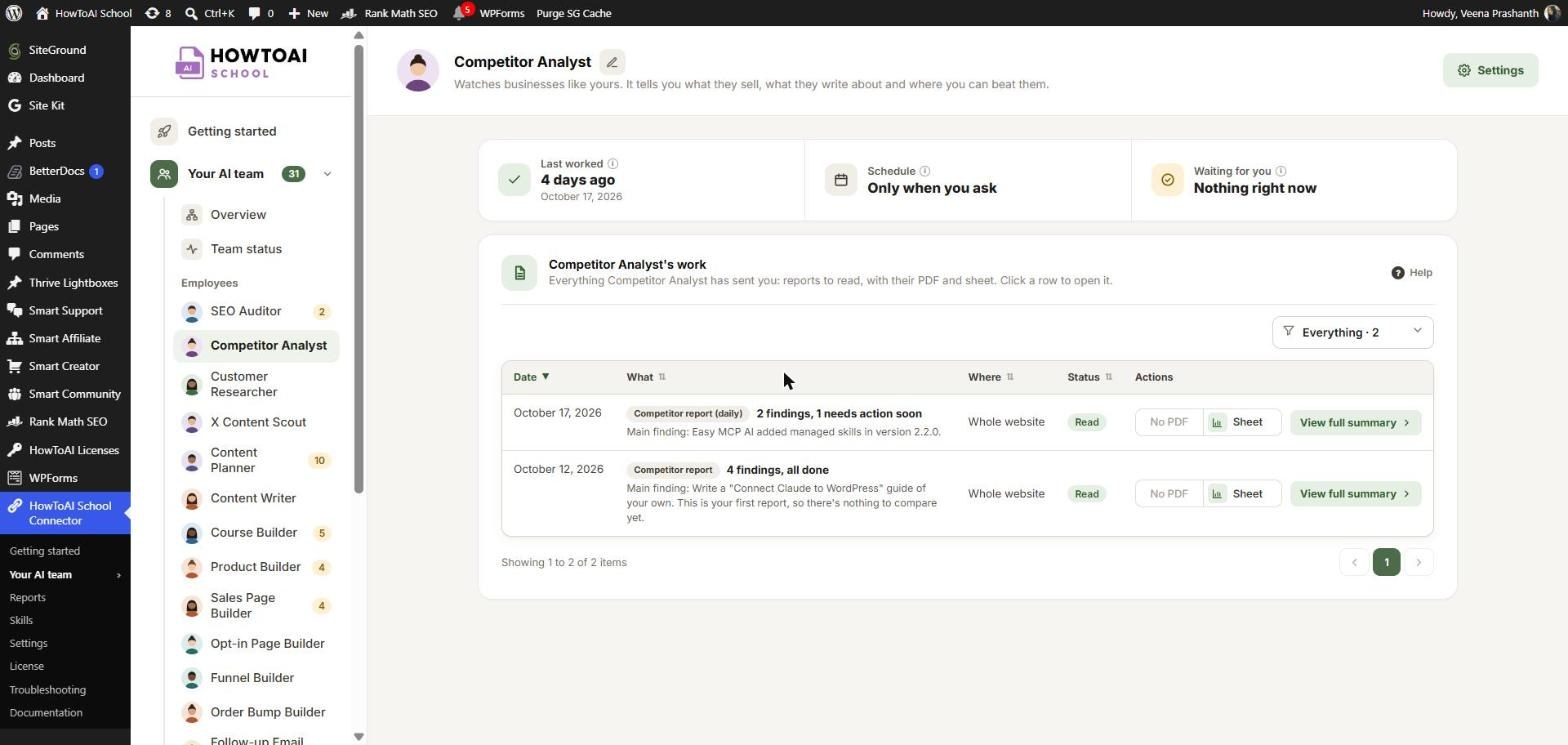
- The report goes to the Competitor Analyst’s page: open Your AI team → Competitor Analyst. It covers what changed, competitor cards, pricing, gaps, the catch-up list, your action plan, content titles, the search log and an evidence table with links and dates.
- Each report’s row has PDF and Sheet buttons, and a Not read yet or Read label.
- The newest report also shows on Reports, in the Latest from your team card, with the competitors’ top-plan prices side by side and a Read report button. See Reports.
- In the chat, a short summary with the top 3 moves.
- Nothing is published and no page is written.
Read the report
A report is something to read, not something to approve. There is no Approve or send back button: opening it marks it read, and your Content Planner and Content Writer use it on their next runs.
- On the Competitor Analyst’s page, click a report’s row. It opens in a side panel.
- Read the short summary and the green Next move box first.
- Under What we found, click a row to see why it matters, what to do and where. Moves are marked Important, Worth doing or Minor.
- When you have done one, click I’ve done this. Your team knows on its next run.
- If “New names to consider” lists someone, tell the employee in the chat to add them. It never adds a competitor on its own.
Every finding rests on at least 2 sources. More in Read a competitor or customer report.
Running it on a schedule
The usual schedule is every day, with the full report on the 2nd of each month. You can also pick monthly on the 2nd, or only when you ask. On the first run it sets up the schedule in Claude for you. Its page then shows Next full report.
Each morning it checks your direct competitors for new posts, new pages and price changes, and tells you only when something changed. Scheduled runs never ask you anything. If a run is missed, a “Competitor Analyst has stopped working” bar shows on Team status, with a Set schedule button. See Run employees on a schedule.
Tips
Tip: Keep your direct competitor list short. Five well-chosen names give a sharper report than ten loose ones.
Tip: Read the “Where they’re losing” quotes first. They often lead to a better sales page headline for your Sales Page Builder.
Tip: Pair it with the Customer Researcher. One shows what competitors offer, the other shows what buyers want. Ideas backed by both rank highest with your Content Planner.
Tip: After a full report you start by hand, the employee starts your Content Planner, so the content titles turn into blog post ideas to approve.
Good to know: The Competitor Analyst only reads. It never signs up, buys, comments, messages or posts anywhere, and never changes your site. Wins and losses come from what competitors’ customers say, not what competitors claim.


