The Content Writer writes blog posts that sound like you: one post whenever you ask, or every idea you approved from your Content Planner. Each one arrives as a finished draft with its SEO details filled in, so you can approve it with light edits instead of starting from a blank page. ✍️
What it does
- Writes one post on request (“write a post about X”), with no plan needed.
- Drafts every blog post idea you approved from the Content Planner that has no draft yet.
- Reads the top 5 search results for the topic first, so the post covers what they cover and what they miss.
- Checks every fact about your offer on your own site, and links every outside fact, such as a competitor’s price, to its source with the date checked.
- Answers the search in the first few lines, then adds clear sections, your own proof, an FAQ and one next step pointing to your offer.
- Lays the post out with a short answer box, tables and boxes in your brand colours, so every post looks like it belongs on your site.
- Fills in the SEO title, meta description and web address, adds links to your other pages, and fixes any SEO check the draft fails.
- Makes a featured picture for the post, if pictures are turned on, and suggests images with alt text.
- Learns your voice over time from the changes you make to its drafts and from your notes.
What you need first
- HowToAI School Connector connected to Claude or ChatGPT. See Connect Claude or Connect ChatGPT.
- Approved ideas from your Content Planner, if you want it to work through a plan. For a single post, you need nothing else.
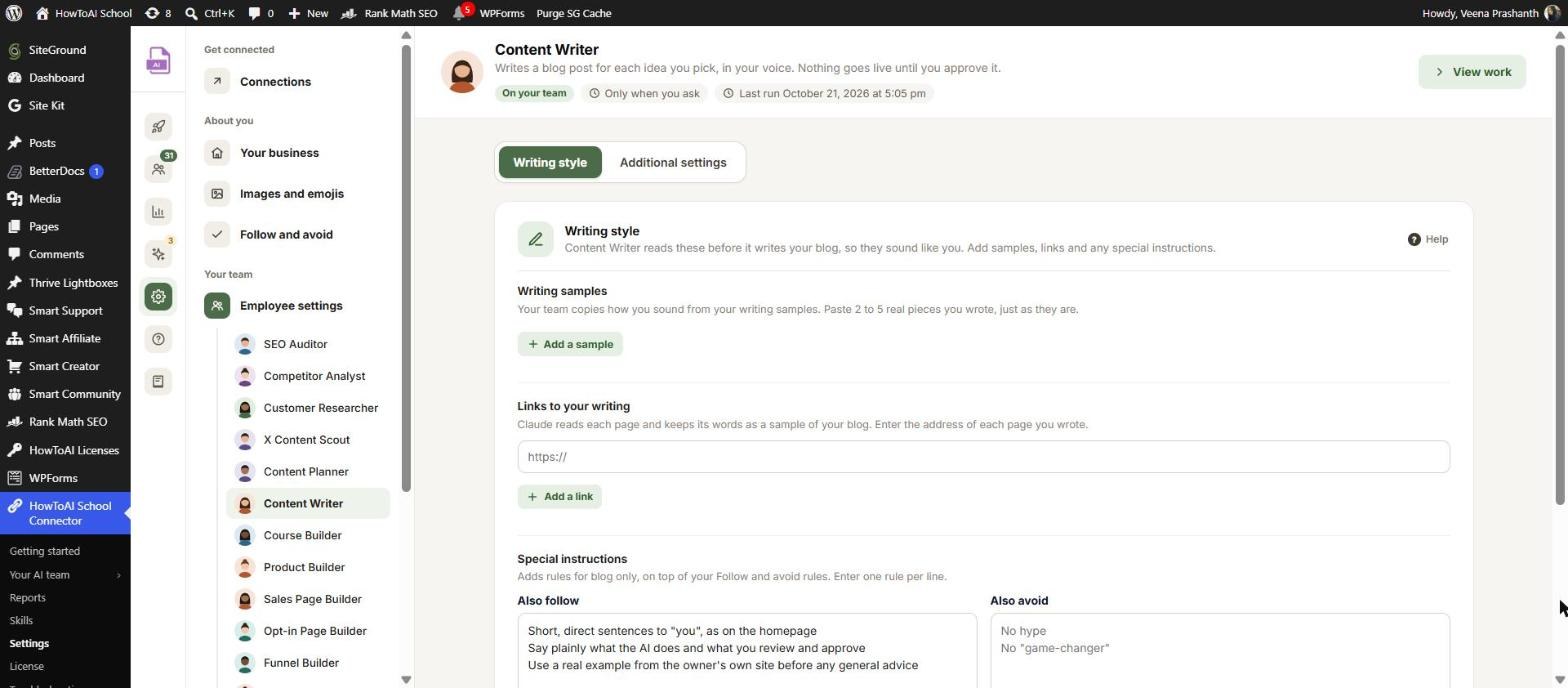
- Two or more blog posts you wrote yourself (optional, but drafts sound much more like you). Paste them in the chat when it asks, or add them (or links to them) under Settings → Employee settings → Content Writer, on the Writing style tab.
How to start it
- Open a new chat in Claude (or ChatGPT) with your connector turned on.
- Type
/howtoaischool-content-writer, add a topic after it, or just ask in plain words. - Answer its few questions. It then writes and tells you where the draft is.
Example requests:
- “Write a blog post about how to price your first online course.”
/howtoaischool-content-writeron its own, to draft the ideas you approved.- “Write a post comparing watercolor and gouache for beginners.”
You can also start it from WordPress with one click, without opening a chat. See Write on demand below.
The questions it asks you
When you ask for one post
It skips the full setup and asks up to 3 short questions, leaving out any you already answered in your request:
- What’s the post about? It suggests 3 topics from your latest reports if you didn’t give one.
- What should the reader do after reading? For example buy your main offer, join your email list or read another post.
- Anything I should include? Paste notes, a story or links, or let it use what’s on your site.
First run for your plan
- Where should drafts go? A draft post on your site, sent to your approval screen, a Google Doc, or a file in the chat.
- How should the writing sound? Learned from pages on your site, or from samples you paste. Skipped if your blog voice is already saved.
- Is there anything I should never say? For example no income claims.
- How often should I write? Every day, every Monday, or only when you ask.
Next time, your saved answers are shown as a single “Still right?” check. You can change them in WordPress under Settings → Employee settings → Content Writer. The Writing style tab has your Writing samples (2 to 5), Links to your writing and Special instructions (Also follow and Also avoid) for blog posts. The Additional settings tab has the schedule, Send drafts to and What readers should do next. See Employee settings.
What you get back
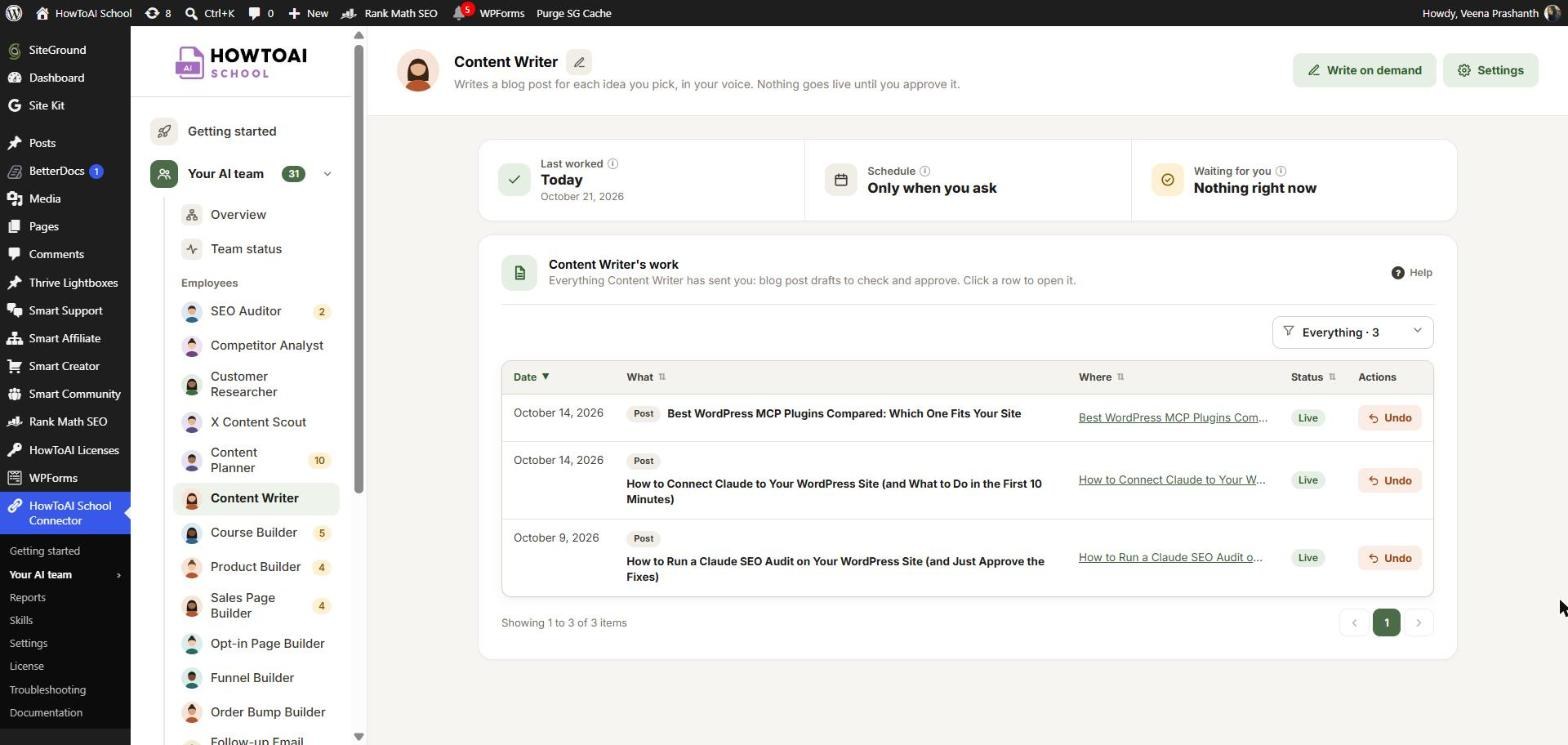
- A draft blog post on your site, with its SEO title and meta description set. It is never published. It shows up on the Content Writer’s page in Your AI team → Content Writer, waiting for you.
- Or a Google Doc or a file in the chat, if that’s where you asked drafts to go. A Google Doc includes the SEO details and steps for adding it to your site.
- A short message with the draft’s link, image suggestions, and anything you should know, such as a link it left out because that offer is still a draft.
- For a refresh of an existing page, only the changed sections and a list of what changed. Your live page is never overwritten.
Review and approve
On the Content Writer’s page, click Review on the draft. Read the opening and the ending: they should sound like you. Check that numbers and claims look right. Then click:
- Approve and publish to put the post live at the address shown. You can undo it later, as long as nobody edited the post since.
- Edit text to make your own changes in the WordPress editor first. The writer learns from what you change.
- Ask for changes with a note such as “too salesy”. It fixes the same draft on its next run and turns your note into a rule for future posts.
- Don’t use it to turn the draft down.
More on this in Review and approve.
Write on demand
Normally the writer drafts approved ideas on its next scheduled run. If you use Claude, an administrator can connect a routine in Claude under Your AI team → Content Writer → Write on demand. Then you get Approve and write on a post idea, Write it now on an approved idea and Revise now on a draft you sent back, and the draft is usually ready in 10 to 20 minutes. You can also get an email when it’s ready. See Write on demand.
Running it on a schedule
Pick Every day or Every Monday and the writer sets up a schedule in Claude. A scheduled run asks nothing: it uses your saved answers, drafts every approved idea that has no draft yet, and stops after one quick check on days with nothing approved. With Every day, anything you approve today is drafted by tomorrow. Writing one post on request never runs on a schedule.
If ideas you approved wait more than a day and the writer hasn’t run, Team status shows a bar saying they are still waiting, with a Set schedule button. See Run employees on a schedule.
Tips
Tip: Paste two posts you wrote yourself. It’s the quickest way to make drafts sound like you.
Tip: Edit the draft in WordPress before you publish rather than rewriting it in the chat. The writer compares your published version with its draft and learns your habits.
Tip: When it asks for facts about your offer (prices, what’s included), paste them in. It only states facts it can confirm, so anything missing is left out of the post. Keep your prices and links up to date in Built by your team.
Tip: Blog post ideas you approve in the X Content Scout’s report with Approve and write come to the Content Writer too, just like ideas from the Content Planner.
Good to know: The Content Writer never publishes, never edits a published page and never invents a number, result, quote or testimonial. Every post waits for you as a draft until you approve it.


