The Social Creator takes one idea and writes a social post with its own version for every platform you pick, in your voice. It saves the post in Smart Social Schedule, and when you want it to go out, it sends the date and time to WordPress for you to approve. You get posts that sound like you and fit each platform, without writing each one by hand. 📣
What it does
- Writes one post from your idea, with a separate version for each platform: Facebook, Instagram, Threads, LinkedIn, YouTube Shorts, Pinterest, Bluesky, X, a blog post or a community post.
- Reads your business profile and your writing style first, so it only asks what it doesn’t already know.
- Keeps every version inside that platform’s character limit and checks it before saving.
- Writes carousels (slide text for Facebook, Instagram and LinkedIn), video scripts for Reels and Shorts, and long blog or community posts.
- Makes a picture for the post if you want one, and uploads it to your media library. It can also use a picture you already have.
- Saves the post in Smart Social Schedule with every platform filled in, exactly as you approved it.
- Sends the schedule to its page in WordPress. Your approval there is what schedules it.
- Changes one platform’s text, moves a date, copies an old post, tells you what’s going out this week, and suggests post ideas when you have none.
What you need first
- Smart Social Schedule active on your site, with the platforms you want to post to already connected in it.
- HowToAI School Connector connected to Claude or ChatGPT. See Connect Claude or Connect ChatGPT.
- A filled-in business profile in Smart Social Schedule helps a lot. The Social Creator asks only about the parts that are missing.
- For Instagram and Pinterest, a picture. For a Reel or a YouTube Short, a video already in your media library or at a public link. The Social Creator never makes videos.
How to start it
- Open a new chat in Claude (or ChatGPT) with your website’s connector switched on.
- Type
/howtoaischool-socialschedule, or just ask in plain words. - Put as much as you know in your first message: the idea, the platforms and when it should go out. It asks only for what’s missing.
Example requests:
- “Write a post about my new watercolor course for Facebook and LinkedIn, going out Tuesday at 9 am.”
- “Turn my latest blog post into an Instagram carousel.”
- “Give me some post ideas for this week.”
The questions it asks you
It asks one question at a time, with answer buttons, in the order Smart Social Schedule itself asks them:
- Which of your connected platforms the post is for.
- When it should go out: one date and time for all platforms, different times, or just save it for now.
- What the post is about. For a product, which one feature, problem or result to lead with.
- Whether you already have the text, or it should write it.
- The content theme, such as Myth vs Reality, Checklist or Mini Case Study.
- Tone and language, only if they differ from your profile.
- What people should do next, and where the link points.
- Whether you want a picture made. If yes: the image style, whether people should appear, and whether there should be text on it.
- Platform details only when needed, such as which Facebook Page, Pinterest board or forum.
Answers you saved before show up as “Saved: … (my pick)”, so you can keep them with one click. In WordPress:
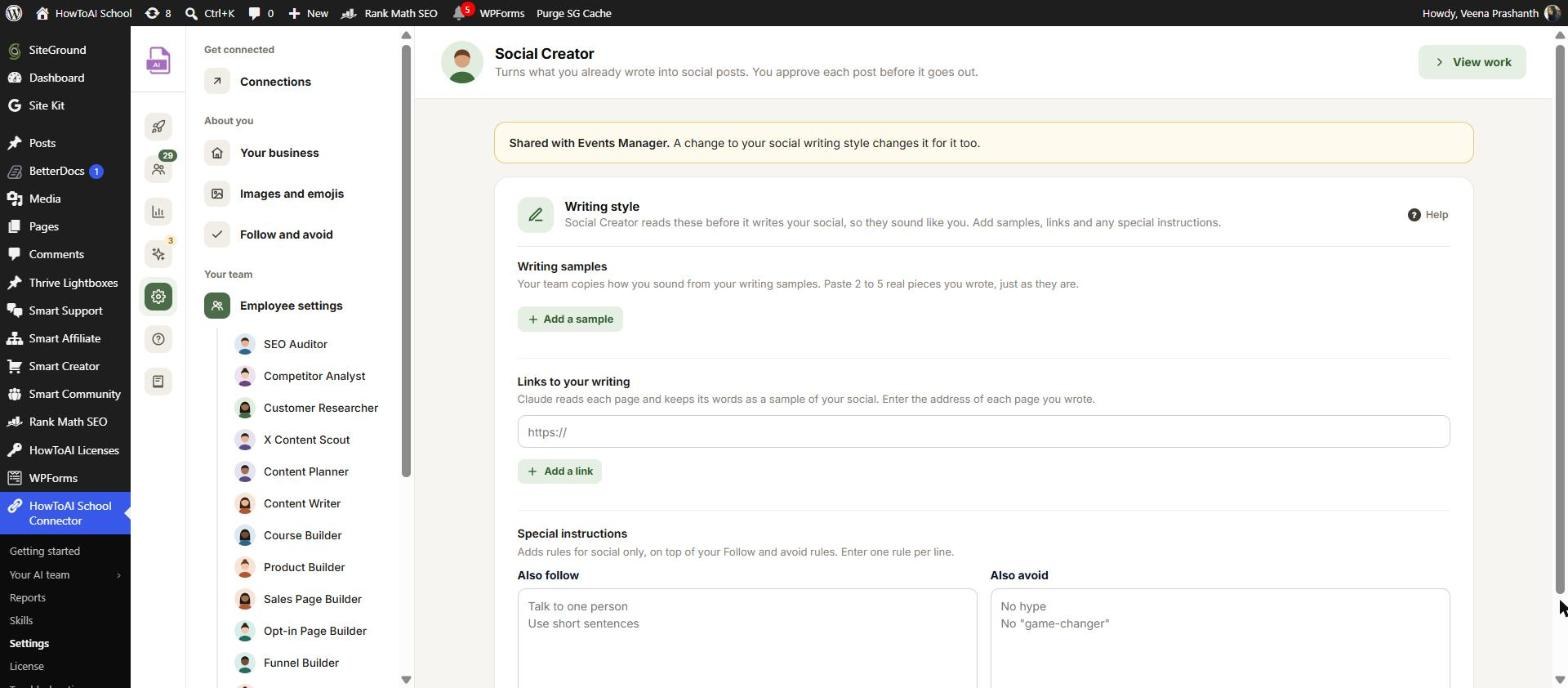
- Settings → Employee settings → Social Creator, Writing style tab: samples of your social posts, links to your writing, and Special instructions (Also follow and Also avoid) for anything else you want in every post. See Employee settings.
- Settings → Images and emojis: the picture settings, shared with your builders. See Images and emojis.
What you get back
- First, an approval card in the chat with every platform’s full text, its character count, the picture and anything it had to guess. Nothing is saved until you say yes.
- After your yes, the post is saved in Smart Social Schedule with each platform’s own text. It is saved, not scheduled.
- If you gave a date and time, it shows you exactly when it will publish and asks you once more. Then the schedule goes to the Social Creator’s page in Your AI team → Social Creator, waiting for you.
- A short message with a link to the post. Open it in Smart Social Schedule under Manage Social Posts, then Customize by Platform, to see every version.
Review and approve
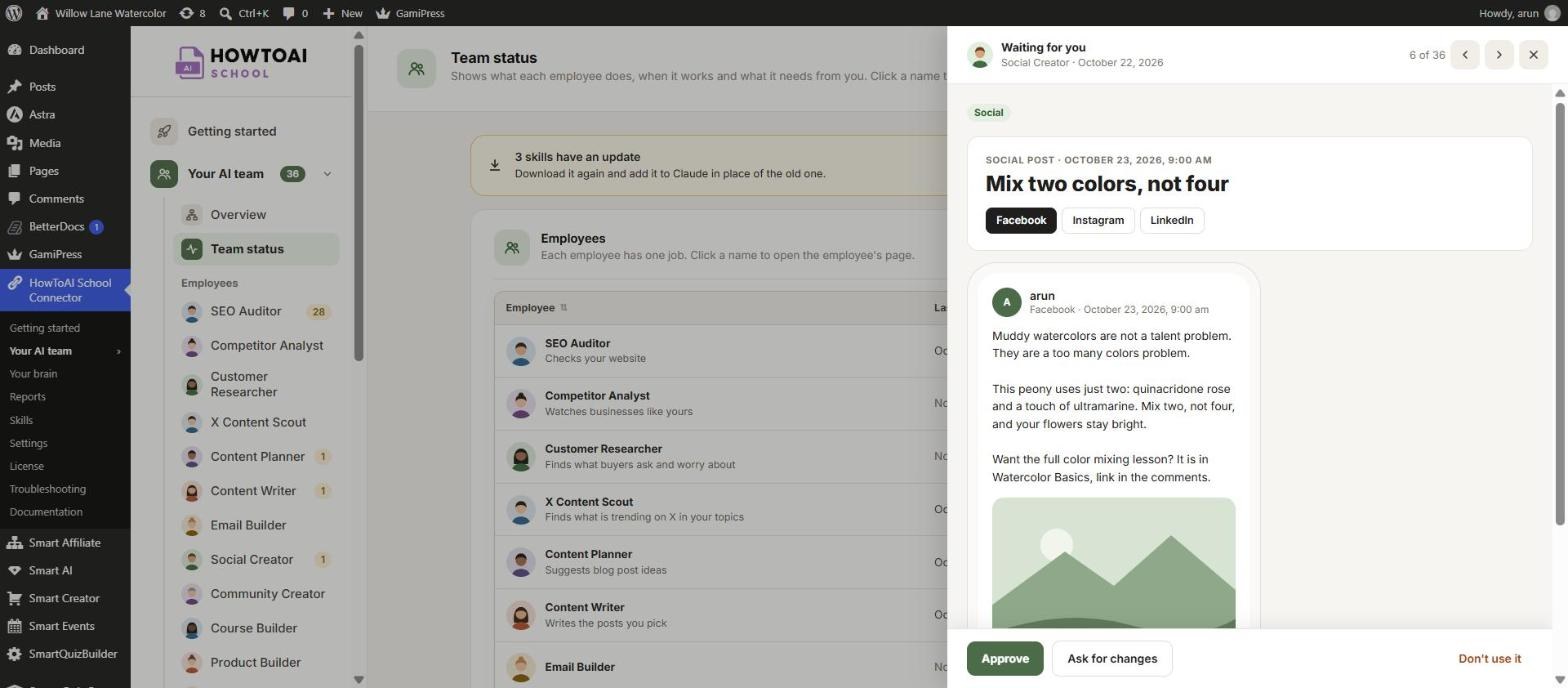
- Open Your AI team → Social Creator and click Review on the post. It shows each platform’s text and the day and time it will go out.
- Read each version. Click Approve and Schedule to schedule it (the button says Approve if Smart Social Schedule isn’t on), Ask for changes to send it back with a note, or Don’t use it to drop it.
- Once you approve, Smart Social Schedule publishes the post by itself at that time. Until you approve, nothing is scheduled.
More in Review and approve.
Running it on a schedule
A scheduled run asks you nothing. It uses your saved answers to write and save the next post your setup describes, and lists every assumption it made. It sends a schedule for your approval only when your saved setup gives a day and time, such as “every Tuesday at 9”. Otherwise it saves the post and tells you it’s ready to schedule. See Run employees on a schedule.
Tips
Tip: Give it one sharp angle, not a broad topic. “Why my students quit in week two” makes a better post than “online courses”.
Tip: Short of ideas? The X Content Scout writes social post ideas from what’s trending on X. Generate content on one gives you a ready message to paste into a new chat that starts the Social Creator.
Tip: X is copy and paste. The Social Creator saves the X text, but Smart Social Schedule never posts it: copy it from the post and post it yourself.
Tip: Want it out right now? Once the post is saved, press Publish Now on it in Smart Social Schedule. The chat can’t publish it straight away.
Tip: If you rewrite a line in the chat, it saves your version to your writing style, so the next post sounds even more like you.
Good to know: Nothing goes out without you. The Social Creator never publishes a post, never schedules one without your approval in WordPress, and never deletes posts or touches your connected accounts. It writes one post per run.


