The Booking Manager sets up booking calendars in Smart Events Calendar for the calls you sell or offer one person at a time, like a free 15 minute intro call or a paid strategy session. It asks only for what’s missing, shows you the whole calendar and saves it as a draft. Buyers then know exactly what the call is, how long it runs, what it costs and whether they can book it. 📅
What it does
- Creates a new booking calendar with its name, category, length, price, where the call happens, who can book and the hours you’re open.
- Writes a short description for the booking page in your voice, if you want one.
- Uses your real categories and access rules. If no access rule fits, it can make one with your yes.
- Checks that Zoom or Google Meet is connected before using it, and that Smart Payments is active for a paid call.
- Updates an existing calendar, such as a longer call, padding between calls, a new price or members-only booking, and shows you only what changes.
- Saves everything as a draft. You publish.
What you need first
- Smart Events Calendar active on your site.
- HowToAI School Connector connected to Claude or ChatGPT. See Connect Claude or Connect ChatGPT.
- For paid calls, Smart Payments active.
- For a new Zoom or Google Meet meeting on each booking, Zoom or Google Calendar connected in Smart Events Calendar → Settings. Your own meeting link or phone number needs nothing connected.
If the booking tools aren’t there, the Booking Manager still collects the details and gives you a finished setup sheet to copy into Smart Events Calendar yourself.
How to start it
- Open a new chat in Claude (or ChatGPT) with your website’s connector switched on.
- Type
/howtoaischool-booking, or just ask in plain words. - Say as much as you know in your first message. It asks only for what’s missing, one question at a time.
Example requests:
- “Set up a free 15 minute intro call, weekdays 10 to 4, on my Zoom link.”
- “Make a paid 60 minute VIP session that only my Pro Members can book.”
- “Add 10 minutes of padding after each call on my intro call calendar.”
For group calls, webinars or sessions with many people, use the Events Manager instead.
The questions it asks you
It asks only for what you didn’t already say, in this order:
- The calendar’s name.
- The category: one of yours, or a new one.
- The length: one fixed length, or a few lengths the buyer picks from.
- Free or paid, and the price for a paid call.
- Where the call happens: your own link or phone number, Zoom, or Google Meet.
- Who can book: anyone, logged-in members, or people who match one of your access rules.
- When it’s open: the days and hours people can book, in your website’s time zone.
Padding between calls, your own start times, several sessions in one order and a limit on repeat bookings come up only if you mention them. For a free call it suggests limiting repeat bookings once.
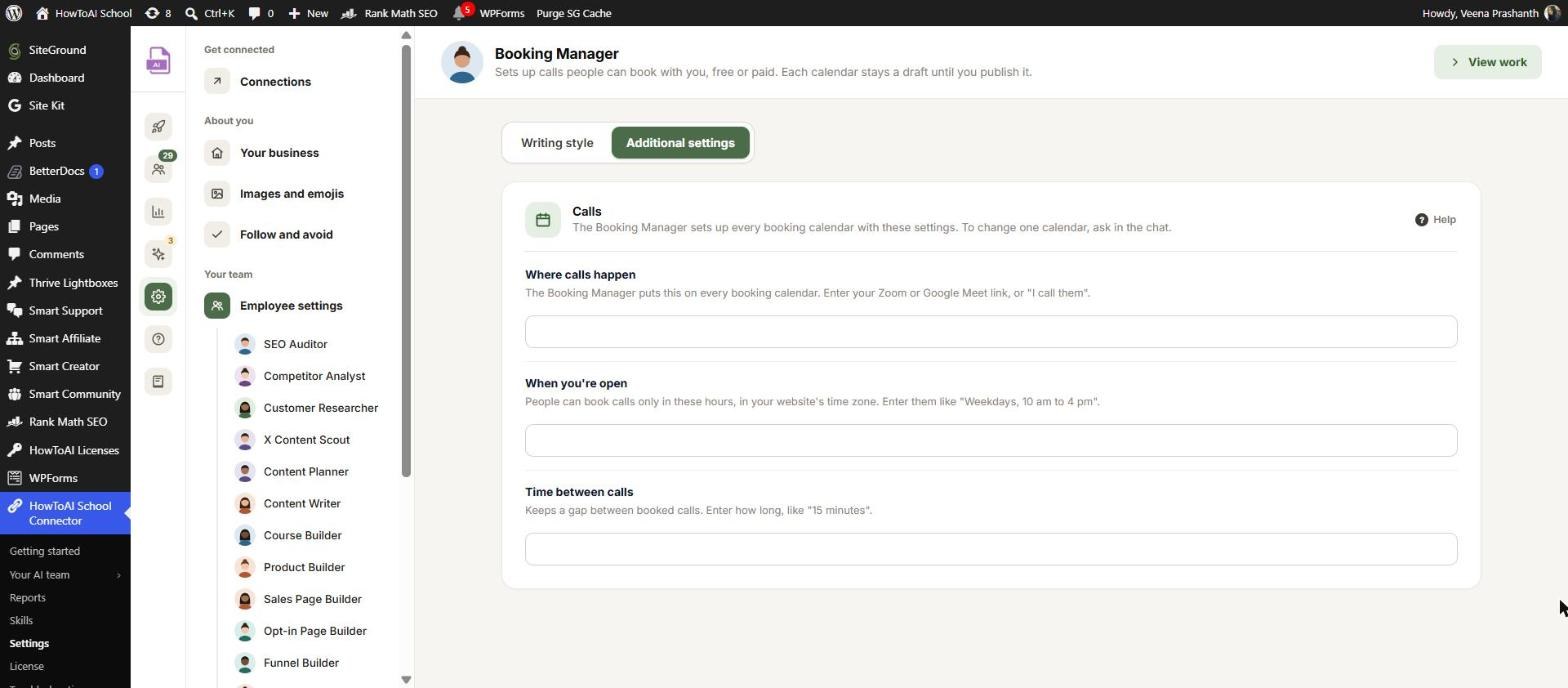
Answers you saved before show as “Saved: … (my pick)”. You can fill them in ahead of time under Settings → Employee settings → Booking Manager. On the Additional settings tab, the Calls card has Where calls happen, When you’re open and Time between calls. The Writing style tab holds the samples and special instructions it follows when it writes a booking page description. See Employee settings.
What you get back
- An approval card in the chat with every setting: category, length, cost, where, who can book, open hours, padding and the description, plus any gaps you still need to fill.
- After your yes, the calendar is saved as a draft in Smart Events Calendar. It isn’t live and nobody can book it yet.
- A short message with a link to edit the calendar and a list of what’s left to do before you publish.
Review and approve
You approve a calendar in the chat, not on a WordPress screen:
- Read the approval card in the chat. Choose Yes, save it as a draft, or Change something and say what.
- Open the draft from the link and preview the booking page.
- Book it yourself once as a test and check the confirmation email.
- Publish it in Smart Events Calendar when it’s ready. The Booking Manager never publishes for you.
To change a calendar later, just ask in the chat. If it’s already published, it stops and asks first, because people may have booked. Each run is listed in Settings → Logs. See Logs and website changes.
Running it on a schedule
The Booking Manager is mostly a chat employee. A scheduled run asks nothing and builds only from a plan you already approved and saved. If there isn’t one, it logs the reason and stops. See Run employees on a schedule.
Tips
Tip: Say your hours the way you’d say them out loud, like “weekdays 10 to 4”. That answers the open hours question in one go.
Tip: For a phone call, give your number with the country code. It’s saved as a link people can tap to call.
Tip: Save the answers you give every time, like your meeting link and hours, in Employee settings so you just confirm them next time.
Tip: The booking form, notification emails and blocked-visitor messages stay on your defaults. Change those in Smart Events Calendar if you need to.
Good to know: Nothing goes live without you. The Booking Manager saves drafts only, never publishes or deletes a calendar, and never saves one without open hours. It never makes up prices, lengths, hours or links: anything missing is listed for you to fill in.


