Product Builder turns your downloads, pages and links into a digital product on your site: the product page, every resource protected, the price and the welcome email, all as a draft in Smart Creator Press. Buyers can pay or sign up, get their files in minutes and know what to do first. 📦
What it does
- Interviews you about who the product is for and everything that goes in it: files, pages, posts, links to other sites, and other courses or products that come with it.
- Makes files for you if you ask, such as a checklist, worksheet or guide, shows you a preview and uploads them to your Media Library itself.
- Writes the product description as a full sales page in your voice, using the template look you pick.
- Attaches and protects every resource, so only buyers can open them once the product is published.
- Creates a protected “Your downloads” page that lists every resource, if you want one.
- Writes the welcome email buyers get: what they got, where to find it and their first step.
- Sets the price, or makes the product free with a signup form.
- Makes a featured image, a banner image and a sidebar image, if you want them.
What you need first
- Smart Creator Press switched on, with HowToAI School Connector on your site.
- The connector added to Claude or ChatGPT. See Connect Claude or Connect ChatGPT.
- Your own files uploaded under Media → Add New, so you can paste their addresses. Files Product Builder makes for you, it uploads itself.
- The addresses of any pages, posts or outside links (Google Drive, Notion, a community) that go in the product.
How to start it
- Open a new chat in Claude (or ChatGPT) with your website’s connector on.
- Type
/howtoaischool-productbuilder, or just say what you want in plain words. You can also talk the product through first, by typing or voice, then say “build it”. - Answer its questions, one per message. It plays back what it heard and asks only for what’s missing.
- Check the plan card and say yes to build.
A few ways to ask:
- “Build a product called Pricing Worksheet Pack for new coaches.”
- “Make a free checklist PDF for new gardeners and turn it into a product people get for their email.”
Tip: Looking for a product idea? The X Content Scout suggests product ideas from what’s trending on X in your topics. On a product idea in its report, click Generate content to get a ready message you paste into a new Claude or ChatGPT chat, and Product Builder starts with that idea.
The questions it asks you
- Who it’s for, and what they can do after using it.
- What’s in the product: list everything at once, go one resource at a time, or let it suggest what to include. It plays the list back for you to check.
- How buyers reach everything: one protected “Your downloads” page, or each item protected on its own. Asked only when the product has existing pages, posts or outside links.
- The price: it suggests one, such as a single payment with lifetime access, or free for an email address.
- The buyer’s first step: used in the welcome email and on the page.
- Voice: only when nothing is saved. Paste a sales email or product page you wrote, or let it learn from your site.
- Your brand: the brand color, second brand color and fonts it will use.
- The description template: Classic, Fresh, Bright, Studio or one you uploaded, each with a preview.
- Images: whether to make the three images, then the style, people and text.
It may also ask for a photo of you for the description, and how you sign your emails. Saved answers show first, marked “Saved”, and when it checks several at once you see them as a “Still right?” list. One tap confirms them. How buyers reach their files and the price are asked fresh for every product.
Where its settings live in WordPress
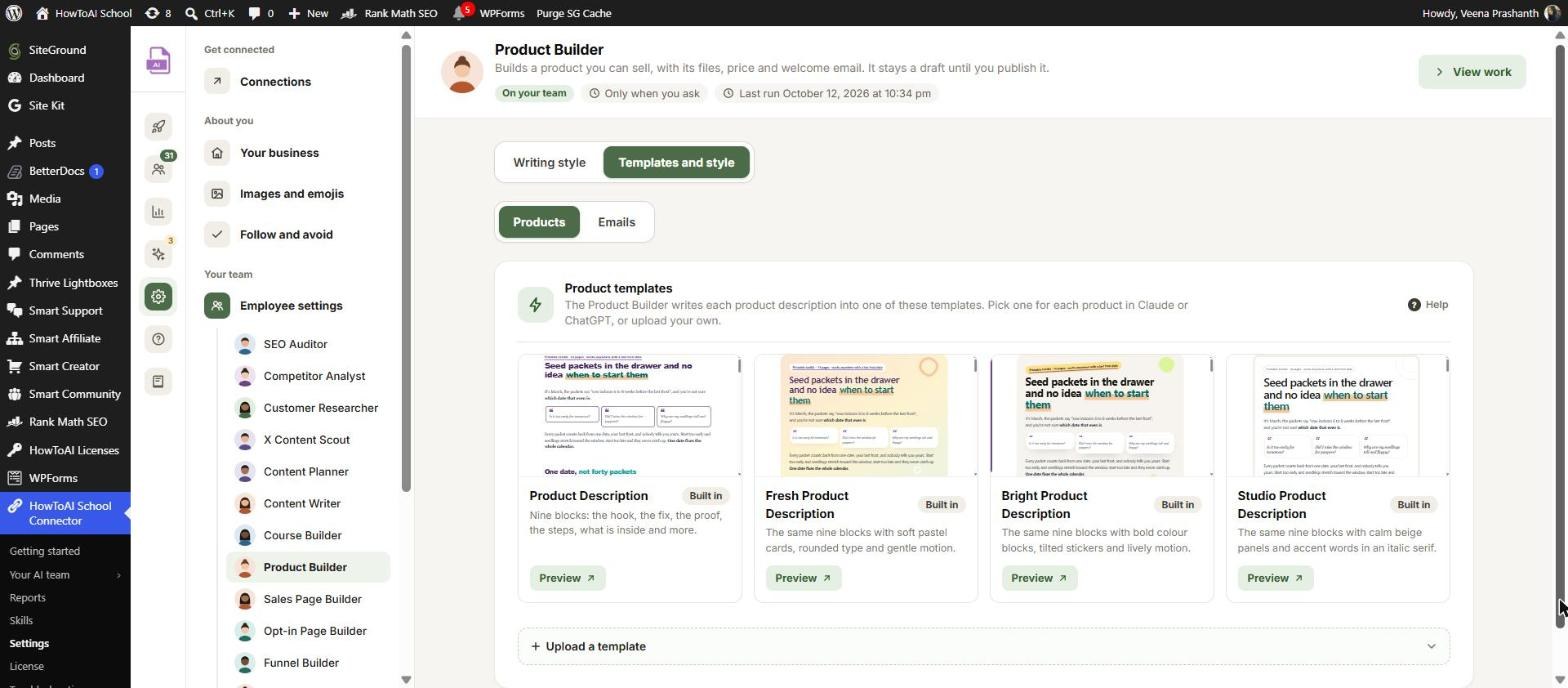
- Settings → Employee settings → Product Builder, Writing style tab: samples of your product descriptions, links to your writing and special instructions.
- The Templates and style tab, Products: the description templates, the built-in ones and any you uploaded. Emails: the email layout and your signature for the welcome email. See Templates and style.
- Settings → Images and emojis: the picture settings, shared with your other builders. See Images and emojis.
See Employee settings.
What you get back
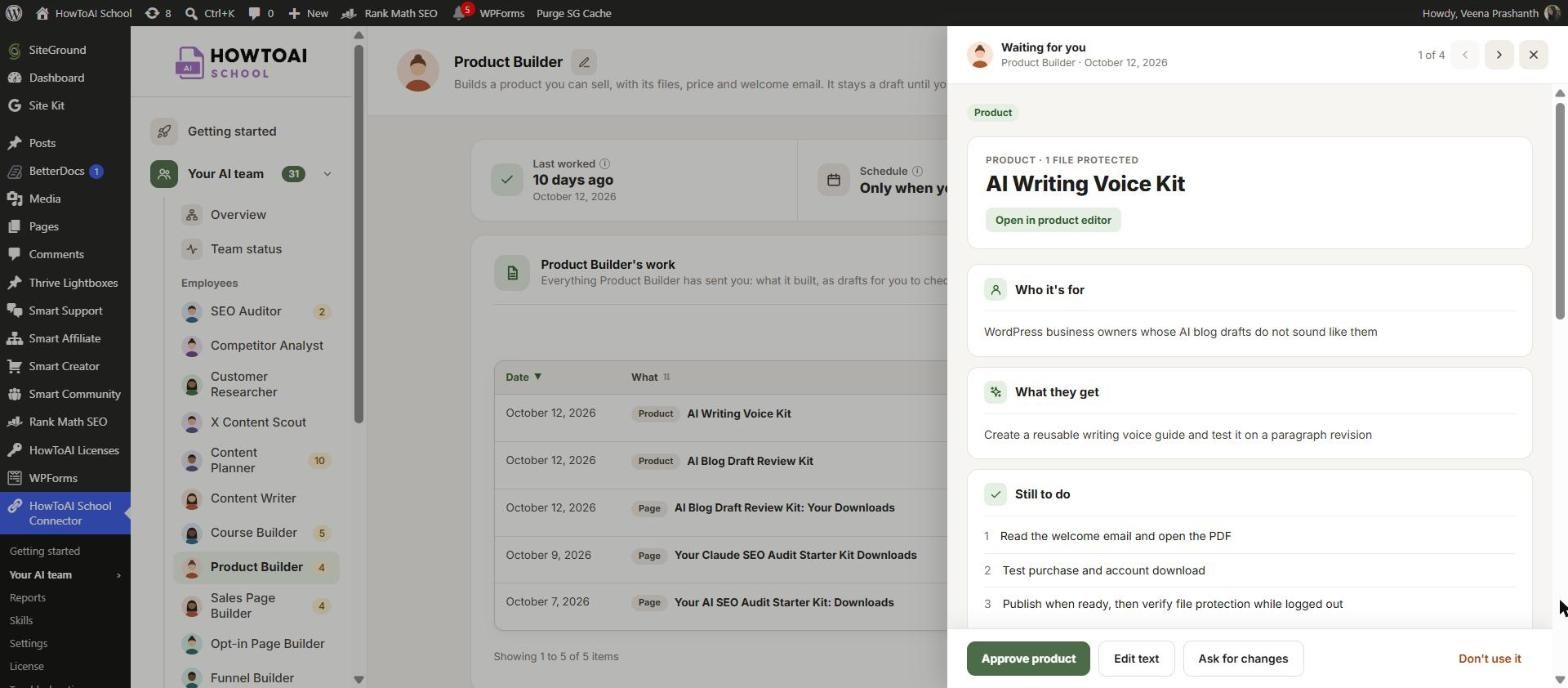
Before it builds anything, you see a plan card: every resource and where it is, the price, the first step, the start of the page copy, the full welcome email as buyers will see it, the links in it and any gaps. Nothing is built until you say yes.
- A draft product in Smart Creator Press, with the description, every resource attached and protected, the welcome email switched on and the price set. Your own account gets access to it.
- Draft pages it made, such as “Your downloads”. They stay drafts until you publish them.
- A signup form shortcode for a free product, to paste where people sign up.
- The product on Product Builder’s page in Your AI team → Product Builder, with the price, the welcome email, the number of files and pages, the gaps and what is still to do.
- A hand-over message in the chat with the product editor link and what to do before you publish.
- The product is added to Built by your team, so your other employees know its name, price and link.
Review and approve
- Open Your AI team → Product Builder and click Review on the product, or use the editor link in the chat. Open in product editor takes you straight to it.
- Read the welcome email, open a download and fill in any gaps it listed.
- Click Approve product. The product stays a draft. Or click Ask for changes and say what to change, or Don’t use it.
- Publish the product, and each page it made, in WordPress. Then open a download while logged out to check it’s locked, and test a purchase.
More in Review and approve.
Running it on a schedule
A scheduled run asks nothing and builds one product, using your saved voice and answers.
- Build an approved product later: plan it and say yes in the chat, then say “build it tomorrow morning”. Every file must already be on your site.
See Run employees on a schedule.
Tips
Tip: Upload your own files under Media → Add New before you start, then paste the addresses. It reads each file’s name back so nothing is misheard.
Tip: With 3 or more resources, say yes to the “Your downloads” page. Buyers get one place to find everything, linked from the welcome email.
Tip: A buyers-only page like “Your downloads” scores low in the SEO check on its review screen. That’s expected: it isn’t meant to show in search.
Tip: Next, add an order bump or an upsell funnel to its checkout, or a sales page that sells it.
Good to know: Nothing goes live without you. The product is always a draft, and protection only starts working when you publish it. An existing page or post becomes buyers-only once the product is published, so Product Builder asks before it includes one.


