The Opt-in Page Builder writes a page for something you give away, like a free guide, lead magnet, free course or free product, and saves it as a draft page on your WordPress site. Visitors give their email and get the free thing, so a clear, honest page means more people join your list. 📬
What it does
- Writes one opt-in page per run, shorter than a sales page.
- Follows the same eleven parts each time, from the reader’s moment and a real before and after to what’s inside, honest limits, questions and a closing box.
- Reads your saved products, the pages about your offer and, with Smart Creator Press, the free course or product itself.
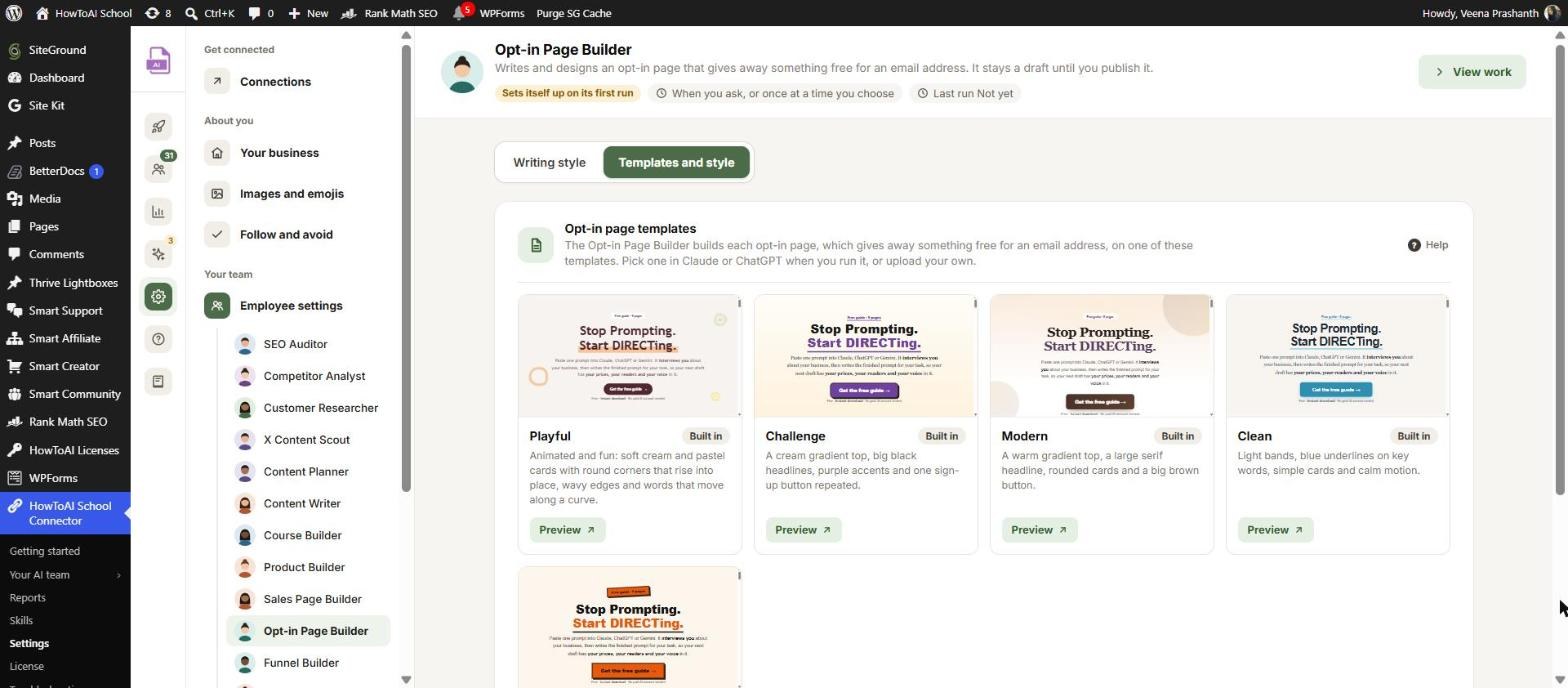
- Starts from a design you pick: Challenge, Modern, Clean, Bold, Playful (animated) or one you uploaded.
- Uses one sign-up button, with the same words and link everywhere on the page.
- Adds a questions section, SEO title, meta description and links to your other published pages.
- Checks the page at desktop and phone width when it has a browser, and fixes what it finds.
What you need first
- HowToAI School Connector connected to Claude or ChatGPT. See Connect Claude or Connect ChatGPT.
- Smart Creator Press helps but isn’t required. With it, the button goes straight to the free sign-up.
- Your brand color and fonts on Your business.
How to start it
- Open a new chat in Claude or ChatGPT with your site’s connector on.
- Type
/howtoaischool-optinpagebuilder, or ask in plain words. - Answer its questions one at a time.
Example requests:
- “Build an opt-in page for my free Prompt Builder guide.”
- “Make a sign-up page for my free 5-day email course.”
- “I made a free checklist. Build the page people use to get it.”
The questions it asks you
One question per message, skipping anything it already knows:
- The free offer this page gives away.
- Pages about it, only when none are saved.
- The free course or product on your site. Then it shows what it found and asks “Did I get this right?”
- Your voice: samples, or “Does this sound like you?”
- Your brand: colors and fonts, every time.
- The starting design, for every new page.
- The page template, once per site.
- The sign-up link, only when it can’t find one.
Next time it shows what you saved and asks if it’s still right. In WordPress, open Settings → Employee settings → Opt-in Page Builder:
- Writing style: samples, links to your writing and special instructions. Opt-in pages use the same sales page samples as the Sales Page Builder.
- Templates and style, Opt-in pages: the built-in designs (Playful, Challenge, Modern, Clean, Bold) and any you uploaded, each with Preview. See Templates and style.
See Employee settings.
What you get back
- A draft page on your site. It is never published for you.
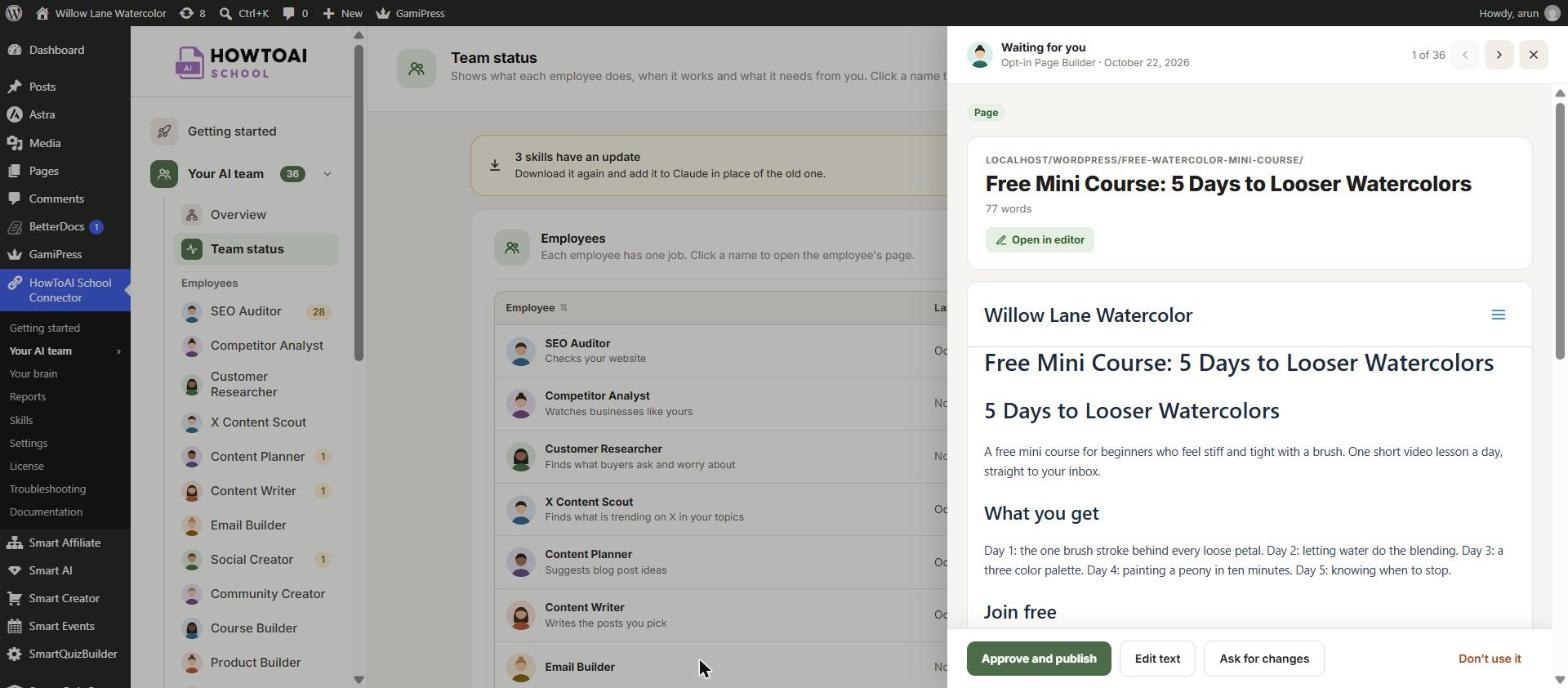
- The page on the Opt-in Page Builder’s page in Your AI team → Opt-in Page Builder, waiting for you.
- A hand-over message with preview and edit links, any placeholder to swap and anything to do first, such as publishing a free product that is still a draft.
Review and approve
Open Your AI team → Opt-in Page Builder and click Review on the page. Open in editor opens it in WordPress. Check what’s inside the offer and the example, and click the sign-up button to make sure it opens the right sign-up. Then click Approve and publish, Ask for changes with a note, or Don’t use it. A page you send back is fixed in the same draft on its next run, keeping its design. See Review and approve.
Running it on a schedule
Say “Build the opt-in page for my free guide tomorrow at 9.” It asks its questions now, then sets up a one-time run in your AI app that names the offer. The scheduled run asks nothing: it uses your saved answers, the Challenge design and a placeholder if the link is missing. Set your connector’s tools to always allow so it can run alone. See Run employees on a schedule.
Tips
Tip: Build the free product first, for example with the Product Builder. The Opt-in Page Builder reads it and keeps the facts and questions the same on both.
Tip: Save the sign-up link as the free product’s Checkout page under Settings → Built by your team, and the last question is skipped. See Built by your team.
Tip: Like a page’s look? Upload it as your own template on the Templates and style tab of the Opt-in Page Builder’s settings. It copies the look, never the words.
Tip: Once people join, keep in touch with a follow-up email sequence for the free product.
Good to know: Nothing goes live without you. It only creates drafts, never edits a published page and never invents examples or testimonials. If the free product is still a draft, publish it too, or the sign-up button won’t work.


