The Funnel Builder sets up a one-click upsell: right after someone pays for your main product, they see one more offer that fits what they just bought, and can say Yes or No in one click. It reads your products, writes the offer in your voice and builds the funnel as a draft, so you can add a second sale without writing a sales page from scratch. 🛒
What it does
- Finds your main product and upsell product in Smart Creator Press, and reads their settings and sales pages.
- Works out the offer: why a buyer of the main product would want the upsell next, and what it gets them.
- Writes the headline, text and special message for Smart Creator Press’s built-in upsell page, kept short: it confirms the first order, shows the offer and points to the Yes button.
- Sets the discount and how long it lasts, with Smart Creator Press’s own discount setting.
- Sets where buyers go after Yes and after No: the order summary, another step (such as a downsell) or a thank-you page.
- Builds funnels with as many steps as you want, and makes sure every path ends somewhere.
What you need first
- Smart Creator Press switched on, with both the main product and the product you want to offer after it already made.
- HowToAI School Connector connected to Claude or ChatGPT. See Connect Claude or Connect ChatGPT.
- Optional: a sales page for the upsell product and a real quote from a buyer. The Funnel Builder reads them for the offer and the testimonial.
How to start it
- Open a new chat in Claude (or ChatGPT) with your website’s connector added.
- Type
/howtoaischool-funnelbuilder, or just say what you want in plain words. - Name your main product and the product you want to offer after it. Names are enough: it finds the rest on your site.
Example requests:
- “My main product is the Pricing Worksheet Pack. I want to offer the Client Script Library as an upsell.”
- “Build an upsell for my Watercolor Basics course, offering the Brush Lettering mini course, and if they say no, offer the Lettering Cheat Sheet.”
- “Send them to the order summary on Yes and to my thank-you page on No.”
The questions it asks you
It asks one question at a time, and skips anything you already told it. On a first run it usually asks:
- Your main product and upsell product, if you didn’t name them.
- Anything to add about the upsell, such as a bonus or a guarantee, or whether to work from the product page.
- Whether to discount the upsell, and for how long.
- Whether the offer and page text sound like you.
- Which look to use for the upsell page.
- Where buyers go after Yes, and after No.
- Whether to build it, after it shows you the whole plan.
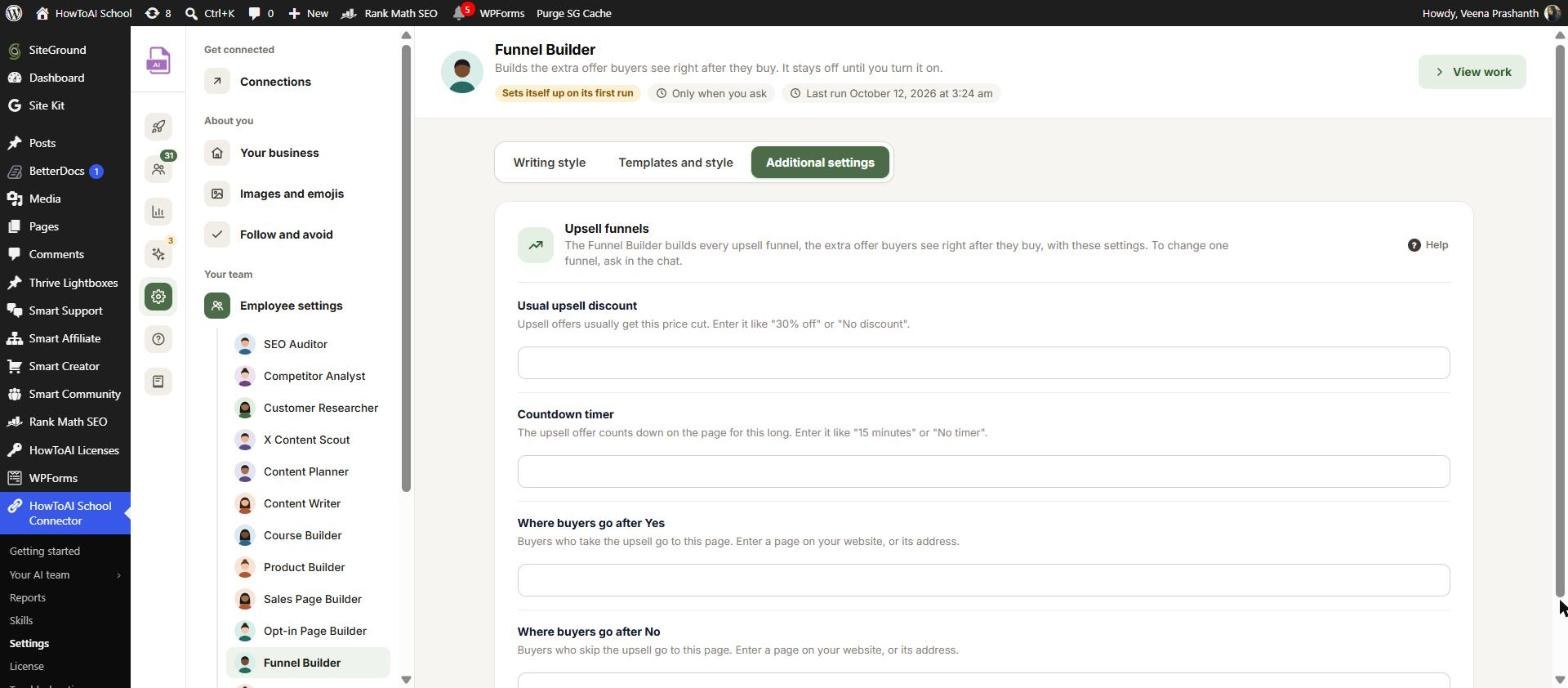
If you add another step (such as a downsell after a No), it asks the same questions for that step. Saved answers are shown as your pick with “Still right?” so you can keep or change them. In WordPress, open Settings → Employee settings → Funnel Builder:
- Writing style: samples, links to your writing and special instructions for your offers.
- Templates and style, Upsell pages: the built-in upsell page looks and any you uploaded. See Templates and style.
- Additional settings: the Upsell funnels card with Usual upsell discount, Countdown timer, Where buyers go after Yes and Where buyers go after No.
See Employee settings.
What you get back
- A draft funnel in Smart Creator Press, switched off. No buyer sees it.
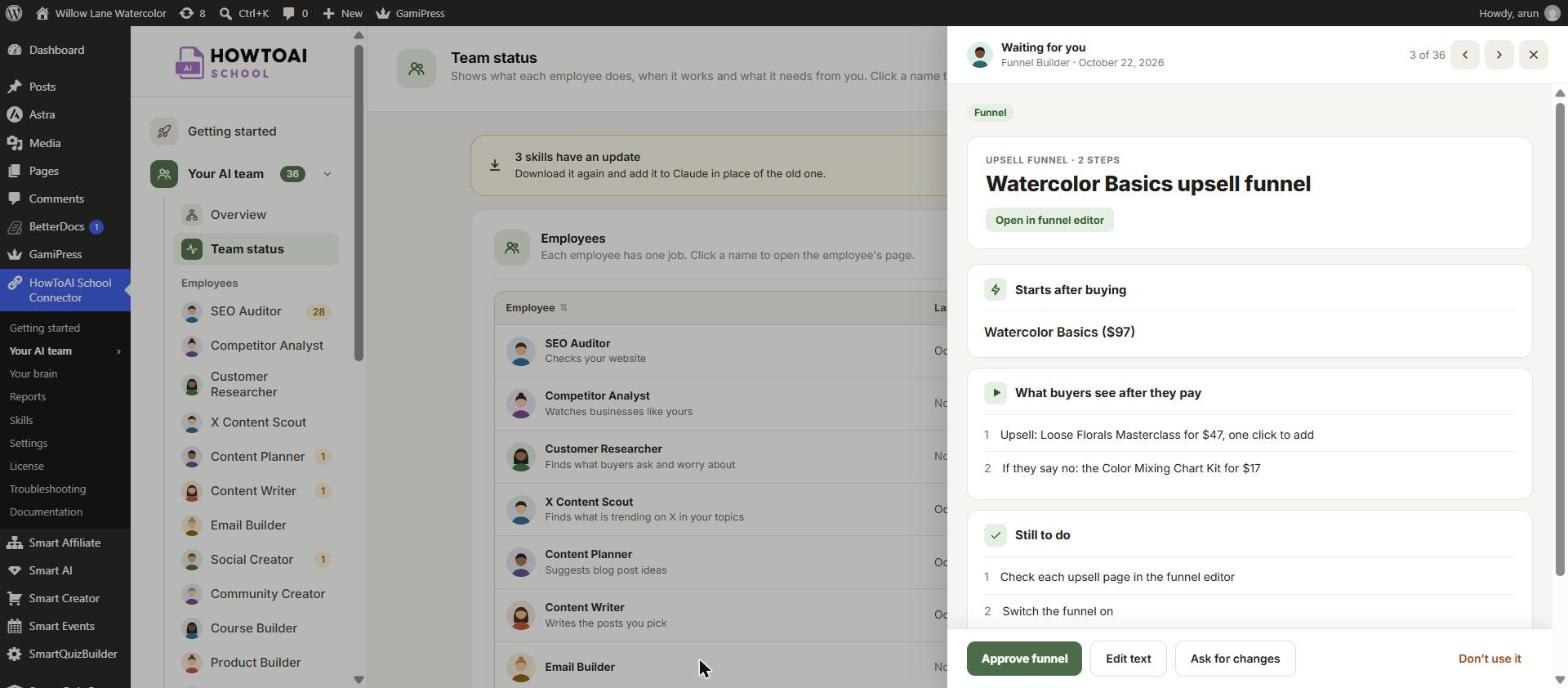
- The funnel on the Funnel Builder’s page in Your AI team → Funnel Builder, with each step in plain words and what is still to do.
- A hand-over message with the editor link and the gaps to fill, such as a testimonial.
- If the funnel tools aren’t on your site yet, a setup file with the text for each box, to paste in yourself.
Review and approve
- On the Funnel Builder’s page, click Review on the funnel, or click Open in funnel editor.
- Read each upsell page. Check the headline, the price and discount, and where Yes and No go.
- Click Approve funnel if it’s right, Ask for changes to send it back with a note, or Don’t use it.
- Approving keeps the funnel switched off. To make it run, open it in the funnel editor and turn on “This funnel is ACTIVE”.
More in Review and approve.
Running it on a schedule
You can say “build it tomorrow morning”. The Funnel Builder first gets the offer, the text and the plan approved in the chat, then sets up a one-time run in Claude. When it runs, it asks nothing and builds only the plan you approved. If the plan is missing or the site doesn’t match, it stops and notes why in Logs.
Tips
Tip: Pick an upsell that is the next step after the main product, priced the same or lower. It tells you if the two don’t fit.
Tip: Give it a real quote from a buyer. Without one, it leaves the testimonial out instead of making one up.
Tip: Before you switch the funnel on, buy the main product yourself with a test card, click Yes, then buy again and click No, so you see both paths.
Tip: Want a smaller extra offer on the checkout page itself, before they pay? That’s an order bump: ask the Order Bump Builder.
Good to know: The Funnel Builder only saves drafts. It never switches a funnel on, never changes a funnel that is already live and never makes up discounts, countdowns, results or testimonials.


