The Lead Finder looks outside your site for people and businesses who could help you grow: buyers asking in public for what you sell, and partners such as sponsors, podcasts, collaborators and affiliates. For each one it shows why it fits and writes a reply or message in your voice, so you can reach out in under a minute. 🤝
What it does
- Finds people asking for what you sell in public places your buyers use, such as Reddit, Quora, YouTube comments, public forums and question and answer sites, from the last 14 days.
- Finds sponsors, podcasts to guest on, collaborators, affiliates, places to speak or teach, and sites that could link to you.
- Picks up places from your SEO Auditor’s Opportunities tab that need a person to reach out to.
- Opens each lead’s own pages to prove the fit, and gives every lead a fit score out of 100. Anything under 60 is left out.
- Writes a one-line “Why it fits” with a real fact it saw, so you can decide in seconds.
- For a buyer, writes a helpful reply to post in their thread, mentioning your offer only where that place’s rules allow it.
- For a partner, writes a short first message and a follow-up, ready to paste into their form or email.
- Learns from what you approve, skip and win, and keeps track of which places bring replies.
What you need first
- HowToAI School Connector connected to Claude or ChatGPT. See Connect Claude or Connect ChatGPT.
- What you sell and who it’s for, saved in your business profile. See Your business.
- Reports from your SEO Auditor, Customer Researcher and Competitor Analyst help a lot: they tell the Lead Finder where to look and who to leave out.
- Optional: your audience numbers, a media kit or speaker page link, and two or more emails you wrote, so messages can use them and sound like you.
How to start it
- Open a new chat in Claude (or ChatGPT) with your connector turned on.
- Type
/howtoaischool-lead-finder, or ask in plain words. You can add what you want, such as “podcasts only”. - On the first run, it looks at your site first, then asks a few questions with suggested answers.
You can also click Find more leads on the Lead Finder’s page in WordPress. It shows the command with a Copy button, ready to paste into Claude.
Example requests:
- “Find people asking for a beginner sourdough course.”
- “Find podcasts I could be a guest on.”
/howtoaischool-lead-findersponsors only
The questions it asks you
On the first run it asks one question at a time:
- What should I find for you? People asking for what you sell, sponsors, podcasts to guest on, collaborators, affiliates, places to speak or teach, sites that could link to you. Pick as many as you like.
- Where do your buyers hang out? Only asked if you chose people asking for what you sell.
- What do you offer a partner? Every message leads with this.
- Who would you love to work with? Name a few, or let it find them.
- Who’s off limits? Competitors and anyone you never want contacted.
- How many leads a week? 10 is the suggestion, or 5 or 20.
- Where should your leads go? Your approval screen in WordPress, a Google Sheet, or the chat.
- How often should I look? Every Monday, or only when you ask.
Next time, your saved answers are shown as a single “Still right?” check, and it asks once whether anyone replied to the leads you contacted.
You can also change these in WordPress. Click Change what I’m looking for on the Lead Finder’s page (administrators only), or open Settings → Employee settings → Lead Finder. The cards are:
- Who to find: Kinds of leads, Where your buyers hang out and Who’s off limits.
- Partner messages: What you offer a partner and Who you’d love to work with.
- Leads: the schedule, Leads a week (5, 10 or 20), Days before a follow-up (5 unless you change it) and Send leads to.
- Instructions: anything else, one per line, such as “No podcasts that charge to be a guest”.
See Employee settings.
The Lead Finder’s page
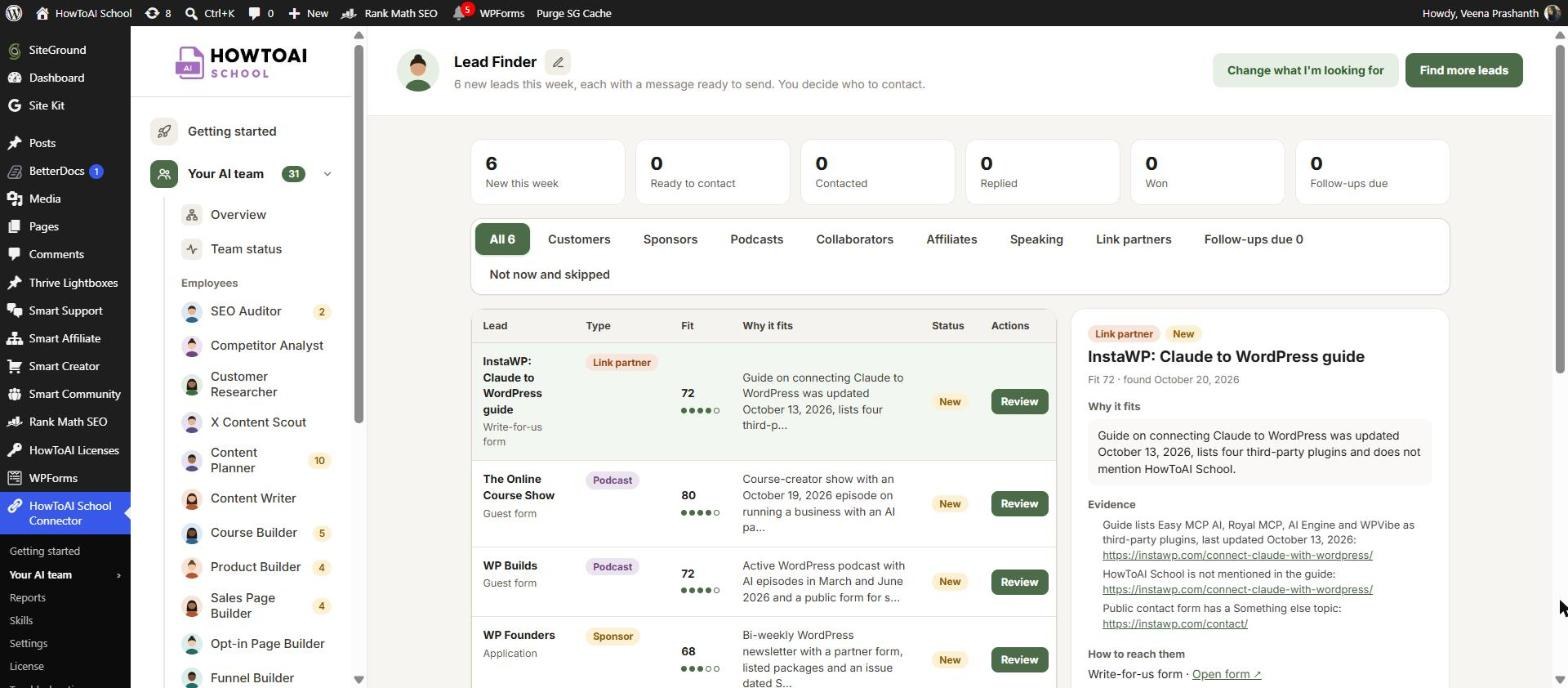
Open Your AI team → Lead Finder. Under the heading, six counters show New this week, Ready to contact, Contacted, Replied, Won and Follow-ups due. Click one to show only those leads.
Below them, filters pick the kind of lead: All, Customers, Sponsors, Podcasts, Collaborators, Affiliates, Speaking, Link partners, Follow-ups due, and Not now and skipped. On Customers, a Your places table shows how many leads each place brought, and how many you posted in, got replies from and won.
The table lists each lead with its type, fit score, why it fits, its status and one button that follows the status. Click a lead to open it on the right.
What you get back
- New leads on the Lead Finder’s page. An open lead shows What they asked (for a buyer), Why it fits, the Posting rules of that place or the Evidence it found, How to reach them, and Your reply or the Ready-to-send message.
- Or rows in a Google Sheet, or a list in the chat with a file, if that’s where you asked leads to go.
- A short message: how many buyer and partner leads are waiting, the top 3, any places it left out because of their rules, and which follow-ups are due.
- Nothing is sent or posted anywhere. Every lead waits for you.
Review and approve
Read “Why it fits” first. Then, on a new lead, click:
- Approve and copy to copy the message or reply and move the lead to Ready. Paste it into their form, your email or the thread yourself. Open form or Open thread takes you there.
- Make it shorter or Rewrite to send a note back. The Lead Finder rewrites it on its next run, and the new version shows in the same place.
- Skip, with a reason if you like: Not a fit, Too big, Too small, Already know them, Already answered, Place doesn’t allow it, Other or No reason. You only see the reasons that fit that kind of lead. It learns from your reasons.
Once you’ve sent it, click Mark contacted (or Mark posted for a reply in a thread). If a partner doesn’t answer within your follow-up days, the lead shows under Follow-ups due: click Copy follow-up, send it and click Mark follow-up sent. When they answer, click Mark replied, and Mark won when it works out. Not now puts a lead aside, and Put it back brings back a lead you set aside or skipped. See Review and approve.
Running it on a schedule
Pick Every Monday and it sets up one weekly schedule in Claude, so you start each week with a fresh set. A scheduled run asks nothing: it uses your saved answers, only looks in places anyone can read without logging in, and leaves every lead’s status as it is. If a run is missed, a “Lead Finder has stopped working” bar shows on its page and on Team status, with a Set schedule button. See Run employees on a schedule.
Tips
Tip: Pick “People asking for what you sell” if you sell a course, product, coaching or a service. These people already want what you offer.
Tip: It can’t read places that need a login, such as Facebook groups, LinkedIn, Skool, Circle, Discord or Slack. Add public places to Where your buyers hang out instead.
Tip: Give a reason when you skip a lead. The next set gets closer to what you want.
Tip: Mark leads as contacted and replied. The Lead Finder uses this to send more leads from the places that work and pause the ones that don’t.
Good to know: The Lead Finder never sends a message, posts a reply, fills in a form or adds anyone to your email list. It only uses public business contact routes, never guesses an email address and never looks up the people who post in a thread. You send every message yourself.


