When you connect Claude or ChatGPT, the last step happens on your own website. A WordPress screen opens and asks you to approve the connection. It lists exactly what the app will and won’t be able to do, so you know what you’re saying yes to. 🔐
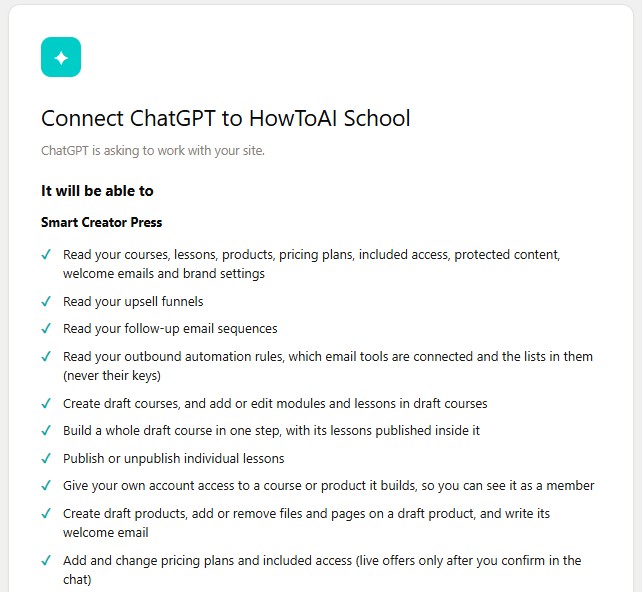
When you see it
It opens by itself at the end of Connect Claude or Connect ChatGPT, and again whenever you reconnect, for example during Test the connection. If you aren’t signed in to WordPress in that browser, WordPress asks you to sign in first and then shows the screen.
What it shows
- The title. “Connect Claude to your site’s name” (or ChatGPT), with the line “Claude is asking to work with your site.” The app’s name comes from where it sends you back afterwards, so nothing else can pretend to be Claude or ChatGPT.
- It will be able to. Everything the app can do, in plain words, grouped by area when there is more than one: Pages and posts, SEO audit, AI Team inbox, Team memory, and each Smart plugin you have turned on, such as Smart Creator Press. For example: “Create draft pages and posts, and edit drafts” or “Send drafts to your AI Team inbox for review”.
- It won’t be able to. What it can never do. For example: “Delete or trash pages, posts or media”, “Edit a page or post that is already published, scheduled, pending or private”, “Change settings, menus, themes, users, roles or plugins” and “Approve, reject, publish or schedule anything in the inbox”. The list always ends with “See or change your WordPress password or anyone’s login details”.
- Acting as. The line at the bottom names the WordPress user who approves, for example “Acting as Jane (jane). Every action is logged. Disconnect any time in HowToAI School Connector, under Settings, Connections.”
- Two buttons. Approve connects the app and sends you back to it. Deny stops here and tells the app you said no.
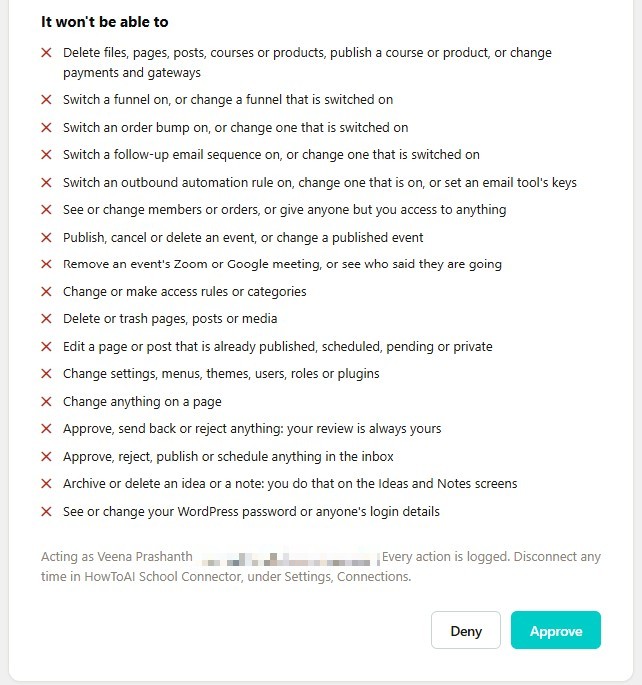
Who the app acts as
The app works as the WordPress user who clicked Approve, so it can only do what that person is allowed to do. One line in the list makes this clear: publishing a draft is for administrators only, and everyone else’s work waits for approval in your AI Team inbox. Your AI employees always send their work to the inbox, where you review it before anything goes live.
Tip: Want the app to work with less access? Approve it while signed in as a user with a smaller role, such as the HowToAI Content Agent role, which can write drafts but never publish.
When it won’t let you approve
Sometimes the screen shows a message and only a Cancel button:
- “You’re signed in as name, who doesn’t have permission to connect AI apps.” Administrators and the HowToAI Content Agent role can always approve. Other roles can only if they are turned on under Who can approve a connection in Settings → Connections. Sign in as an administrator, or ask one to add your role.
- “Sorry, your HowToAI School Connector license has expired or isn’t active, so AI apps can’t be connected.” Click Add license key, activate your key, then start the connection again from Claude or ChatGPT. See Activate your license.
- “Connection request stopped” with a reason. The request was out of date or came from an app the site doesn’t know. Go back to Claude or ChatGPT and start connecting again.
After you approve
- The app opens again and shows your website as connected.
- In Getting started step 2, the app’s row now says Connected.
- The app appears under Connected apps in Settings → Connections, with who approved it and when it was last used. Every action it takes is listed under Recent activity.
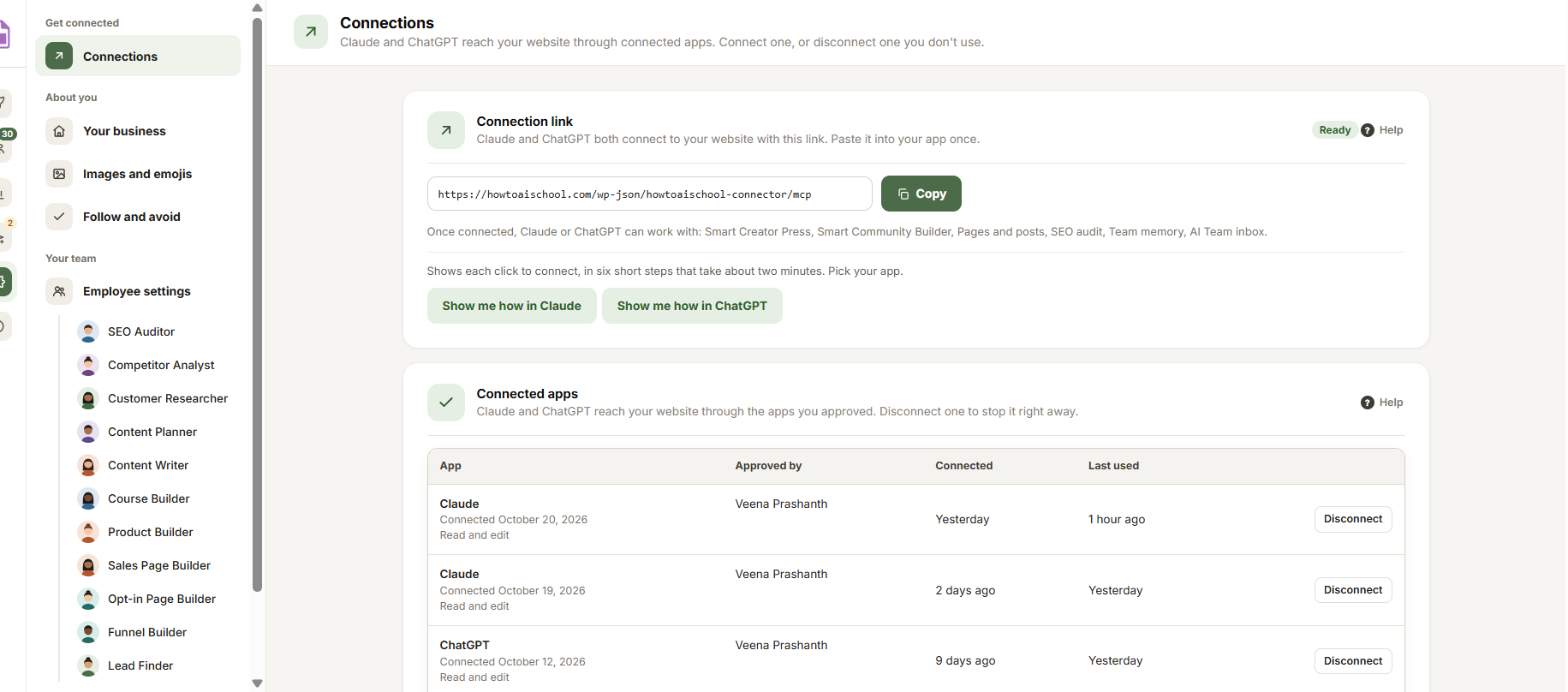
Good to know: If the screen says “An app that sends you back to an address is asking to work with your site” instead of naming Claude or ChatGPT, only continue if you started this yourself. Otherwise click Deny. You can disconnect any app at any time in Settings → Connections.


